How to Fix Proxy Connection Failed Errors in 2026
Getting a "proxy connection failed" error? Diagnose and fix the real cause fast — credentials, ports, whitelisting, firewalls, and banned IPs.
![How to Fix Proxy Connection Failed Errors in [year]](/_next/image?url=https%3A%2F%2Fmccjemjghcyvrervacap.supabase.co%2Fstorage%2Fv1%2Fobject%2Fpublic%2Fblog-images%2Fhow-to-fix-proxy-connection-failed-errors-1-mqyvv0cn.webp&w=3840&q=75)
Few things stall a scraping job or a multi-account workflow faster than a blunt "proxy connection failed" error. It gives you almost no detail, yet it can stem from a dozen different causes — a single wrong character in your password, a blocked port, an un-whitelisted IP, or a proxy that has simply been banned by the target.
The error is more common than most teams admit. In production scraping, transient connection failures account for an estimated 15–30% of all failed requests before retry logic kicks in, and a misconfigured proxy can push that figure far higher. Each failed connection wastes bandwidth, slows jobs, and inflates costs.
The good news: nearly every "proxy connection failed" error traces back to a short list of root causes, and each has a clear fix. This guide walks through them in diagnostic order — from the 30-second credential check to deeper firewall and ban issues — so you can get reconnected fast and keep it that way.
What "Proxy Connection Failed" Actually Means
The message is a catch-all. At its core it means your client opened a request expecting to route through a proxy server, but the tunnel was never successfully established or was dropped before a response returned.
That failure can happen at several layers: the network can't reach the proxy host, the proxy refuses your credentials, the target rejects the proxy's IP, or a firewall silently drops the packets. Because the symptom looks identical in each case, diagnosis is about elimination.
Work through the causes from most common and cheapest to check, to least common and hardest. Ninety percent of failures are resolved in the first three steps below — usually a credential typo, a wrong port, or an IP that needs whitelisting.
The Most Common Causes at a Glance
Before diving into fixes, use this table to match your symptom to its likely cause. It will tell you which section to jump to first.
| Symptom | Likely Cause | Fix Section |
|---|---|---|
| 407 Proxy Authentication Required | Wrong username, password, or auth method | Check Credentials |
| Connection refused / timeout | Wrong host, port, or protocol | Verify Endpoint |
| Works elsewhere, fails on your network | IP not whitelisted | Whitelist Your IP |
| Intermittent drops | Firewall or antivirus interference | Firewall & Antivirus |
| 403 / CAPTCHA on target only | Proxy IP blocked or banned | Rotate Banned IPs |
Step 1: Verify Your Proxy Credentials
The single most frequent cause is a bad username or password. A trailing space, a swapped character, or an expired token will all produce a 407 Proxy Authentication Required error that masquerades as a connection failure.
Copy your credentials directly from the provider dashboard rather than retyping them. Confirm you're using the correct authentication method — username/password versus IP whitelisting — since mixing the two is a classic mistake. Some providers also require the username to encode the country or session, like user-country-us.
Test the credentials in isolation with a quick curl command. If this returns your proxy IP, the credentials are valid and the problem lies elsewhere:
curl -x http://user:pass@proxy-host:port -s https://httpbin.org/ip
Step 2: Verify the Host, Port, and Protocol
A connection that times out or is refused usually means the client is pointed at the wrong endpoint. Double-check the exact hostname and port from your dashboard — residential, datacenter, and mobile endpoints often use different ports on the same provider.
Protocol mismatches are equally common. Sending an HTTPS request through a port that only speaks SOCKS5 will fail every time. Confirm whether your provider expects HTTP, HTTPS, or SOCKS5 on that port and configure your client to match.
If the port is correct but still refused, test basic reachability with telnet proxy-host port or nc -zv proxy-host port. A failure here points to a network-level block rather than a proxy misconfiguration — move on to the firewall step.
Step 3: Whitelist Your IP Address
Many providers secure access by IP whitelisting instead of, or in addition to, username/password auth. If your proxy works from one machine but fails from another, an un-whitelisted IP is almost always the cause.
Log into your provider dashboard and add your current public IP to the authorized list. Remember that home and office IPs are often dynamic — if your ISP rotates your address, yesterday's whitelist entry may no longer match. Re-check your IP whenever connections suddenly start failing.
For cloud servers and CI runners, whitelist the static egress IP of that environment, not your laptop's. Teams running distributed scrapers should prefer credential-based auth over whitelisting precisely because IPs change too often to maintain.
Step 4: Check Firewalls and Antivirus
Corporate networks, local firewalls, and aggressive antivirus suites frequently block non-standard proxy ports. If telnet or nc can't reach the proxy port but the credentials are valid, something between you and the proxy is dropping the traffic.
Temporarily disable local firewall or antivirus rules to test, then re-enable them with an explicit allow rule for the proxy host and port. On corporate networks you may need to ask IT to open the outbound port, since many block everything except 80 and 443 by default.
VPNs and other proxies running simultaneously can also conflict. Disable any system-wide VPN while testing — a double tunnel often produces exactly this kind of silent connection failure.
Step 5: Rotate Banned or Dead IPs
If the connection succeeds but the target returns a 403, a CAPTCHA, or an empty body, the proxy IP itself has likely been flagged or banned. This isn't a configuration error — the IP's reputation is the problem.
Switch to a fresh IP from the rotating pool, or request a new sticky session. Persistent bans on a whole subnet suggest the pool quality is too low for your target; residential proxies are far harder to block than datacenter IPs on protected sites. To confirm an IP is genuinely dead versus banned, run it through our guide on testing proxy speed and success rate.
If you're routinely burning through IPs against a tough target, the fix may be a better provider rather than more retries. The mini-listicle below highlights pools with the IP reputation to survive aggressive anti-bot systems.
Reliable Proxy Providers That Minimize Connection Errors
Connection failures often trace back to a low-quality pool. These four providers combine high uptime, clean IP reputation, and responsive dashboards that make credential and whitelist issues easy to resolve — browse more in our proxy provider directory.
1Decodo

Best for teams that want fewer failed connections out of the box, Decodo runs a 115M+ IP pool at a 99.99% uptime with a clear dashboard for managing whitelists and sub-users. Its sticky-session controls reduce mid-job drops.
The self-serve auth setup makes credential errors rare, and its sub-second response times keep timeouts low. For mixed scraping and automation workloads, it is one of the most stable options available.
2Oxylabs

Ideal for connection stability, Oxylabs runs a 102M+ residential pool alongside dedicated ISP proxies, so traffic routes through clean, static-style IPs that cut the variability behind intermittent failures. Its enterprise-grade infrastructure keeps dropped tunnels rare.
The premium network is built for always-on business workloads, so persistent sessions hold steady. If your main pain is flaky, intermittent connections, Oxylabs gives you the reliability to fix it.
3IPRoyal

Great for budget-conscious users, IPRoyal pairs non-expiring residential traffic with straightforward auth that sidesteps most credential headaches. Its 32M+ pool across 195 countries keeps banned-IP rotation simple.
The pay-as-you-go model means you can troubleshoot and test without burning a monthly commitment. For freelancers and small teams, it is a dependable, low-friction choice.
4Webshare

Best for developers who want to debug on a free tier, Webshare offers 10 free proxies and a clean API for programmatic whitelist and credential management. Its self-serve tooling makes diagnosing connection errors painless.
Datacenter speeds are excellent and the dashboard surfaces auth settings clearly. For quick troubleshooting and small-scale projects, it is the easiest provider to get reconnected with.
Common Mistakes to Avoid When Fixing Proxy Errors
Most prolonged proxy outages aren't caused by the provider — they're caused by avoidable troubleshooting mistakes. Steer clear of these.
1Blindly Retrying Without Diagnosing
Hammering a failing proxy with automatic retries wastes bandwidth and can get your IP rate-limited or banned faster. If the first few requests fail identically, stop and diagnose the root cause before retrying. Retries fix transient blips, not configuration errors.
2Ignoring the Actual Error Code
A 407, a 403, and a timeout each point to completely different problems. Treating them all as a generic "connection failed" means you'll fix the wrong thing. Always read the exact status code or error string — it's the fastest route to the real cause.
3Mixing Authentication Methods
Configuring username/password auth while your dashboard is set to IP whitelisting — or vice versa — guarantees failure. Pick one method per endpoint and make sure your client and dashboard agree. This single mismatch causes a large share of 407 errors.
4Forgetting Dynamic IPs Change
Whitelisting your home IP and assuming it's permanent is a recipe for surprise outages. Consumer ISPs rotate addresses regularly, silently invalidating your whitelist. For anything that runs unattended, use credential auth or whitelist a static cloud egress IP instead.
5Running a VPN and Proxy Together
Layering a system-wide VPN on top of a proxy creates a double tunnel that frequently breaks connections in confusing ways. Unless you intentionally need both, disable the VPN while using proxies — it removes a whole class of hard-to-trace failures.
Best Practices to Prevent Connection Failures
- Validate credentials with a one-line
curltest before wiring a proxy into your application — catch typos in seconds, not after a failed job. - Prefer credential auth over IP whitelisting for distributed or cloud workloads where source IPs change frequently.
- Build smart retry logic that rotates to a fresh IP on failure rather than re-hitting the same dead endpoint.
- Monitor proxy health continuously so you spot a degrading pool before it takes down a production crawl.
- Choose a provider with a clean pool and high uptime — compare options side by side in our comparison tool to avoid recurring errors.
When to Contact Your Provider
If you've verified credentials, endpoint, whitelist, and firewall and connections still fail across multiple IPs, the issue may be on the provider's side — a pool outage, a sub-user limit, or a regional disruption. At that point, gather your evidence and open a ticket.
Include the exact error code, the endpoint you're hitting, a timestamp, and the curl command you used to reproduce it. Providers resolve well-documented tickets far faster than vague "it doesn't work" reports, and a reproducible command removes any ambiguity.
Reputable providers also publish status pages. Check it before troubleshooting for an hour — an ongoing incident explains failures that no amount of client-side fixing will resolve.
Diagnosing Proxy Errors by Status Code
The fastest way to cut troubleshooting time is to read the exact status code the request returns and let it point you straight at the cause. A generic "connection failed" wrapper often hides a precise code underneath, so always log the raw response before you start guessing.
A 407 means authentication — fix your credentials or auth method. A 403 or a CAPTCHA means the proxy connected fine but the target rejected its IP, so rotate to a fresh address. A connection refused points at the wrong host, port, or protocol, while a timeout usually signals a firewall drop or an overloaded pool. A 502 or 503 from the proxy itself indicates a provider-side problem worth a status-page check.
Mapping each code to a layer turns a vague failure into a one-step fix. Keep this mapping in your retry handler too: branch on the code so transient timeouts retry on a new IP while hard auth errors stop and alert instead of looping forever.
Frequently Asked Questions
Conclusion: Diagnose in Order, Fix in Minutes
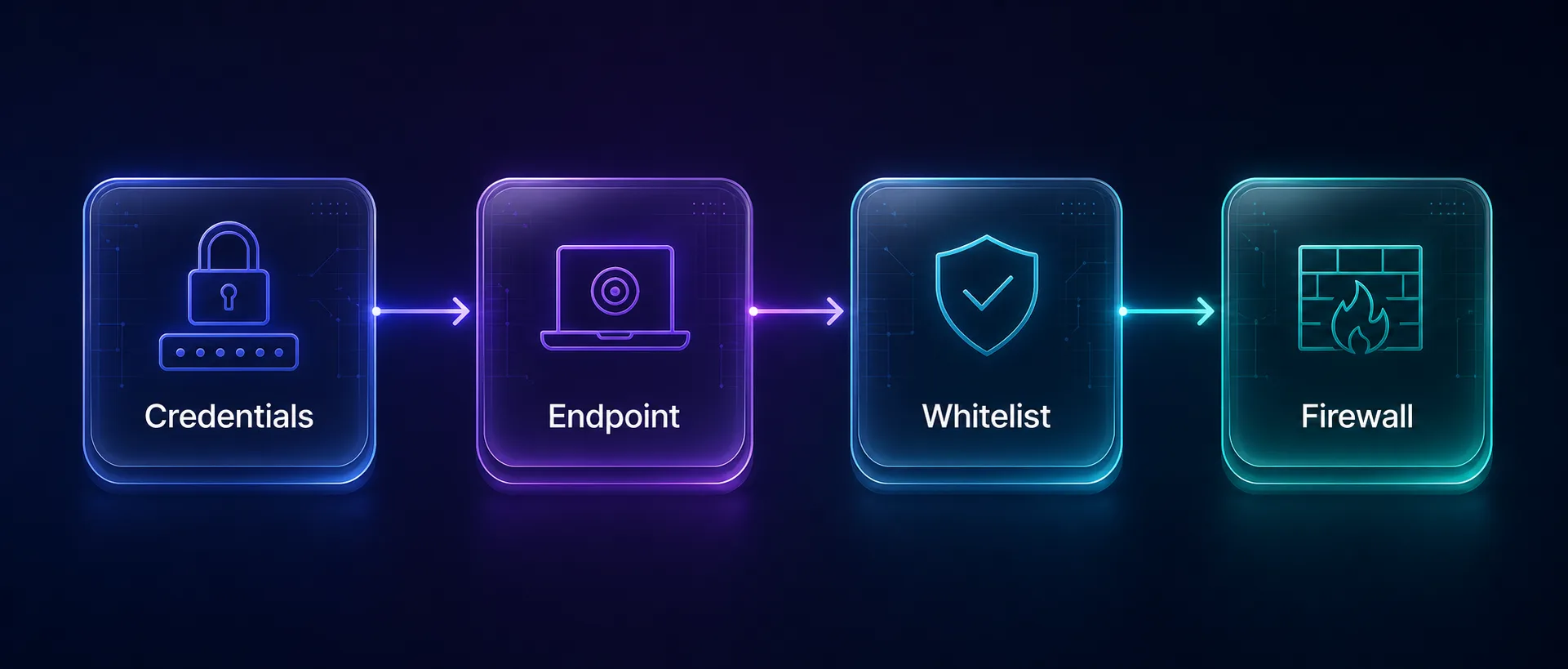
A "proxy connection failed" error feels opaque, but it almost always resolves to one of a handful of causes. Work through them in order — credentials, endpoint, whitelist, firewall, then IP bans — and you'll pinpoint the real problem instead of guessing.
Keep a one-line curl test handy to validate any proxy in seconds, prefer credential auth for anything that runs unattended, and build retry logic that rotates IPs rather than re-hitting dead endpoints. Most failures are configuration issues you can fix in minutes.
If errors persist no matter what you try, the pool quality is likely the culprit. Start with a high-uptime provider from our proxy directory, compare options in our side-by-side tool, and pair them with our guide to testing proxy speed and success rate to keep connections rock solid.
![Best Cloro.dev Alternatives for Search API and AI Agents ([year])](/_next/image?url=https%3A%2F%2Fproxyhorizon.com%2Fcdn%2Fblog-images%2Fbest-cloro-alternatives-1-muhiipeo.webp&w=3840&q=75)
![Best Firecrawl Alternatives to Try in [year]](/_next/image?url=https%3A%2F%2Fproxyhorizon.com%2Fcdn%2Fblog-images%2Fbest-firecrawl-alternatives-1-muhiimue.webp&w=3840&q=75)
![The Best Data Extraction APIs to Try in [year]](/_next/image?url=https%3A%2F%2Fproxyhorizon.com%2Fcdn%2Fblog-images%2Fbest-data-extraction-apis-1-mufdevwh.webp&w=3840&q=75)