How to Set Up a Proxy in Firefox 2026: Full Guide
Learn how to set up a proxy in Firefox in 2026 — manual setup, authenticated and SOCKS5 proxies, FoxyProxy, DNS leak prevention, and how to verify it works.
Here is the thing most proxy tutorials skip: Firefox is the one major browser that does proxies properly. While Chrome and Edge just borrow whatever proxy your operating system uses, Firefox keeps its own settings — so you can route Firefox through a proxy while the rest of your machine stays untouched.
That single design choice makes Firefox the go-to browser for anyone who runs proxies. With Chrome holding most of the market, Firefox's independent proxy stack is a quiet superpower for testing, privacy, scraping, and managing multiple accounts without nuking your whole system's connection.
So this guide is the complete, no-fluff version. You will set up a manual proxy, handle username/password authentication, switch proxies on the fly with FoxyProxy, choose between HTTP and SOCKS5 correctly, and verify it all actually works — plus the mistakes that quietly leak your real IP. Newer to the basics? Skim the types of proxies first.
The Quick Answer
Our take: for a single proxy, use Firefox's built-in setting — open Settings → General → Network Settings → Manual proxy configuration, enter your host and port, and you are done. If you juggle several proxies or want per-site rules, install the FoxyProxy extension instead. Either way, Firefox routes only its own traffic, which is exactly why power users prefer it.
Why Firefox Is the Best Browser for Proxies
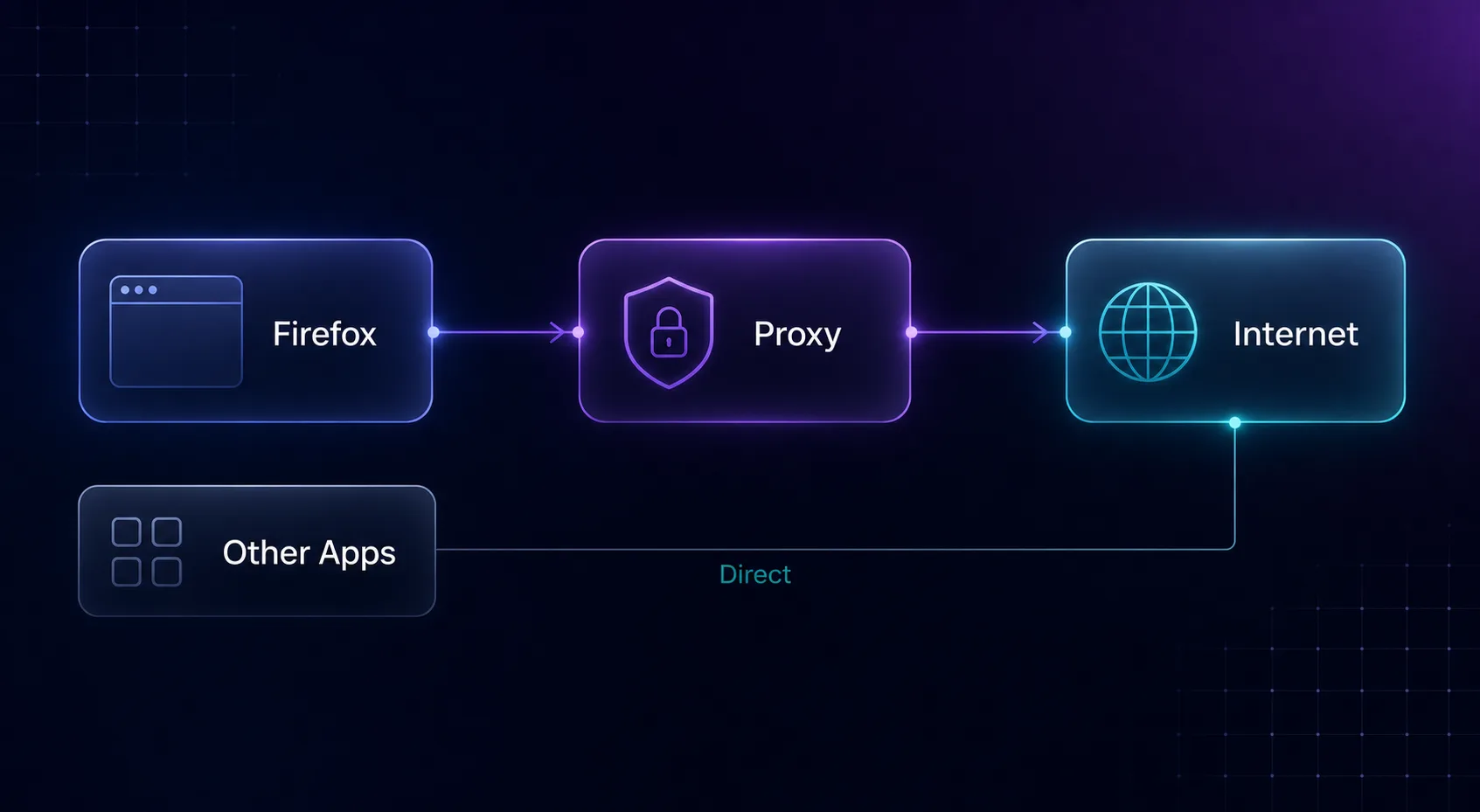
Chrome, Edge, and Safari all defer to the operating system's proxy settings. Change the proxy for Chrome and you have changed it for your entire computer — every app, every background service. Firefox is different: it ships with its own proxy configuration baked in.
The practical payoff is isolation. You can browse through a residential proxy in Firefox for testing or research while your email client, updates, and other browsers keep using your normal connection. That separation is cleaner, safer, and far easier to toggle — and it is why developers, researchers, and multi-account users reach for Firefox.
Before You Start: What You Need
A proxy is just a set of connection details. Before touching any settings, get these from your provider's dashboard:
- IP address / host — e.g.
198.51.100.10orgate.provider.com - Port — e.g.
8080(HTTP) or1080(SOCKS) - Protocol — HTTP/HTTPS or SOCKS5
- Username and password — only if your proxy uses authentication (most paid ones do)
Free proxies skip the credentials but pay you back in slow speeds and dead IPs. For anything real, a paid proxy with auth is worth it — more on the best ones below.
How to Set Up a Proxy in Firefox (Manual Method)
This is the core method and it takes under a minute. Firefox tucks the proxy settings at the very bottom of the General preferences.
- Step 1: Click the menu (☰) and open Settings.
- Step 2: In the General panel, scroll to the bottom to Network Settings and click Settings….
- Step 3: Select Manual proxy configuration.
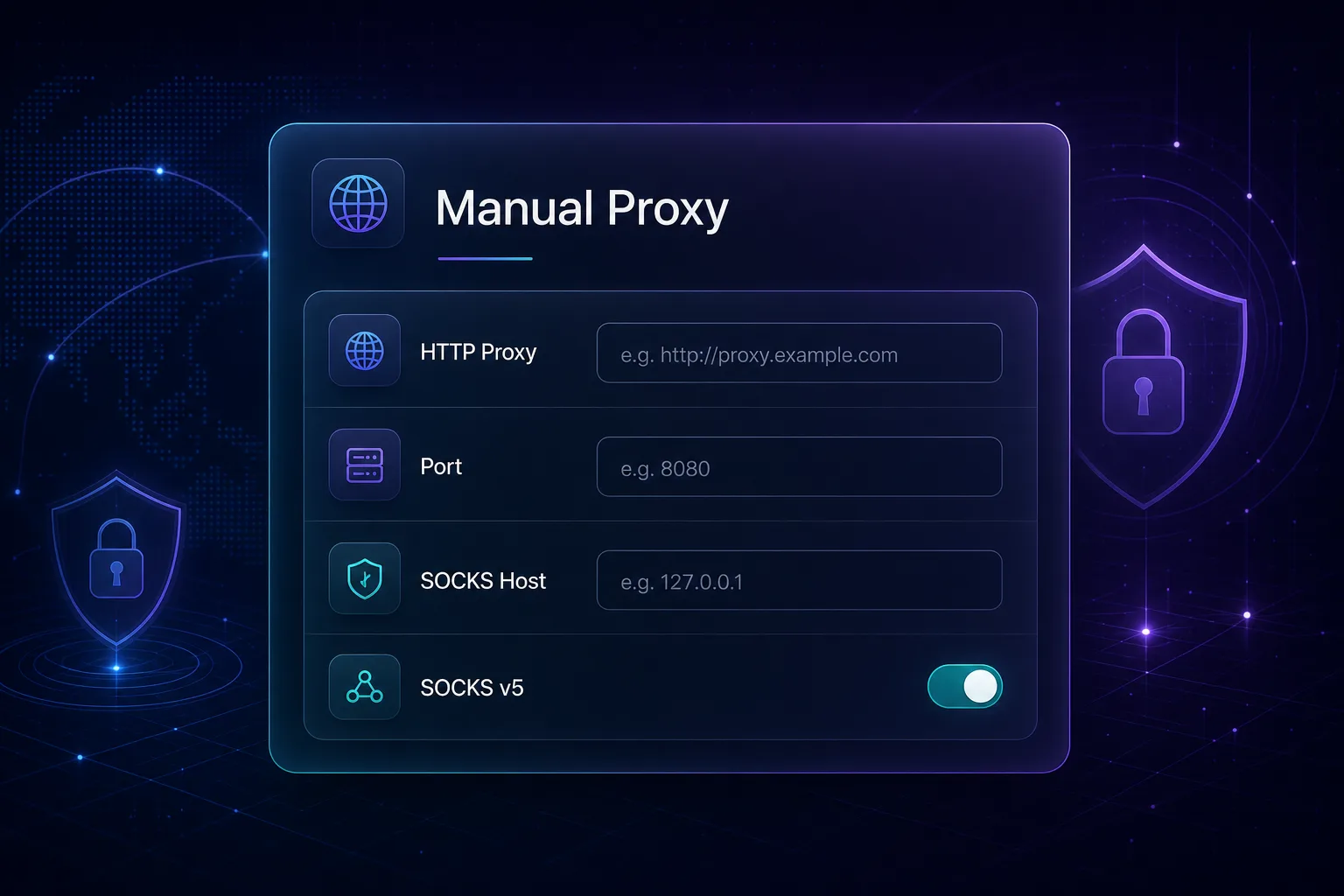
- Step 4: Enter your proxy host in the HTTP Proxy field and the Port next to it.
- Step 5: Tick Also use this proxy for HTTPS so secure sites route through it too.
- Step 6: For a SOCKS proxy, leave HTTP blank and fill the SOCKS Host field instead, then choose SOCKS v5.
- Step 7: Click OK. Firefox is now routing through your proxy.
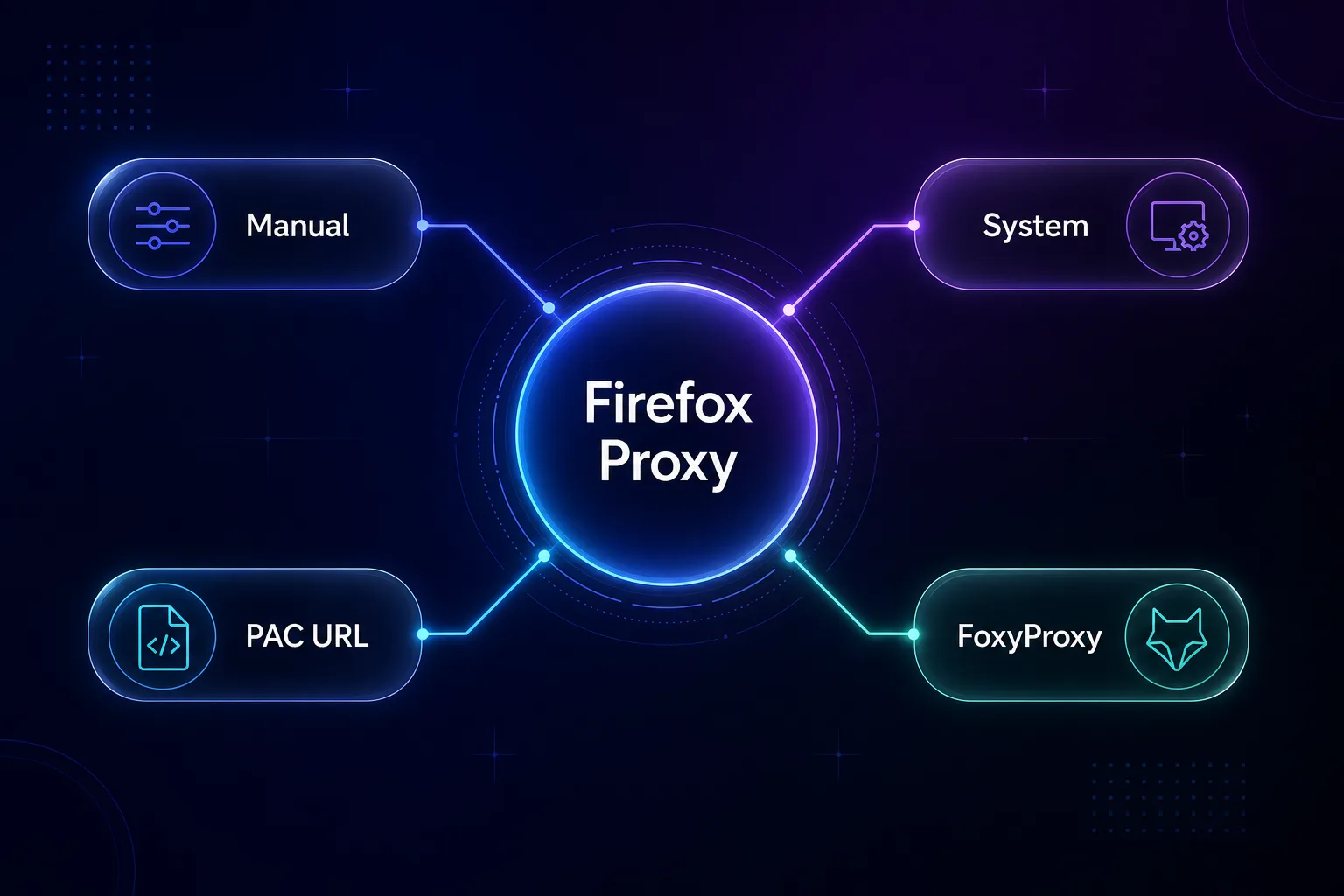
The table below explains every option in that dialog, since the labels are not always obvious.
| Option | What it does |
|---|---|
| No proxy | Direct connection — your real IP |
| Auto-detect | Firefox tries to find a proxy via WPAD (rarely used) |
| Use system proxy settings | Defers to the OS, like Chrome does |
| Manual proxy configuration | You type the host and port — the main method |
| Automatic proxy URL (PAC) | Loads rules from a PAC file at a URL |
How to Use an Authenticated Proxy in Firefox
Most paid proxies require a username and password. The built-in manual settings have no fields for credentials, so Firefox handles auth with a pop-up: the first time you load a page, it asks for your proxy username and password. Enter them and tick remember, and you are set for the session.
The pop-up gets annoying fast if you restart often or rotate proxies. That is where an extension earns its place — FoxyProxy stores credentials per proxy, so you never see the dialog again. For automated setups outside the browser, our guide on setting up proxies in Selenium covers the code-level approach.
Using FoxyProxy: Multiple Proxies and Per-Site Rules
If you manage more than one proxy, the native settings become a chore — you are editing the same dialog over and over. FoxyProxy, a free Firefox add-on, turns proxy switching into one click and unlocks rules the built-in panel cannot do.
Install it from the Firefox Add-ons store, then add each proxy with its host, port, type, and credentials. You can switch proxies from the toolbar instantly, or set URL patterns so specific sites always use a specific proxy while everything else stays direct. For testing geo-content or running research across regions, that per-site control is a genuine time-saver.
SOCKS5 vs HTTP Proxies in Firefox
Firefox supports both, and the right pick depends on the job. HTTP(S) proxies understand web traffic and are the default for browsing and scraping. SOCKS5 is lower-level, handles any kind of traffic, and supports remote DNS — useful for privacy and non-web protocols.
| Factor | HTTP / HTTPS | SOCKS5 |
|---|---|---|
| Best for | Web browsing and scraping | Privacy, mixed traffic |
| Traffic type | Web (HTTP/HTTPS) only | Any protocol |
| DNS handling | Local by default | Can resolve DNS remotely |
| Firefox field | HTTP Proxy | SOCKS Host (v5) |
Real-world tip: when using SOCKS5, tick Proxy DNS when using SOCKS v5. Without it, Firefox resolves domains through your own ISP — a classic DNS leak that quietly reveals which sites you visit even though your IP is hidden.
How to Verify Your Proxy Is Working
Never trust a proxy blindly — a silent failure means your real IP is exposed. After setup, the check takes ten seconds.
Visit an IP-check site like whatismyipaddress.com or ipinfo.io. If it shows the proxy's IP and location instead of yours, it is working. If you still see your own address, recheck the host, port, and protocol — and confirm you did not leave it on a SOCKS field when you meant HTTP. For geo-targeted proxies, verify the country matches what you selected.
Best Proxies to Use With Firefox
Firefox handles the connection; your provider supplies the IPs — and that is where quality lives or dies. Free lists are slow and short-lived, so for real use a paid network with authentication and rotation pays off. These are the providers we rate most highly.
1Decodo

Decodo is our all-round default for Firefox: a large residential pool, clean dashboard, and credentials that drop straight into the manual settings or FoxyProxy. Its balance of price and reliability suits everyone from solo researchers to small teams.
Both rotating and sticky sessions are available, so you can hold one IP for a login or rotate freely for research without changing how Firefox is configured.
2Oxylabs

Oxylabs is the enterprise pick, with a massive network and precise geo-targeting for serious, large-scale work. If you are routing heavy research or scraping traffic through Firefox, its success rates and support justify the higher price.
It costs more than budget options, so it is overkill for casual browsing — but unbeatable when reliability at scale actually matters.
3IPRoyal

IPRoyal is the value champion, well known for non-expiring residential traffic that suits occasional Firefox sessions where you do not want unused data vanishing each month.
With approachable pricing and both rotating and sticky options, it is a great fit for individuals and smaller projects that still want real residential quality.
4Webshare

Webshare is the budget-friendly developer favorite, with a free tier that is perfect for testing your Firefox proxy setup before spending anything. Its clean dashboard makes copying host and port effortless.
Start on the free datacenter plan to learn the workflow, then upgrade to residential when target sites begin pushing back.
How to Choose Your Firefox Proxy Setup
The methods above cover everyone; these questions narrow it to you.
1One proxy or many?
Using a single proxy all the time? The built-in manual settings are perfect. Switching between several or wanting per-site rules? Install FoxyProxy — it is built for exactly that.
2HTTP or SOCKS5?
For everyday browsing and scraping, HTTP(S) is the simple default. Choose SOCKS5 when you want remote DNS resolution or need to route non-web traffic. When unsure, start with HTTP.
3Datacenter or residential IPs?
Casual, lenient sites are fine on cheap datacenter IPs. For sites that detect and block bots, you will want residential proxies that look like ordinary home users.
Common Mistakes to Avoid
Most Firefox proxy headaches come down to these.
1Forgetting the HTTPS checkbox
If you fill the HTTP Proxy field but skip Also use this proxy for HTTPS, secure sites (which is nearly all of them) bypass the proxy. Always tick it for HTTP proxies.
2Leaving a DNS leak open
On SOCKS5, failing to enable Proxy DNS when using SOCKS v5 sends your lookups through your ISP, exposing the sites you visit. It defeats half the point of the proxy.
3Mixing up the HTTP and SOCKS fields
Putting a SOCKS proxy in the HTTP field (or vice versa) silently fails. Match the proxy to its correct field and protocol version.
4Never verifying the IP
If you do not check an IP site after setup, you will not notice when the proxy quietly fails and your real address is in play. Always confirm.
5Relying on free proxies
Free proxies are overcrowded, slow, often already banned, and sometimes outright malicious. Fine for a one-off test, a liability for anything real.
Tips for the Best Firefox Proxy Experience
- Use FoxyProxy for anything beyond a single static proxy — switching and credentials become painless.
- Always verify the exit IP after every change with an IP-check site.
- Enable remote DNS on SOCKS5 to close the most common leak.
- Match the IP type to the target — datacenter for speed, residential for stealth.
- Pick a quality provider — compare options in our proxy directory and test on a free tier first.
Advanced: Using a PAC File for Smart Proxy Rules
If you want different proxies for different sites without an extension, Firefox can load a PAC file (Proxy Auto-Config) — a small JavaScript file that decides, per request, which proxy to use. Choose Automatic proxy configuration URL in Network Settings and point it at your PAC file.
A PAC file is just one function. This example sends only example.com through a SOCKS5 proxy and everything else direct:
function FindProxyForURL(url, host) {
  if (shExpMatch(host, "*.example.com")) {
    return "SOCKS5 198.51.100.10:1080";
  }
  return "DIRECT";
}
Our take: PAC files are powerful for fixed, rule-based routing on shared machines, but for day-to-day switching most people are happier with FoxyProxy's visual rules. Reach for PAC when you want the logic version-controlled or deployed across a team.
Firefox Proxy vs VPN: Which Should You Use?
People often ask whether a proxy or a VPN is the better choice in Firefox. They solve overlapping but different problems, and the honest answer is "it depends on the job."
A proxy in Firefox reroutes only your browser traffic and is ideal for changing your IP for testing, scraping, geo-checks, or managing accounts — fast, granular, and per-browser. A VPN encrypts all traffic from your entire device and is better for privacy and security on untrusted networks. If you only need to change your browser's IP for a task, a proxy is lighter and more precise; if you want full-device encryption, use a VPN. Many power users run both — a VPN for the machine and a Firefox proxy for targeted work.
Frequently Asked Questions
The Bottom Line
Setting up a proxy in Firefox is quick, and the browser rewards you for it. Because Firefox keeps its own proxy settings separate from the operating system, you get clean isolation that Chrome simply cannot match — route Firefox through any proxy while the rest of your machine carries on as normal.
For one proxy, the built-in manual settings are all you need. For several, install FoxyProxy and switch with a click. Either way, pick the right protocol, enable remote DNS on SOCKS5, and always verify your exit IP before trusting it.
The setup is only as good as the IPs behind it, so choose a provider that keeps up: compare options in our proxy directory, and if you also automate browsers, see our guides on using proxies in Playwright and web scraping with Selenium.
Keep Reading
More articles you might enjoy