How to Scrape JavaScript-Rendered Websites (2026 Guide)
Learn how to scrape JavaScript-rendered websites the smart way: find embedded JSON, call the hidden API, and use a headless browser only when you must, with code and cost trade-offs.

You open a product page in Chrome and the prices are right there. You fetch the same URL with Python and get back a page with no prices, no products and a pile of <script> tags. Your selectors return nothing.
That’s a JavaScript-rendered website. The server sends a nearly empty shell, and the browser builds the real content after the page loads.
The fix isn’t always “use a headless browser”. In most cases there’s a faster, cheaper route hiding in plain sight. This guide shows you how to spot it, when you genuinely need a browser, and what each route costs you in speed and proxy bandwidth.
- JavaScript-rendered sites send a near-empty HTML shell and build the content in the browser.
- Check the page source first: the data may already be there as embedded JSON.
- Next, find the hidden JSON API in DevTools and call it directly.
- Use a headless browser only when the first two routes fail.
- Browsers are slower and download far more data, so block assets and wait for elements, not timers.
What Is a JavaScript-Rendered Website?
A JavaScript-rendered website is one where the content you care about is added to the page by JavaScript running in the browser, not included in the HTML the server first sends.
Google’s own JavaScript SEO guide calls this the app shell model: the initial HTML doesn’t contain the actual content, and JavaScript has to run before the page shows it. Even Googlebot handles these pages in a separate rendering step with a headless Chromium.
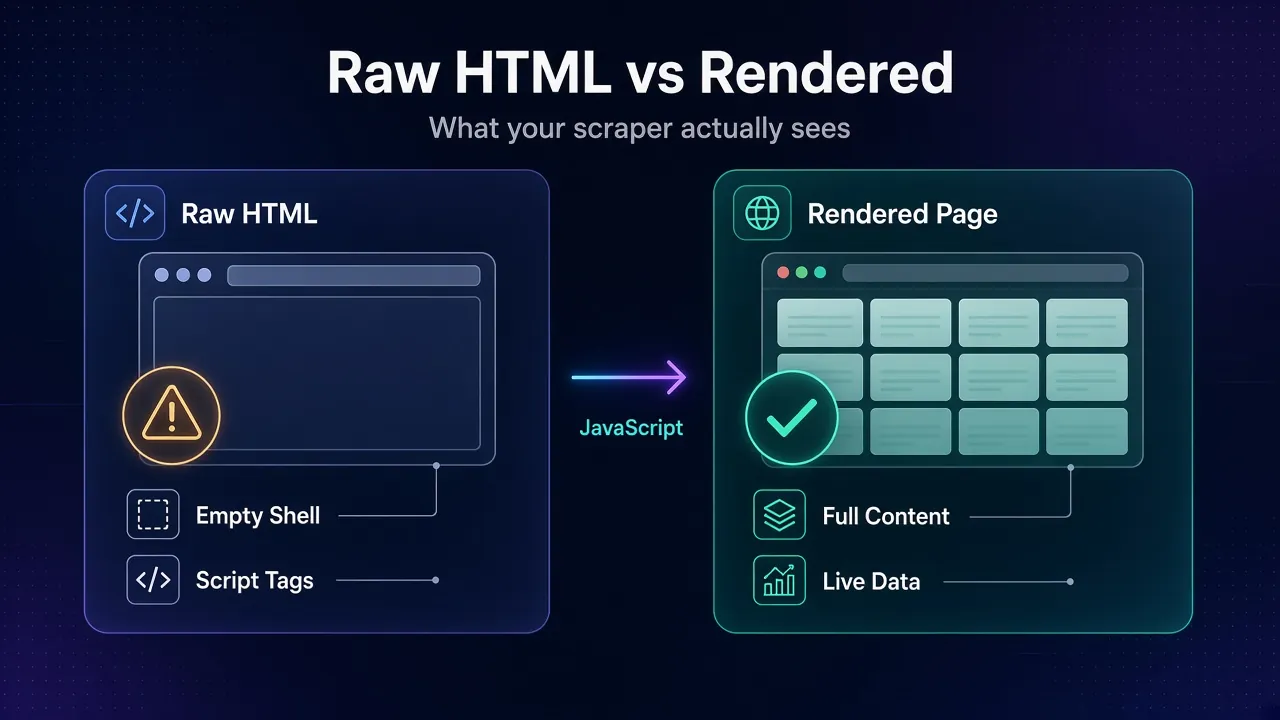
A plain HTTP client like Requests or curl downloads that first HTML and stops. It never runs the scripts, so it never sees the data they fetch.
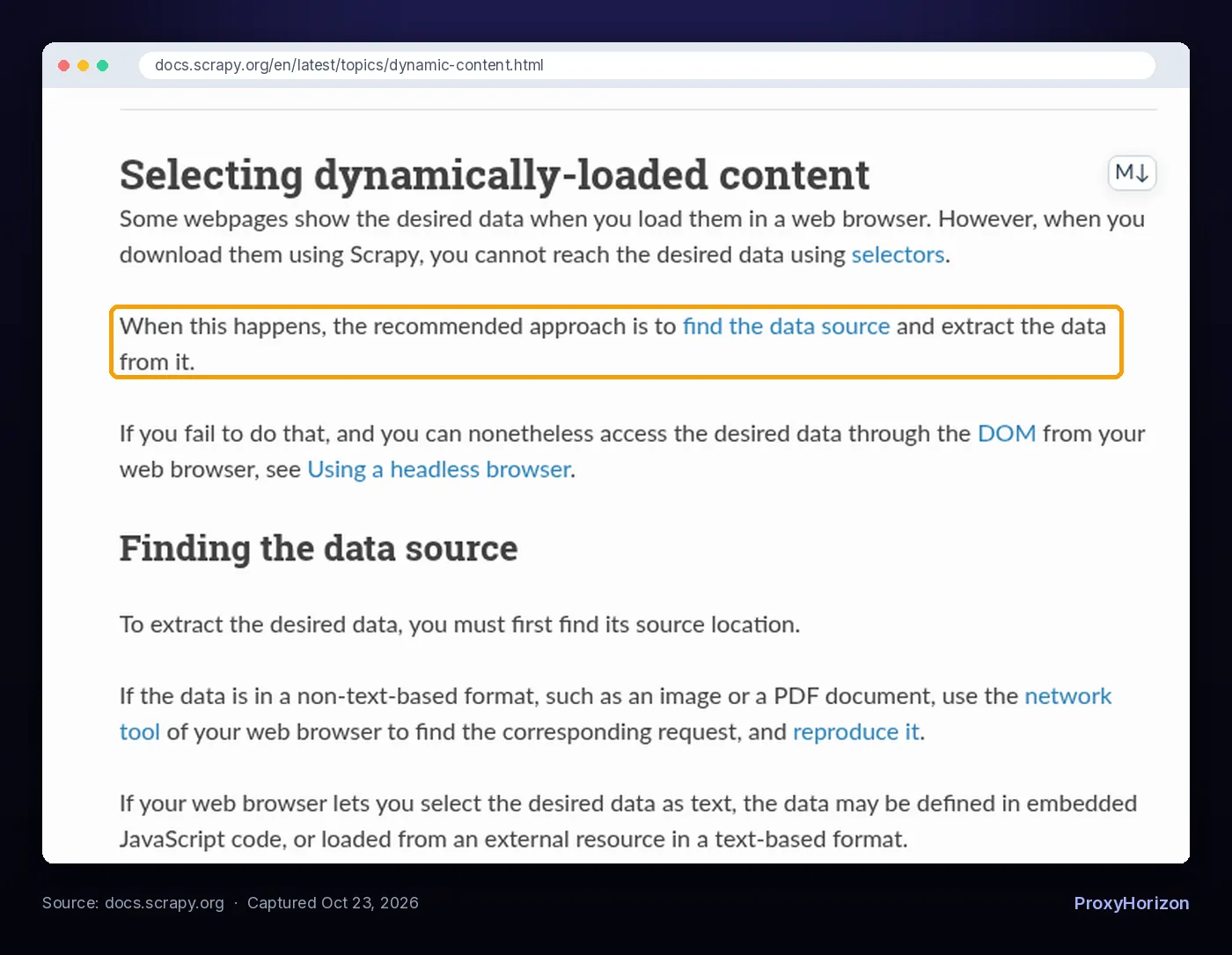
The key insight is that the data has to come from somewhere. JavaScript doesn’t invent prices. It either reads them from inside the page or downloads them from another URL. If you can find that source, you can usually skip the browser entirely.
How to Tell If a Page Needs JavaScript
Before you change tools, confirm the problem. These checks take two minutes:
- View the page source, not the inspector. Press Ctrl+U (Cmd+Option+U on a Mac) and search for a value you can see on screen, like a price or product name. The Elements panel shows the live DOM after JavaScript runs, so it will always “have” the data.
- Fetch it the way your scraper does. Run
curlon the URL and search the output. The Scrapy docs suggest exactly this: if curl gets the data and your scraper doesn’t, match its headers and user agent before blaming JavaScript. - Disable JavaScript in your browser and reload. If the content disappears, it’s rendered client-side.
If the value is in the page source, you don’t have a JavaScript problem. You have a selector problem, and a normal HTTP request will do. If it isn’t there, work through the routes below in order.
Route 1: Find the Data Already in the Page
Many modern sites ship their data inside the HTML as JSON so the JavaScript can render it instantly. It isn’t visible as text, but it’s in the source.
Search the page source for your target value again, this time inside <script> tags. Common patterns include a <script type="application/json"> block, a <script type="application/ld+json"> block with structured product data, or a variable assignment like window.__STATE__ = {...}.
The Scrapy documentation covers this case directly. If the data is hardcoded in JavaScript, pull out the script text, then use a regular expression and json.loads(), or a parser like chompjs for JavaScript objects that aren’t strict JSON.
import json
import re
import requests

html = requests.get("https://example.com/product/123", timeout=30).text

match = re.search(
    r'<script id="product-data" type="application/json">(.*?)</script>',
    html,
    re.S,
)
data = json.loads(match.group(1))
print(data["name"], data["price"])
The script ID and keys here are placeholders. Open the real page source to find what your target site uses, and prefer a proper HTML parser over regex once the pattern is stable.
This is the cheapest route there is. You make one request, download only the HTML, and get clean structured data with no rendering.
Route 2: Call the Hidden JSON API
If the data isn’t in the page, the JavaScript is downloading it from somewhere else, usually a JSON endpoint. That endpoint is often the best thing you can scrape.
Here’s how to find it with Chrome DevTools:
- Open DevTools (F12) and go to the Network panel.
- Click the Fetch/XHR filter so you only see data requests, and tick Preserve log so requests survive page navigations.
- Reload the page, or scroll and click whatever loads the data, like “Load more” or the next page button.
- Click each request and check its Preview or Response tab until you find the one holding your data.
- Right-click it and choose Copy then Copy as cURL. Chrome’s Network panel reference also offers Copy as fetch and Copy as PowerShell.
Paste that cURL command into a terminal and check you get the same JSON. Then strip headers one at a time to find which ones the server actually needs. Scrapy users can turn it straight into a request with Request.from_curl().
import requests

url = "https://example.com/api/products"
params = {"category": "laptops", "page": 1}
headers = {
    "User-Agent": "Mozilla/5.0",
    "Accept": "application/json",
    "Referer": "https://example.com/laptops",
}
proxies = {
    "http": "http://USER:PASS@proxy.example.com:8000",
    "https": "http://USER:PASS@proxy.example.com:8000",
}

resp = requests.get(url, params=params, headers=headers,
                    proxies=proxies, timeout=30)
resp.raise_for_status()
for item in resp.json()["items"]:
    print(item["title"], item["price"])
Watch for the parameters that control paging, like page, offset or a cursor token, and loop over them. Some APIs use POST with a JSON body, especially GraphQL endpoints, so copy the method and body too.
Scrapy’s docs call reproducing these requests the preferred approach, because you get structured, complete data with minimal parsing time and network transfer. If you need a refresher on routing these calls through a proxy, our guide to using proxies with Python Requests covers every pattern.
1When the Hidden API Fights Back
Some endpoints need more than a copied URL. Common blockers include short-lived tokens generated by JavaScript, signed request parameters, cookies set during the first page load, and bot checks that only pass in a real browser.
You can sometimes fetch the page first to collect cookies and tokens, then call the API with a session.
If a request only works intermittently, the Scrapy docs note the problem is probably the server being overloaded or banning some of your requests rather than your code. When the token logic is buried in obfuscated scripts, it’s usually time for Route 3.
Route 3: Render the Page in a Headless Browser
A headless browser is a real browser engine, like Chromium, that runs without a visible window and can be controlled by code. It runs the JavaScript, builds the page, and lets you read the final DOM. Our explainer on what headless browsing is covers the basics.
Use it when the data only appears after complex client-side logic, when you need to click, scroll or log in to reveal content, or when you need a screenshot. Playwright is the usual choice today, and Scrapy’s docs recommend the scrapy-playwright plugin if you want it inside a Scrapy project.
from playwright.sync_api import sync_playwright

with sync_playwright() as p:
    browser = p.chromium.launch(proxy={
        "server": "http://proxy.example.com:8000",
        "username": "USER",
        "password": "PASS",
    })
    page = browser.new_page()

    # Skip images, fonts and media to save time and bandwidth
    page.route("**/*", lambda route: route.abort()
               if route.request.resource_type in ("image", "font", "media")
               else route.continue_())

    page.goto("https://example.com/laptops")
    page.locator(".product-card").first.wait_for()

    for card in page.locator(".product-card").all():
        print(card.locator(".title").inner_text(),
              card.locator(".price").inner_text())
    browser.close()
The proxy option and the request-blocking pattern both come from Playwright’s network documentation. You can also set a proxy per browser context instead of for the whole browser, which is handy when each session needs a different IP.
1Wait for the Data, Not the Clock
The most common mistake is reading the page before the data arrives, then “fixing” it with time.sleep(5). Fixed sleeps are slow when the page is fast and flaky when it’s slow.
- Wait for an element:
locator.wait_for()returns as soon as your target appears. - Wait for the API response: wrap the click or navigation in
page.expect_response("**/api/products*")and read the JSON straight from the response. This combines Route 2 and Route 3: the browser handles tokens, and you still get clean data. - Avoid
networkidleas your main signal. Playwright’s API docs mark it as discouraged. It waits for no network connections for at least 500 ms, which can hang on pages with analytics, chat widgets or live updates.
For a full walkthrough of selectors, pagination and scaling, see our Playwright web scraping guide. If you’re choosing a framework, we compare Playwright vs Puppeteer for scraping.
Speed and Cost: How the Routes Compare
The route you choose decides how fast your scraper runs, how much server power it needs, and how many GB of proxy bandwidth it burns.
What Each Route Downloads per Page
Median desktop sizes, July 2025 crawl
View data
| Median KB | |
|---|---|
| HTML document only | 35 KB |
| Inner page, full browser load | 1,963 KB |
The HTTP Archive’s 2025 Web Almanac puts the median desktop HTML document at 35 KB, while a median desktop inner page weighs 1,963 KB when fully loaded. Routes 1 and 2 download something close to the first number. A browser that loads everything downloads something close to the second.
| Embedded JSON | Hidden API | Headless browser | |
|---|---|---|---|
| Speed | Fastest | Fast | Slowest |
| Data downloaded | One HTML page | JSON only | HTML, scripts, styles and more |
| Server resources | Minimal | Minimal | A full browser per session |
| Breaks when | Page markup changes | API or tokens change | Layout or selectors change |
| Best for | Product and article pages | Listings, search, infinite scroll | Complex apps, logins, screenshots |
On residential proxies sold per GB, that gap is real money. Our proxy bandwidth calculator guide shows how to estimate it before you buy. If you do need a browser, blocking images and fonts as shown above cuts a large slice of each load.
Browser traffic also looks different from plain HTTP traffic to anti-bot systems, in both good and bad ways. We break that down in how browser automation traffic differs from normal HTTP requests.
Picking the Right Route
Work through the options in order and stop at the first one that works.
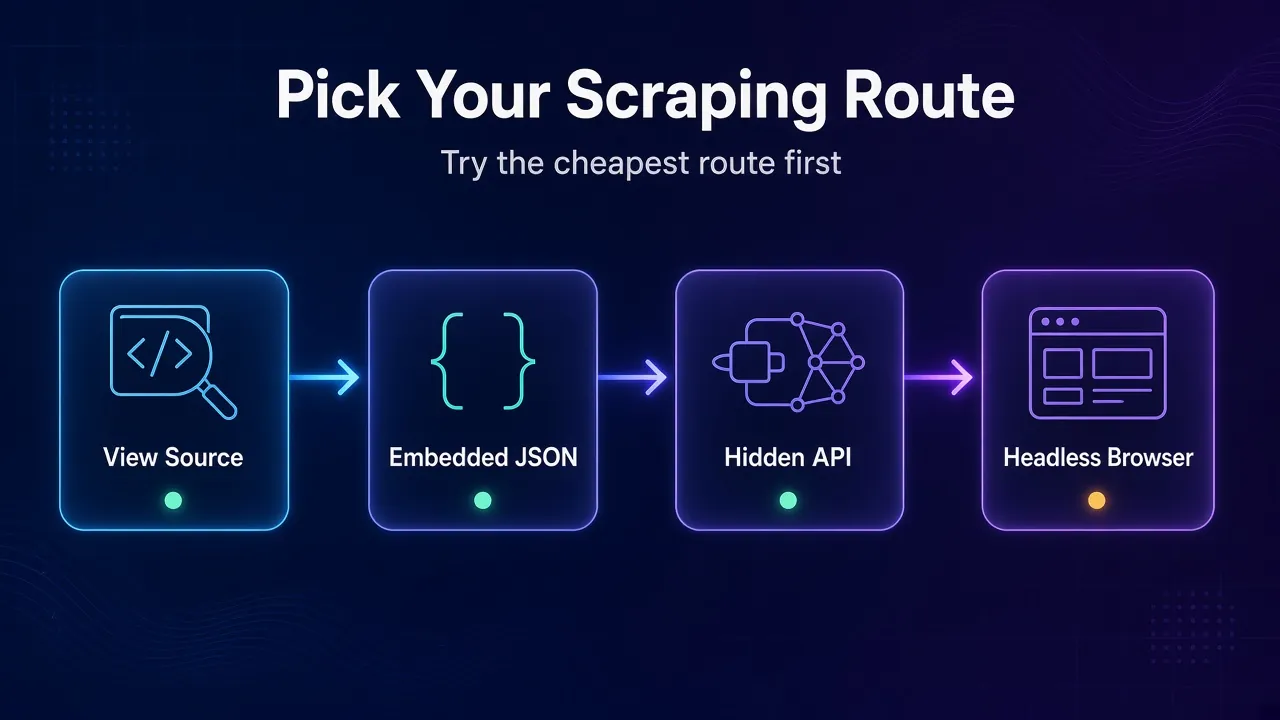
- Data in the page source? Parse it with a normal HTTP request.
- Data in a script tag as JSON? Extract and parse the JSON.
- Data loaded from an API you can reproduce? Call it directly with Requests or Scrapy.
- API protected by tokens or bot checks? Use a browser, but capture the API response with
expect_response. - Need clicks, logins or screenshots? Use a headless browser and block the assets you don’t need.
A hybrid often wins at scale: use a browser once to collect cookies or tokens, then make fast HTTP calls with them until they expire.
Proxies and Blocks on JavaScript-Heavy Sites
JavaScript-heavy sites are often the same sites that run serious bot protection. Whichever route you pick, a few habits keep you unblocked:
- Match your headers to a real browser when calling hidden APIs, including
RefererandAccept. - Pace your requests. A hidden API answers fast, which makes it easy to hammer. Add delays and respect rate limits.
- Use sticky sessions when tokens are tied to an IP, and rotating IPs for independent page fetches.
- Plan for challenges. If you start seeing CAPTCHA pages, read our guide on handling CAPTCHAs when web scraping.
For protected targets, residential IPs usually pass more often than datacenter ranges. Our list of the best residential proxies for web scraping compares the main networks, and our proxy directory lists every provider we track. Before scraping any site, check its terms and our overview of web scraping legal risk and robots.txt.
Frequently Asked Questions
Find the Data Source First
A JavaScript-rendered page isn’t a dead end for a simple scraper. The data is either sitting in the page as JSON or coming from an API you can call yourself.
Check the source, then the Network panel, and only reach for a headless browser when those routes fail. When you do, wait for the data rather than the clock, and block the assets you don’t need.
Our take: spend ten minutes in DevTools before writing any browser code. It’s the single habit that makes JavaScript scraping faster, cheaper and far less fragile.
Keep Reading
More articles you might enjoy