How to Use Proxifier: The Beginner's Guide (2026)
A beginner's guide to using Proxifier: what it does, how to set it up step by step, proxy rules and chains, the best proxies to pair with it, and common fixes.

Some apps just refuse to use a proxy. They have no proxy settings, ignore your system config, or leak straight to the internet no matter what you do. Proxifier exists for exactly that problem. It sits at the operating-system level and forces any application's traffic through the proxy you choose, whether the app likes it or not.
If you've ever needed to route a desktop app, a game, or a stubborn tool through a proxy and hit a wall, this is the fix. Proxifier is a small, powerful utility for Windows and macOS that gives you per-app control over where your traffic goes.
This guide walks you through what Proxifier does, how to set it up step by step, how proxy rules and chains work, and the proxies worth pairing it with. Let's get you routing traffic in a few minutes.
What Is Proxifier?
Proxifier is a proxy client for Windows and macOS that redirects the network connections of applications through a proxy server. The key word is applications: it works even for software that has no built-in proxy support, because it intercepts traffic at the system level rather than relying on each app's settings.
It supports HTTP, HTTPS, and SOCKS5 proxies, handles authentication, and lets you build rules that decide which apps go through which proxy. If you're new to the underlying tech, our guide on what a proxy server is gives you the foundation, and HTTP vs HTTPS vs SOCKS5 explains the protocols Proxifier speaks.
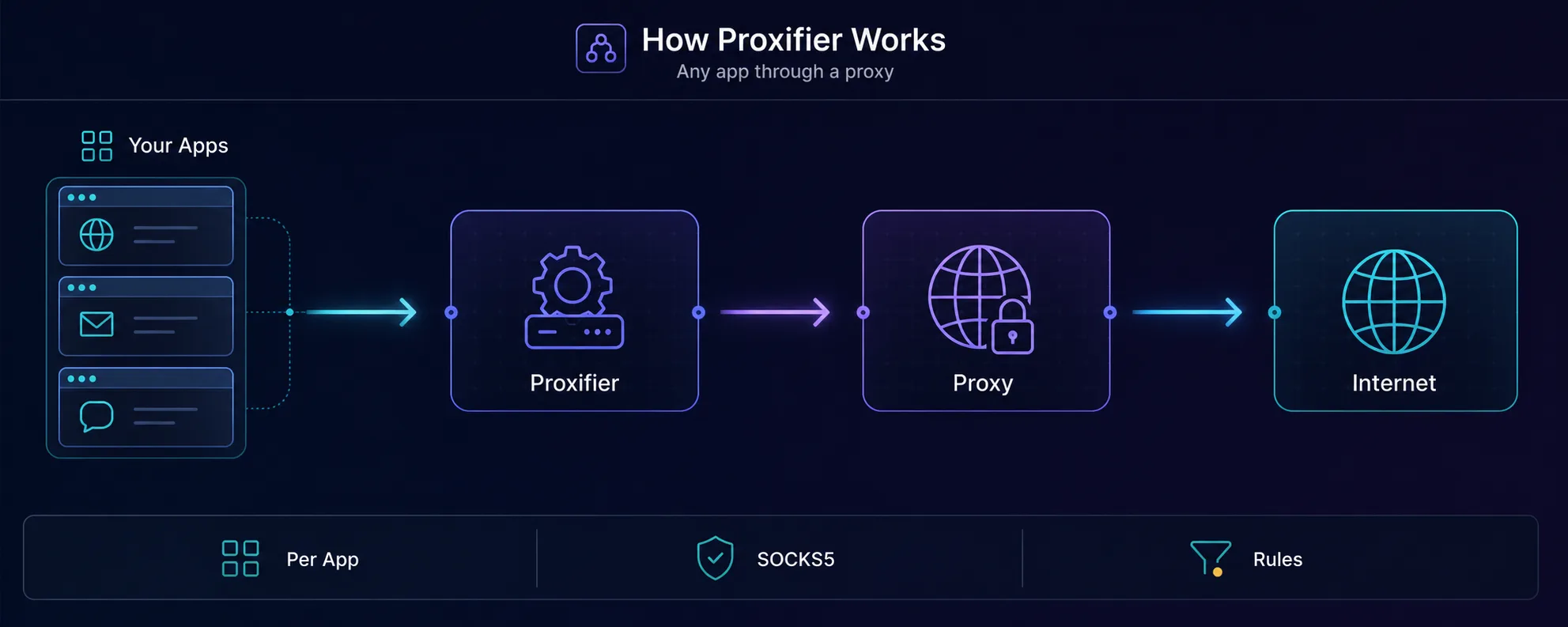
How Proxifier Works
Normally, each app opens its own connection to the internet. Proxifier steps in between the app and the network, catches those connections, and reroutes them through your proxy based on rules you define. The app has no idea anything changed.
That system-level interception is what makes it powerful. A browser can usually use a proxy on its own, but a desktop client, a CLI tool, or a game often can't. Proxifier covers all of them from one place, and it can even send different apps through different proxies at the same time.
| Approach | Scope | Best for |
|---|---|---|
| Browser proxy setting | One browser only | Simple web browsing |
| System proxy | Some apps, often ignored | Basic OS-wide routing |
| Proxifier | Any app, rule-based | Per-app control, stubborn apps |
| Protocol | Best for | Notes |
|---|---|---|
| HTTP | Basic web traffic | No encryption of its own |
| HTTPS | Secure web traffic | Tunnels encrypted connections |
| SOCKS5 | Any traffic (recommended) | Handles apps, games, and non-web protocols |
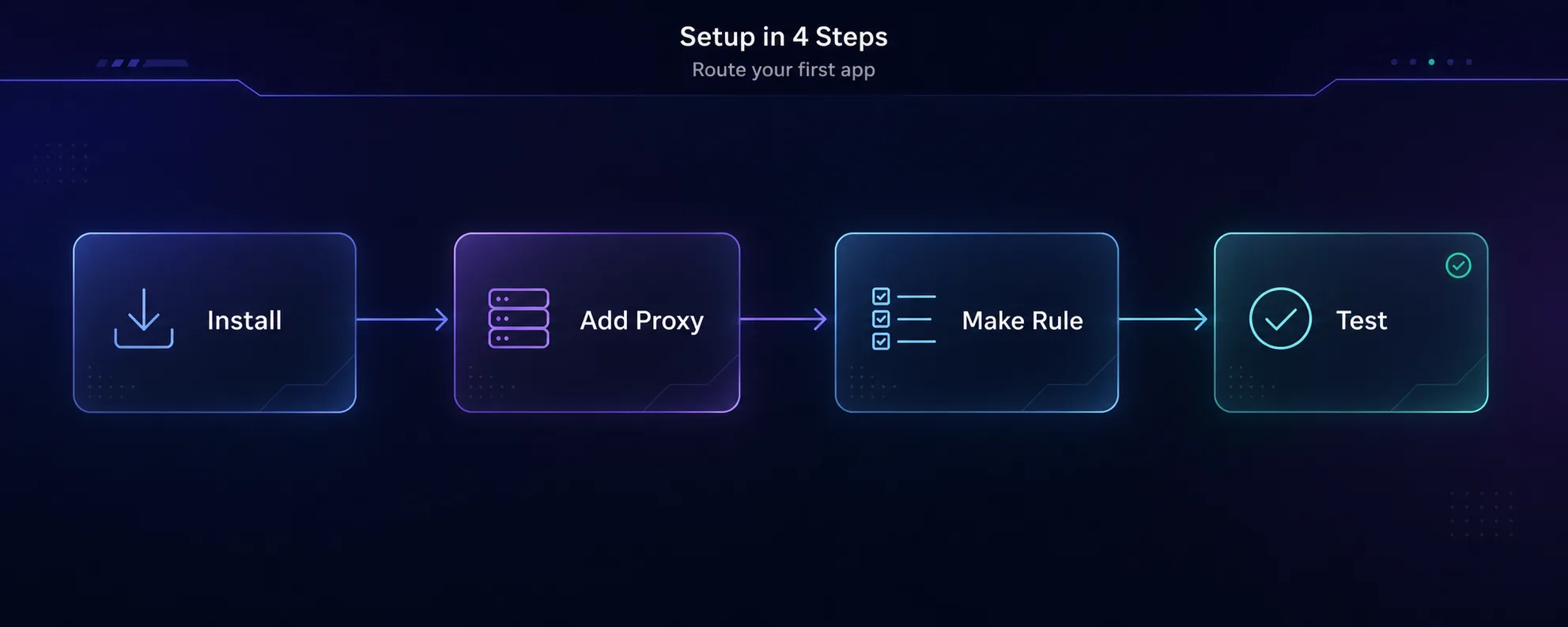
How to Set Up Proxifier Step by Step
1Install Proxifier
Download Proxifier from its official site for Windows or macOS and install it. It offers a free trial, with a one-time license for continued use. Launch it after installing.
2Add a Proxy Server
Open Profile → Proxy Servers → Add. Enter the host (address) and port from your proxy provider, choose the protocol (SOCKS5 or HTTPS), and if your proxy needs a login, tick "Enable" under Authentication and enter your username and password. Click "Check" to test the connection.
3Create a Proxification Rule
Go to Profile → Proxification Rules. Here you decide what gets routed. You can send all traffic through the proxy by default, or add a rule targeting specific applications (like chrome.exe or a game client) or specific target hosts. Set the rule's action to your proxy server.
4Test That It Works
Open the app you routed and visit an IP-check page, or watch Proxifier's live connection log to confirm the app's traffic is flowing through your proxy. If the log shows the proxy handling the connection, you're set.
Using Proxy Chains (Advanced)
Proxifier can route your traffic through more than one proxy in sequence, called a proxy chain. Your connection hops through proxy A, then proxy B, before reaching the target, which adds a layer of separation for sensitive tasks.
To build one, add each proxy under Proxy Servers, then create a chain and set it as the action in your rule. Keep it simple at first: chains add latency, and each extra hop is another point that can slow down or fail. Most people never need more than one proxy.
Best Proxies to Use with Proxifier
Proxifier is only the router. You still need a quality proxy behind it, ideally one with SOCKS5 support since that handles any kind of traffic. Three we'd trust:
1Decodo

Clean residential IPs, SOCKS5 support, and an easy dashboard make Decodo (formerly Smartproxy) a great all-round pick for Proxifier. Rotating and sticky sessions cover most use cases, and the setup details drop straight into Proxifier's proxy-server dialog.
2IPRoyal

IPRoyal's non-expiring residential traffic and native SOCKS5 make it a budget-friendly choice, especially if you use Proxifier occasionally. You buy a bandwidth balance that doesn't vanish monthly, which suits on-and-off desktop routing.
3Webshare

Webshare's free tier and cheap paid plans with SOCKS5 make it the easiest way to test Proxifier before spending much. Ideal for learning the workflow, then scaling up. Browse more options in our proxy directory.
Common Proxifier Mistakes and Fixes
1Wrong Protocol Selected
If the connection fails, check you picked the right type. A SOCKS5 proxy set as HTTPS (or vice versa) won't connect. Match the protocol to what your provider gave you.
2Forgetting Authentication
Most paid proxies need a username and password. If Proxifier's log shows auth errors, enable authentication in the proxy-server settings and re-enter your credentials.
3Rules in the Wrong Order
Proxifier applies rules top to bottom and stops at the first match. If an app isn't routing as expected, check that a broader rule above it isn't catching the traffic first.
4Routing Proxifier Itself or System Services
Avoid forcing every single process, including system and update services, through the proxy. Target the apps you actually need, or you can break connectivity and slow the whole machine.
Frequently Asked Questions
The Bottom Line
Proxifier solves one problem elegantly: it makes any app on your computer use a proxy, even when the app offers no way to do so itself. Install it, add your proxy server, write a rule for the apps you care about, and confirm it in the connection log. That's the whole workflow.
Keep it simple at first: one quality SOCKS5 proxy, a targeted rule, and the live log to verify. Add chains or per-app routing only when you genuinely need them. Pair Proxifier with a clean proxy and you get precise control over exactly where each application's traffic goes.
Ready to set it up? Pick a SOCKS5-capable pool from our proxy directory, brush up on the protocols in our HTTP, HTTPS and SOCKS5 guide, or learn the fundamentals in how proxies work.
Keep Reading
More articles you might enjoy