Fingerprint Testing Tools: How to Check Your Browser Profile (2026)
A unique fingerprint isn’t what gets profiles flagged. Here are the browser fingerprint test tools worth using and how to read their results like an auditor.
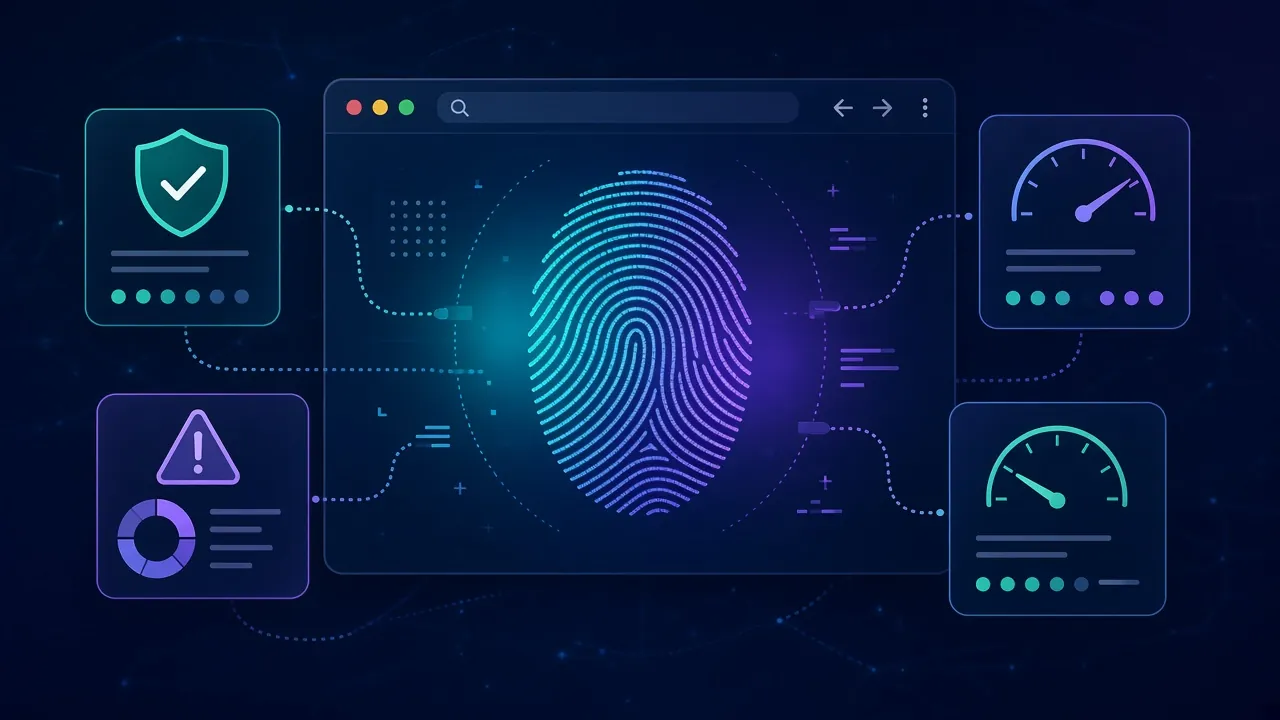
Your antidetect profile looks perfect in the app. The site still flags it.
That gap is what a browser fingerprint test is for. Before a profile ever touches a real account, a public checker shows you what websites actually see: the IP, the timezone, the graphics card, the fonts and any sign of automation.
The catch is reading the results. Most people chase a “unique” warning that doesn’t matter and miss the one mismatch that does.
This guide covers the checkers worth using, what each one is good at, and how to read their reports like an auditor instead of a nervous student.
- Almost every browser is unique, so a “unique” verdict alone isn’t a red flag.
- Profiles get flagged for contradictions, not for standing out.
- Each checker tests different layers, so one tool is never enough.
- Leaks in the network layer make every other result meaningless.
- A clean checker score is a rehearsal, not a pass on the real site.
Why Test a Browser Profile Before You Use It?
A fingerprint checker is a cheap rehearsal for the real target site. It runs the same kind of JavaScript a fraud or tracking script would, then shows you the answers your browser gave.
That matters most if you run antidetect browsers. Each profile is supposed to look like a separate, ordinary device. A checker tells you whether it does, before a platform decides for you.
Think of it like a pre-flight checklist. Ten minutes of testing costs nothing. A flagged account, or a whole batch of linked ones, costs a lot more.
Unique Isn’t the Problem. Inconsistent Is.
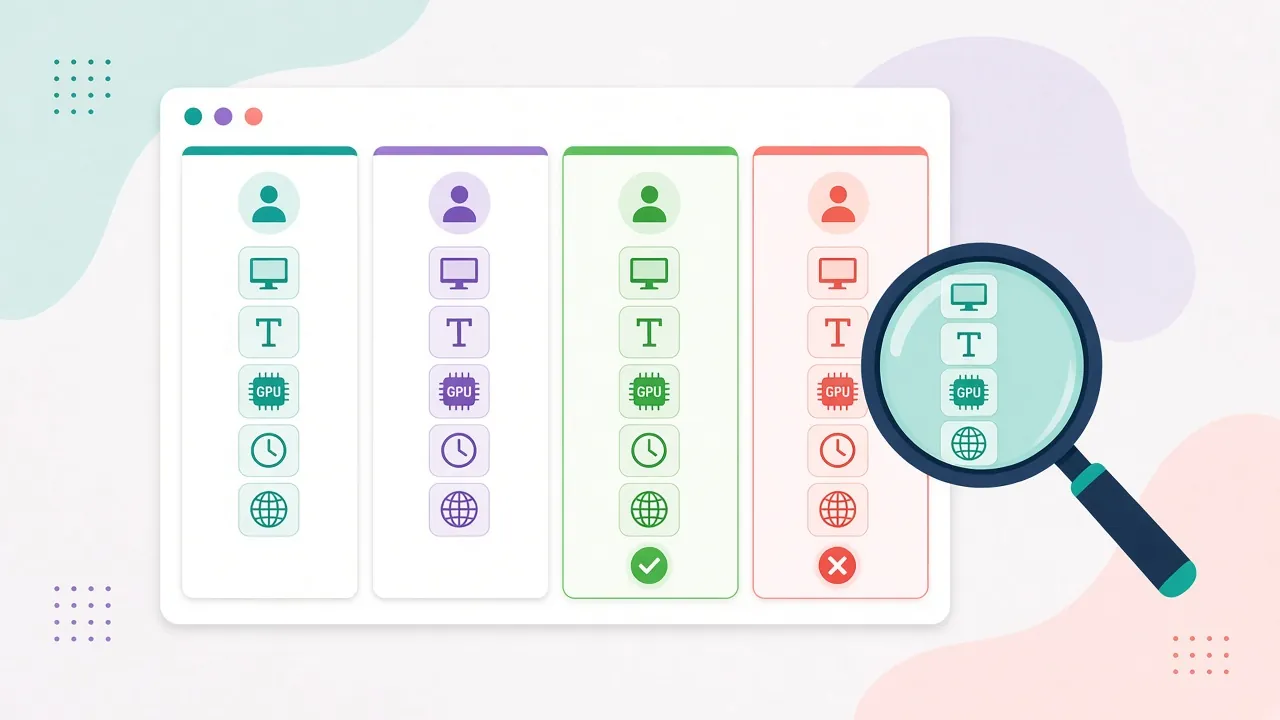
Almost every normal browser is unique, so a “unique” result on its own tells you very little. What gets profiles flagged is a set of traits that couldn’t exist on one real device.
The numbers back this up. In the EFF’s original 2010 study, How Unique Is Your Web Browser?, 83.6% of the 470,161 browsers tested had a unique fingerprint. The average carried at least 18.1 bits of identifying information, which the paper puts at roughly one match in 286,777 browsers.
In plain English: standing out is the default. You can’t hide in a crowd that never existed.
Consistency is a different story. The EFF gives a neat example on its Cover Your Tracks learning page. Swap Safari’s user agent for Chrome’s, and every other signal still says Safari. You become the only “Chrome” browser that behaves like Safari, which is far more identifiable than just being Safari.
That’s the mindset for the rest of this guide. If you want the theory first, our explainer on browser fingerprinting covers how sites build the ID in the first place.
The Fingerprint Checkers Worth Bookmarking
No single checker sees everything, so use two or three that test different layers. Here’s what each one is built to show, based on the tools’ own pages (checked October 28, 2026).
| Checker | Built by | Best for | Look at first |
|---|---|---|---|
| Cover Your Tracks | EFF | Uniqueness and tracker blocking | Fingerprint verdict and bits of information |
| AmIUnique | Academic research project | Comparing traits with real-world statistics | Which attributes are rare |
| BrowserLeaks | Independent site | Deep dives on one signal at a time | WebRTC, WebGL, fonts, TLS |
| CreepJS | Open-source project | Spotting spoofing and “lies” | Lies, headless and stealth scores |
| Pixelscan, BrowserScan, Iphey | Commercial tools | Quick all-in-one consistency checks | Proxy, timezone and OS mismatches |
| Fingerprint demo | Fingerprint (vendor) | Seeing how a commercial ID survives incognito | Visitor ID across sessions |
| Sannysoft bot test | Independent test page | Automation leaks in scripts | WebDriver and Chrome object rows |
1EFF Cover Your Tracks
Cover Your Tracks started life in 2010 as the EFF’s Panopticlick research project and relaunched under its current name in 2020. It tests two things: whether your browser blocks simulated trackers, and how unique your fingerprint is compared with visitors it has seen recently.
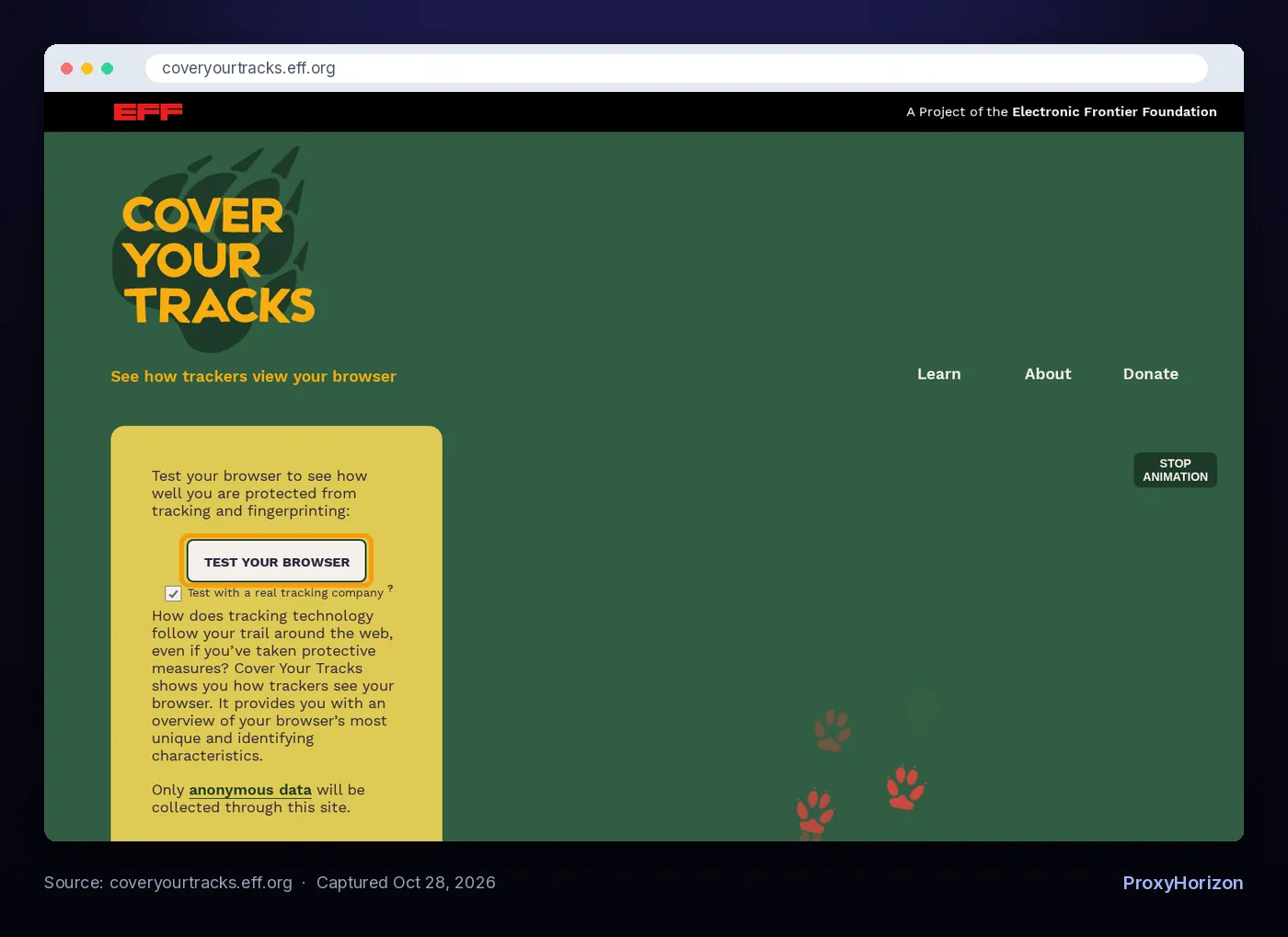
Its about page lists what it measures, including the user agent, Accept headers, screen size and color depth, timezone, language, platform, touch support, and hashes of canvas and WebGL images. Our take: it’s the best place to learn how fingerprinting feels, but it wasn’t built to audit antidetect profiles.
2AmIUnique
AmIUnique is an academic project that studies how diverse browser fingerprints are. Its FAQ lists everything it collects: HTTP headers, plugins, platform, timezone, screen, canvas and WebGL renders, audio and video formats, ad blocker presence and fonts.
The useful part is the global statistics. You can see which of your attributes are rare, which tells you what a tracker would lean on hardest.
3BrowserLeaks
BrowserLeaks is a suite of single-purpose pages rather than one score. It has separate tests for your IP, WebRTC, canvas, WebGL, fonts, geolocation and supported features, plus a TLS client test that generates JA3 and JA4 fingerprints.
That makes it the tool you open when another checker flags something and you need the detail. The TLS page is handy if you’re curious how TLS fingerprinting sees your browser below the JavaScript layer.
4CreepJS
CreepJS exists to expose weak anti-fingerprinting. Its README says it tries to detect JavaScript tampering, which it calls “prototype lies”, and to fingerprint the patterns those lies leave behind. Its target list even includes tools like puppeteer-extra.
Warning: the CreepJS README says the only official version lives at abrahamjuliot.github.io/creepjs, and it calls every other domain an unauthorized mirror. Use the GitHub Pages address and nothing else.
Expect a harsh report. CreepJS is built to catch spoofing, so a profile that passes everywhere else can still collect warnings here.
5Pixelscan, BrowserScan and Iphey
These are quick, all-in-one checkers aimed at people running proxies and multiple profiles. Pixelscan describes itself as a multi-check tool for fingerprinting, proxy detection, IP analysis and DNS leaks. BrowserScan bundles WebRTC and DNS leak tests, bot detection, a check that the browser engine matches the user agent, and a timezone consistency test.
Iphey splits its report into Browser, Location, IP address, Hardware and Software, then gives an overall trust score. Treat any score from these tools as a hint, not a verdict. Each one uses its own private rules.
6Fingerprint Demo
Fingerprint is a commercial device identification vendor, and its demo page shows the visitor ID its system gives your browser. The page invites you to revisit on a VPN or in incognito mode and says your ID will stay the same.
It’s a useful reality check. It shows that a new IP or a private window doesn’t make you a new visitor to a serious identification system.
7Sannysoft Bot Test
The Sannysoft page runs a table of automation checks that started with Intoli’s tests. Rows cover WebDriver, the Chrome object, permissions, plugins, languages, and the WebGL vendor and renderer. Failed rows turn red.
It’s most useful when you drive profiles with Puppeteer, Playwright or Selenium. A red WebDriver row means the page can tell a script is in control.
How to Read Your Results, Layer by Layer
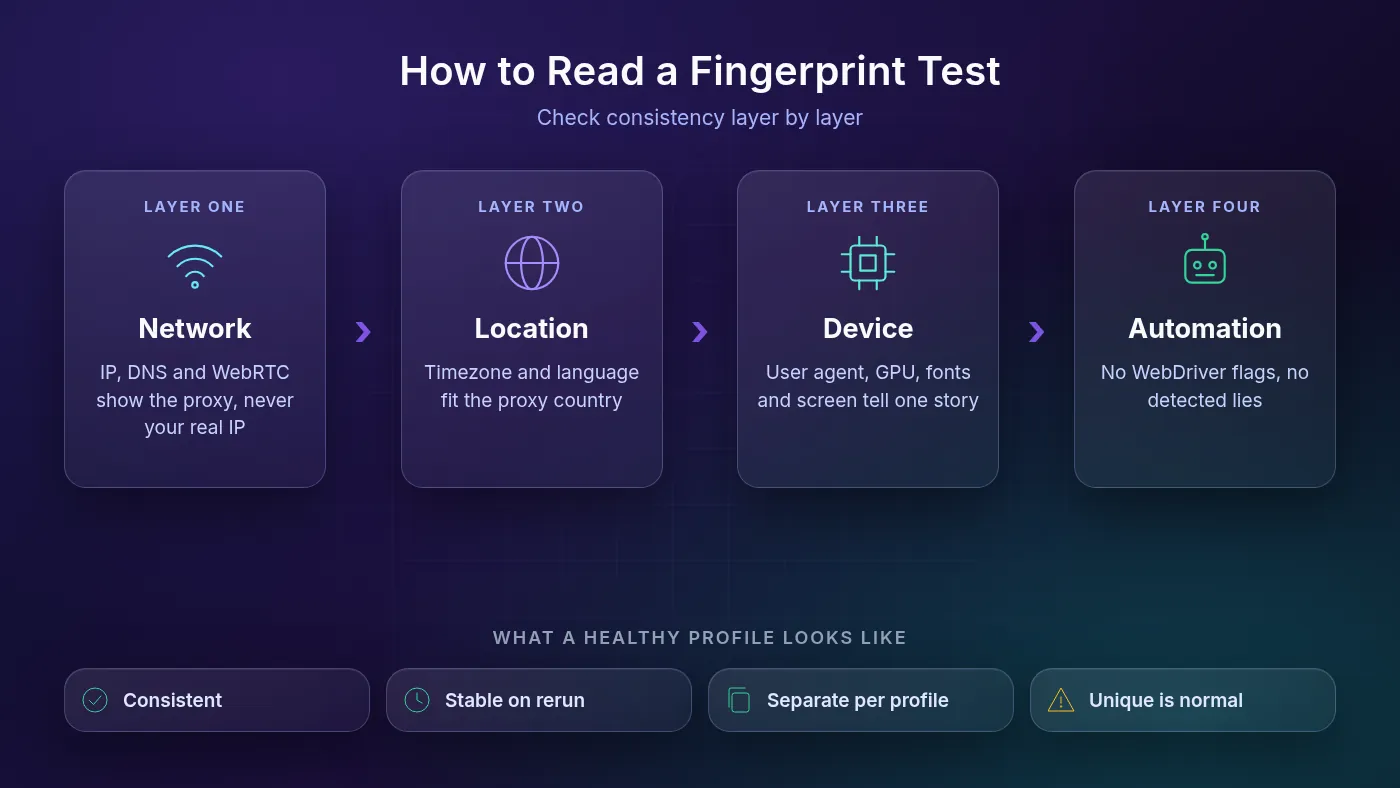
Read every report in four layers: network, location, device and automation. A problem in an early layer usually explains the warnings in the later ones.
1Network: Does Anything Show Your Real IP?
The IP the checker sees should be your proxy’s IP. Then look at the WebRTC and DNS sections. If either shows your home IP or your own internet provider, the profile is leaking, however good the rest looks.
Fix these before anything else. Our guides to the WebRTC leak and the DNS leak test walk through both.
2Location: Do Timezone and Language Fit the IP?
Next, compare the IP’s country with the browser’s timezone and language. A German IP with a browser clock set to India, or a US IP with only a Hindi language list, is a classic mismatch.
Most antidetect browsers can set these from the proxy automatically. Our guide on how to pair proxies with an antidetect browser covers the settings that keep IP and profile in sync.
3Device: Do the Hardware Signals Tell One Story?
This is where spoofing shows. The user agent, platform, screen size, fonts and WebGL renderer should all describe one plausible machine. A Windows user agent with a Mac-only font list or an Apple GPU renderer doesn’t add up.
Canvas, WebGL and audio results deserve extra attention because they come from real hardware. Our deep dive on canvas and WebGL fingerprinting explains why these signals are so hard to fake well.
4Automation: Does the Page Know a Script Is Driving?
Finally, check the automation rows. WebDriver flags, headless markers and CreepJS “lies” all point to the same thing: the page can see that something tampered with the browser.
Common mistake: reading this layer on a profile you opened by hand, then automating it later. Run the test the same way you’ll run the profile in production.
A 10-Minute Audit Routine for Antidetect Profiles
Here’s a simple routine to run on every new profile, or on any profile after you change its proxy.
- Start the profile with its real proxy attached. Testing without the proxy tests a different setup.
- Open a leak checker first (BrowserLeaks or BrowserScan) and confirm the IP, WebRTC and DNS results show only the proxy.
- Run an all-in-one checker such as Pixelscan or Iphey and note any timezone, language or OS mismatch.
- Run CreepJS from its official GitHub Pages address and look for lies or headless warnings.
- Repeat the test after a restart. Hardware-style values should stay stable for the same profile.
- Compare two profiles side by side. If they report the same canvas and WebGL results, fonts and screen, they look like one device.
- Write the results down with the date, so you can spot what changed after a browser update.
Real-world tip: don’t log in to the accounts you’re protecting while you test. A checker only needs a clean profile, not your Instagram session.
Red Flags and What Usually Causes Them
Most failed tests come down to a handful of causes. This table maps the symptom to the usual fix.
| What the checker shows | Likely cause | What to do |
|---|---|---|
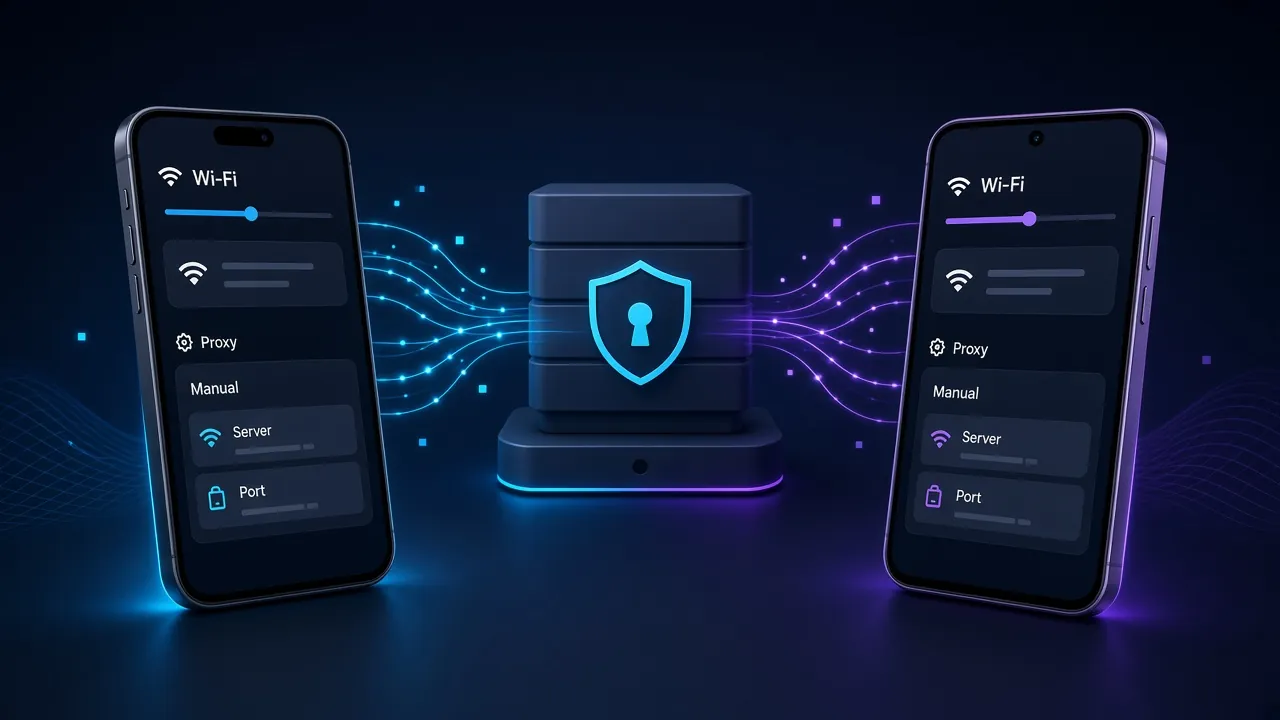
| Your real IP in the WebRTC section | WebRTC not handled by the profile | Set WebRTC to follow the proxy or disable it |
| Your internet provider in the DNS test | DNS lookups bypass the proxy | Use a proxy type and setting that resolves DNS remotely |
| Timezone differs from the IP country | Timezone set manually or from your system | Let the profile match timezone to the proxy |
| User agent and engine don’t match | A user agent from a different browser or version | Use the browser version the profile actually runs |
| WebDriver or headless flags | Automation framework defaults | Use the antidetect browser’s own automation support |
| Two profiles share the same canvas and WebGL results | Fingerprint settings copied between profiles | Create each profile fresh instead of cloning it |
Notice what isn’t on the list: a high uniqueness score. That’s expected, and chasing it usually makes a profile stranger, not safer.
Where Fingerprint Checkers Mislead You
A green score on a checker is not a pass on the site you care about. Each tool runs its own scripts and rules, and real platforms combine fingerprints with behavior, account history and IP reputation.
A few other traps are worth knowing. Uniqueness tools compare you with their own visitors, who are mostly privacy-minded people, so the percentages describe that crowd rather than the whole web. Some commercial checkers also carry ads or links for proxies and antidetect browsers, so read their warnings with that in mind.
The EFF makes one more point that matters here. Privacy add-ons and tweaks can themselves become part of your fingerprint. Stacking extensions to pass a test can leave you more identifiable than a plain, consistent profile.
Our take: use checkers to catch leaks and contradictions, then judge success by how your real accounts behave over weeks. Headers matter too, so if you scrape as well, our guide to HTTP headers for web scraping covers the layer below the browser.
Frequently Asked Questions
Test for Consistency, Then Let the Real Site Decide
A browser fingerprint test is a mirror, not a judge. It shows the IP, location, device and automation signals your profile gives away, so you can fix the contradictions before a platform finds them.
Our take: start with BrowserLeaks or BrowserScan for leaks, add CreepJS for spoofing, and keep Cover Your Tracks for learning. Stop worrying about being unique. Worry about being believable.
If your current tool keeps failing the device layer, compare options in our antidetect browser directory, then run the same ten-minute audit on a trial profile before you move any accounts.
Keep Reading
More articles you might enjoy