How to Pair Proxies With an Antidetect Browser (2026 Setup Guide)
An antidetect browser hides your device, but the proxy decides where you appear to be. Here’s how to give each profile its own IP, match timezone and WebRTC settings, and test it all before you log in.
You built a clean antidetect profile, logged into a fresh account, and it got flagged within a day. The fingerprint was fine. The proxy wasn’t.
An antidetect browser hides what your device looks like. The proxy decides where you appear to be. If those two stories don’t match, the site notices, no matter how good the fingerprint is.
This guide walks through the setup that works: one proxy per profile, the right IP type, the settings that should follow the proxy automatically, and a quick test to run before you log into anything.
- Give every profile its own proxy and never share IPs between accounts.
- Use static ISP or sticky residential IPs for accounts, not per-request rotation.
- Let timezone, language and geolocation follow the proxy automatically.
- Pick a safe WebRTC mode and test IP, WebRTC and DNS before the first login.
Why the Proxy Matters as Much as the Fingerprint
An antidetect browser gives each profile its own fingerprint, cookies and storage, but every profile still needs its own IP address, because sites link accounts by network as well as by device.
Our guide to how antidetect browsers work covers the device side: canvas, WebGL, fonts, user agent and the rest. The proxy covers the network side. You need both.
Multilogin’s proxy settings guide spells out what happens without one. A profile set to “None” uses your device’s connection, and several profiles on the same connection can share the same public IP (checked October 19, 2026).
That shared IP is the easiest link a platform can make. Ten perfect fingerprints behind one address look like one person with ten accounts.
The Golden Rule: One Profile, One IP
Treat each profile as a separate person. Each one gets its own proxy, and that proxy never gets reused for another account.
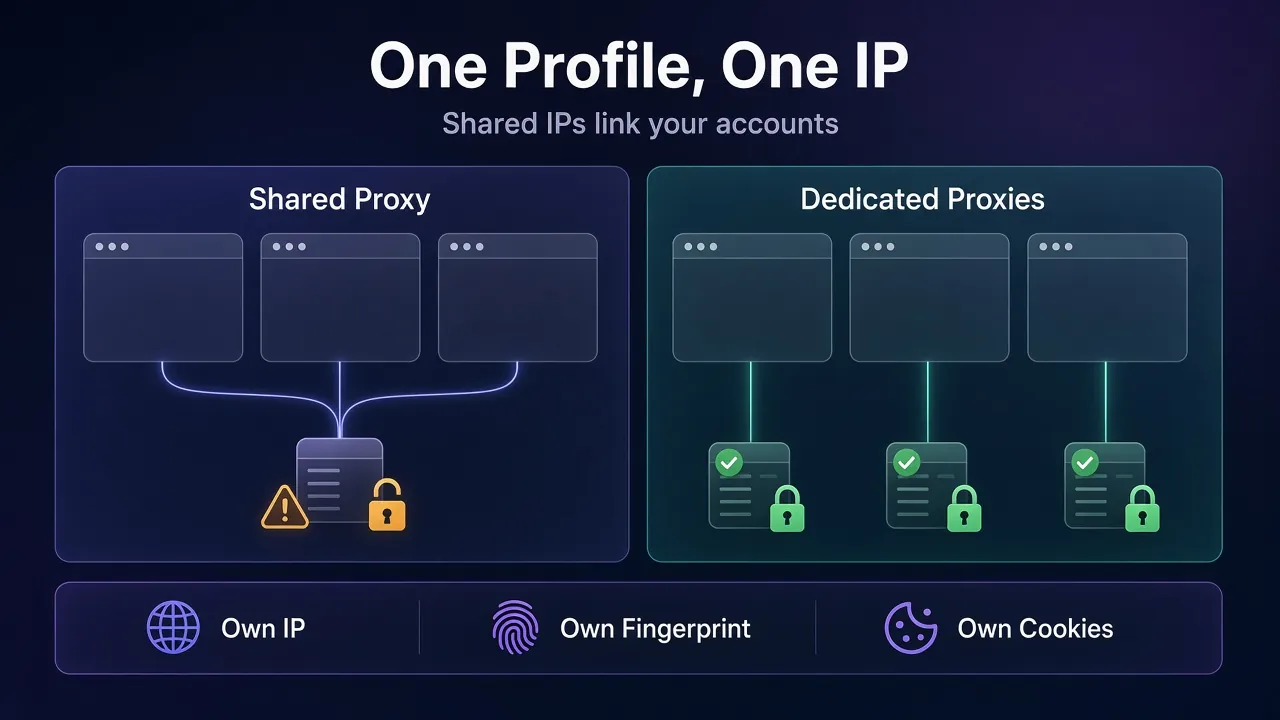
Three habits keep this rule intact:
- Assign the proxy before the first login. The first IP an account sees becomes part of its history.
- Keep the same proxy for the life of the account. Swapping countries or providers later looks like a stolen login.
- Retire the IP with the account. Don’t hand a banned account’s IP to a new profile.
Which Proxy Type to Pair With a Profile
Not every proxy suits account work. The question is how long the profile needs to look like the same visitor.
| Proxy type | Best for | Watch out for |
|---|---|---|
| ISP (static residential) | Long-lived accounts that log in daily from one place | Usually priced per IP, so cost grows with profile count |
| Residential, sticky session | Short tasks, new account warm-up, flexible locations | The IP can change when the session ends or the device drops |
| Mobile | Platforms that trust carrier traffic, such as social apps | Many real users share each IP, and it changes often |
| Datacenter | Testing, scraping and low-risk tasks | Hosting ranges are easy to spot on strict platforms |
| Rotating per request | Public data collection only | A new IP mid-login breaks the session |
Multilogin’s own built-in options follow the same split. It recommends its ISP proxies when one browser profile needs one stable IP over time, and residential or mobile proxies when you want flexible locations or rotation.
For most multi-account work, ISP proxies are the safest default. If the platform trusts phones more than home Wi-Fi, mobile proxies are worth the extra cost. And if you use residential sessions, our guide to sticky vs rotating proxy sessions explains how to keep one IP per task.
Built-In Proxies or Your Own Provider?
Several antidetect browsers now sell their own proxies inside the app. GoLogin offers a “Gologin proxy” option in the Proxy tab, and Multilogin has a built-in option alongside custom proxies.
Multilogin says its residential and mobile pool covers 30M+ IPs in 150+ countries and 1,400+ cities, with a custom rotation time from 60 to 86,400 seconds or a manual refresh. Its ISP proxies depend on stock and currently support country-level selection only.
Built-in proxies are convenient for a handful of profiles because there are no credentials to paste. Your own provider usually wins when you need specific cities, a particular ISP, bulk static IPs or one bill across several tools. Either way, the one-profile-one-IP rule doesn’t change.
What You Need Before You Start
Grab these details from your proxy provider’s dashboard:
- Protocol: HTTP, HTTPS or SOCKS5. Multilogin’s docs list all three, and most antidetect browsers support the same set.
- Host and port: the gateway address, or a dedicated IP for static proxies.
- Username and password, or an allowlisted IP if your provider uses IP authentication.
- Location: the country, and ideally the city, the account should live in.
For residential gateways, the location and session settings usually live inside the username. Create one sticky session string per profile and write down which profile owns it.
How to Add a Proxy in Popular Antidetect Browsers
The menus differ, but every tool follows the same pattern: open the profile, pick a custom proxy, paste the details, run a check, save. Here’s how three popular browsers handle it, based on their official docs checked October 19, 2026.
1Multilogin
- Go to Profiles, then Browser, and create or edit a profile.
- Open the Proxy section and choose “Custom” to use your own provider.
- Pick HTTP, HTTPS or SOCKS5, then enter the IP, port and credentials. Multilogin supports both password and IP authentication.
- Save it as a Template if you plan to reuse the same settings on many profiles.
2GoLogin
- Open the profile’s settings and go to the Proxy tab.
- Choose “Your proxy” and paste the details from your provider.
- Leave the Timezone and Geolocation toggles on, so they fill in from the proxy’s external IP.
One catch from GoLogin’s profile docs: the operating system can only be picked when you create the profile. Choose it carefully, because you can’t change it later.
3AdsPower
- Click New Profile and open the Proxy tab.
- Choose “Custom,” pick the proxy type, and paste the details as
IP:port:username:password. AdsPower fills in the separate fields for you. - Click “Check proxy” to confirm it connects, then save.
AdsPower’s profile guide also mentions a loop button that randomly assigns a saved proxy. That’s handy for scraping profiles. For accounts, pick the proxy yourself so you know exactly which profile owns which IP.
Match Timezone, Language and Geolocation to the Proxy
A site doesn’t just read your IP. It also asks the browser for its timezone, language and, with permission, its location. Then it compares the answers.
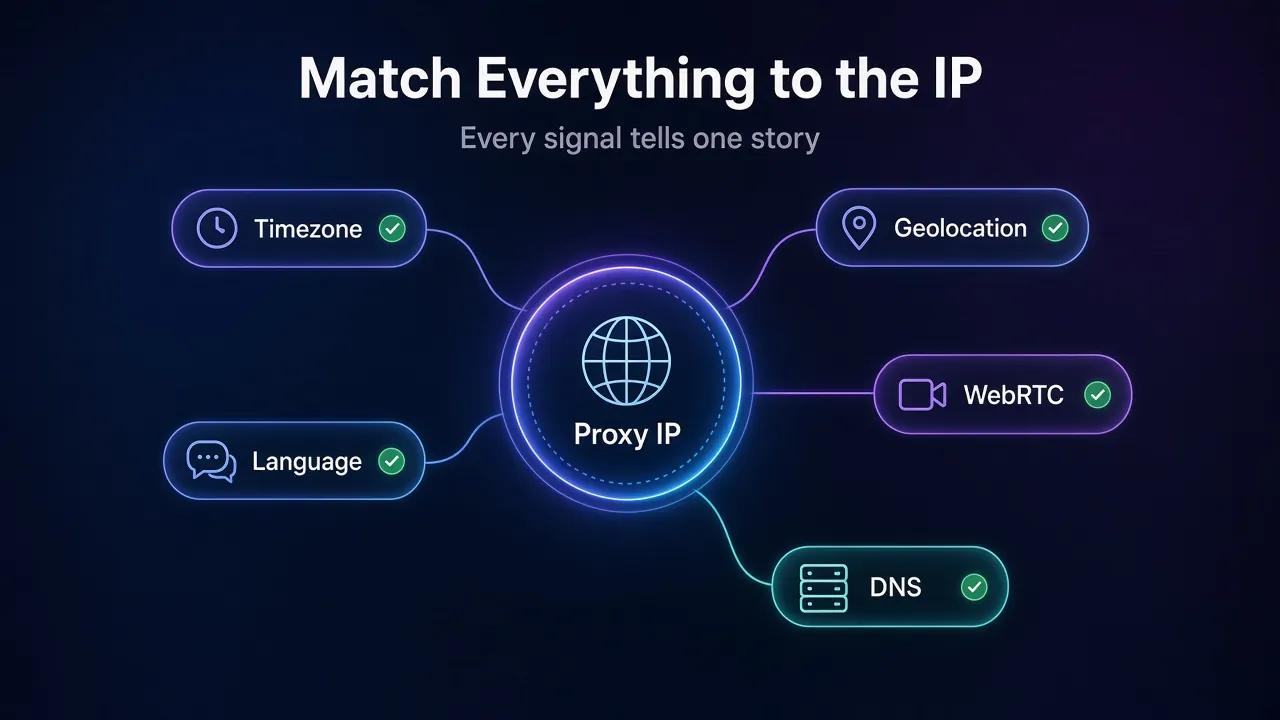
Multilogin’s help center describes the check directly: a script reads the timezone from the browser, an IP lookup estimates the timezone from your address, and a mismatch suggests a proxy in a different zone than the computer.
The good news is that the major tools match these settings to the proxy by default:
| Setting | GoLogin | AdsPower | Multilogin |
|---|---|---|---|
| Timezone | Fills from external IP (on by default) | Based on IP (default) | “Masked” matches the proxy (default) |
| Geolocation | Fills from external IP (on by default) | Based on IP (default) | “Masked” uses the proxy’s location |
| Location prompt | Prompt (default) | Ask (default) | Prompt, Allow or Blocked |
| Language | Not covered on the settings page | Can follow the IP’s country | Not covered in the pages we checked |
Sources: GoLogin’s profile settings docs, AdsPower’s fingerprint settings reference and Multilogin’s help center, checked October 19, 2026.
Our take: leave these on automatic. GoLogin’s docs say a timezone that doesn’t match the proxy location can look suspicious, and Multilogin advises against setting geolocation by hand for the same reason. Override them only when you have a specific reason, and then check the result.
Language is the one to double-check. A German IP with an English-only browser isn’t rare in real life, but a German IP with a Japanese interface and a US keyboard layout tells a strange story.
Choose the Right WebRTC Mode
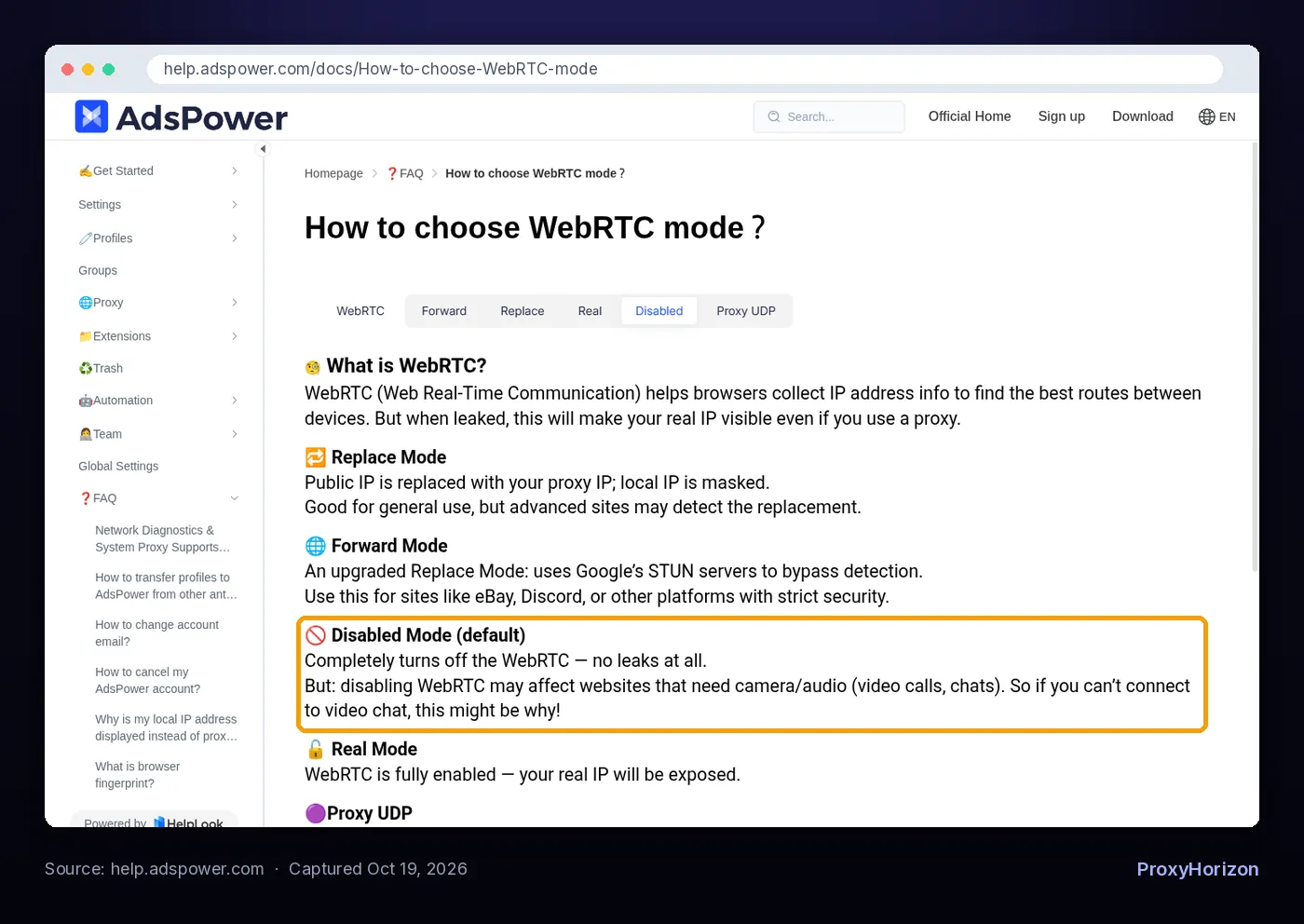
WebRTC powers video calls and voice chat in the browser. To find the best route between devices, it collects IP address details, and if it’s not handled, it can reveal your real IP even while the proxy works.
AdsPower’s WebRTC guide lists four modes, and most antidetect browsers offer something similar:
- Disabled (AdsPower’s default): no leaks at all, but video calls and chats that need a camera or microphone may break.
- Replace: swaps your public IP for the proxy IP and masks the local one. AdsPower notes that advanced sites may detect the replacement.
- Forward: an upgraded Replace that routes through Google’s STUN servers. AdsPower suggests it for strict platforms such as eBay and Discord.
- Real: WebRTC fully on, with your real IP exposed. Never use it with a proxy.
AdsPower also has an option to block UDP traffic that doesn’t go through the proxy. Its guide recommends it when you want maximum protection or when your proxy doesn’t support UDP.
Don’t Forget DNS
Even with the IP and WebRTC covered, DNS lookups can still give away your real network if they bypass the proxy. A profile with a German IP and a DNS resolver from your home ISP sends mixed signals.
Run a leak test from inside the profile, not from your normal browser. Our guide to DNS leaks explains how to read the results and what to change if your resolver shows up.
How to Test the Setup Before You Log In
Never trust the settings screen alone. Open the profile and check these five things before the first login:
- IP and location: open an IP lookup page and confirm the country and city match what you bought.
- IP type: check whether the IP shows as residential, mobile or hosting. A “static residential” IP that reads as a data center is a problem.
- Timezone and language: confirm they match the IP’s country.
- WebRTC: run a WebRTC leak test and make sure your real IP never appears.
- DNS: run a DNS leak test and confirm the resolver doesn’t belong to your home ISP.
Run the same checks again after any proxy change, browser update or provider switch. It takes two minutes and saves accounts.
Scaling to Dozens of Profiles
One profile is easy. Fifty profiles is where mistakes creep in, usually a copied proxy string or a forgotten session ID.
- Keep a profile-to-proxy sheet. Profile name, proxy host, session ID, country and account. Check it before you assign anything new.
- Use templates and saved proxies. Multilogin’s templates and AdsPower’s Saved Proxies cut copy-paste errors when you set up many profiles.
- Bulk-create carefully. AdsPower’s Quick Create makes many profiles at once, but check that each one ends up with a different proxy.
- Group by country. Keep accounts from the same region together so mismatches stand out.
If you’re still picking the browser itself, our guide on how to choose an antidetect browser covers proxy managers, team sharing and automation support, and the antidetect browser directory lets you compare tools side by side.
Mismatches That Flag Accounts
Most bans after setup come from small inconsistencies, not broken tools. These are the ones to watch:
- Two profiles on one IP. The fastest way to link accounts.
- A rotating proxy on a logged-in account. The session cookie jumps between addresses.
- A manual timezone that doesn’t match the IP. Usually left over from testing.
- WebRTC set to Real. Your actual IP sits right next to the proxy IP.
- Switching countries on an existing account. A UK account that wakes up in Brazil looks hijacked.
- A datacenter IP on a platform that expects home users. The ASN gives it away before the fingerprint matters.
For the full list, including fingerprint and behavior slips, see our breakdown of antidetect browser mistakes beginners make.
Frequently Asked Questions
Make the Proxy and the Profile Tell One Story
Pairing proxies with an antidetect browser comes down to consistency. One profile, one IP, and every other signal pointing to the same place.
Pick a stable IP type for long-lived accounts, paste it in before the first login, leave timezone and geolocation on automatic, choose a safe WebRTC mode, and test everything from inside the profile.
The bottom line: a great fingerprint can’t save a bad proxy setup, but a careful setup makes even a basic profile look like a real visitor. Browse the proxy directory to find a provider that offers static or sticky IPs in the countries you need.
Keep Reading
More articles you might enjoy