Grok Bot vs Claude Cowork vs ChatGPT Work (2026)
Grok Bot, Claude Cowork and ChatGPT Work all promise to do the work for you. We compare where each agent runs, how it browses, who holds your logins, pricing access, and which fits your workflow.
All three big AI labs spent 2026 shipping the same promise with different wrapping: stop chatting with the model and hand it the job. Anthropic put Claude Cowork on the desktop. OpenAI turned ChatGPT into a workplace with ChatGPT Work in July. xAI answered in August with Grok Bot, a set of named agents that live on their own cloud computer and never log off.
From a distance they look interchangeable. Up close, Grok Bot vs Claude Cowork vs ChatGPT Work is really a question about architecture: where the agent runs, whose browser it drives, who holds your logins, and what happens when a website decides it doesn’t like automated visitors. Those choices decide what each one is good at far more than any benchmark does.
A quick note on how we built this. These products are weeks or months old and changing fast, so everything below comes from official product pages, documentation, and launch coverage as of September 2026, not a long hands-on test. Grok Bot is still in beta. Where a detail is unclear or sources disagree, we say so.
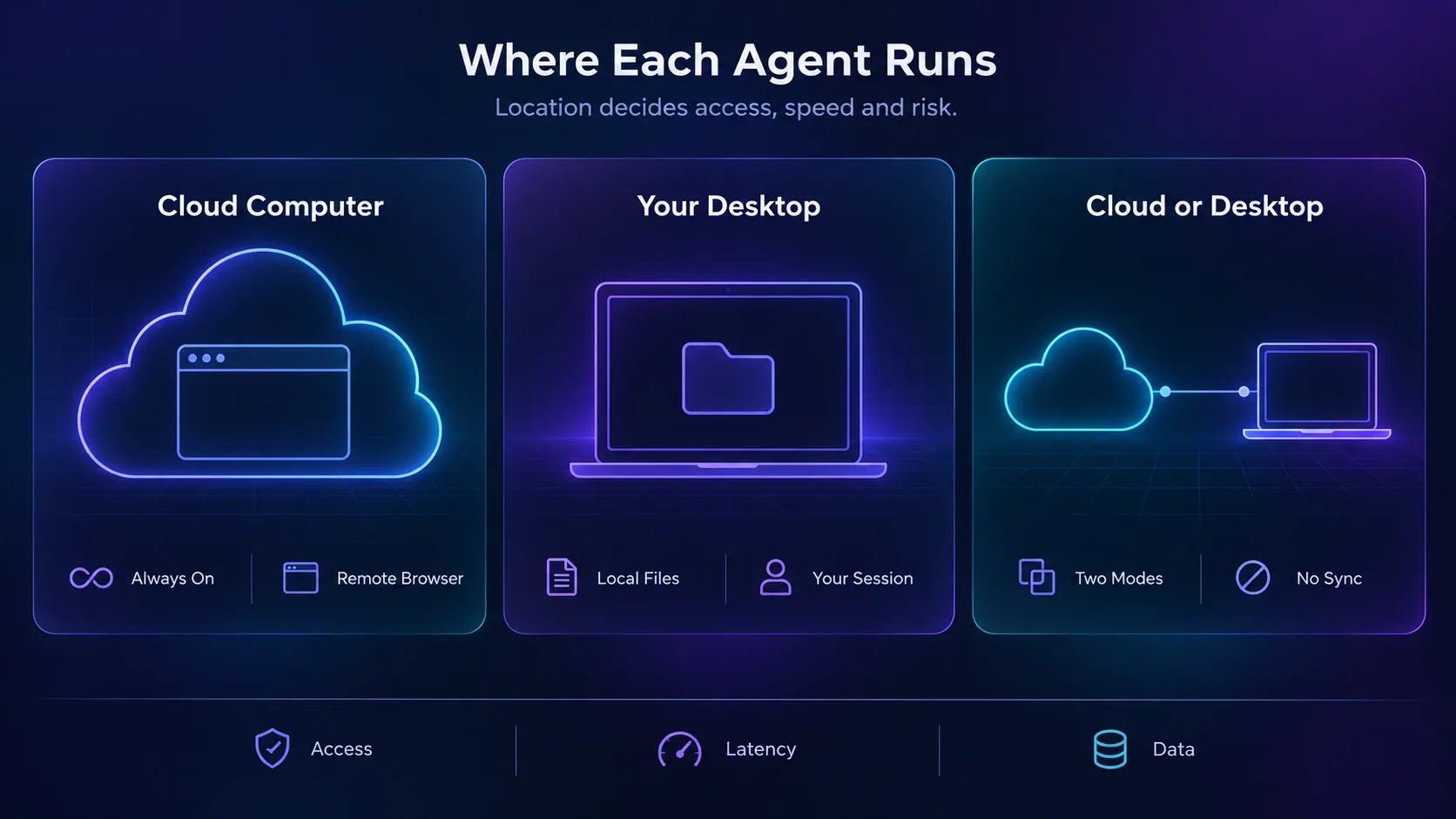
- Grok Bot runs named, persistent agents on an xAI cloud computer that keeps working when your laptop is closed.
- Claude Cowork works in the folders and tools you choose, with a built-in browser, scheduled tasks, and step-by-step visibility.
- ChatGPT Work runs in the cloud on web and mobile, or on your machine through the desktop app, and the two modes don’t sync.
- Where the agent runs decides which sites block it, which files it can touch, and where your data sits.
- Pick on workflow shape: always-on delegation favours Grok Bot, file-heavy desk work favours Cowork, app-connected team output favours ChatGPT Work.
The Three Products in One Paragraph Each
Grok Bot is xAI’s agent app, separate from the Grok chatbot. You create Bots with names and jobs, and each works on a persistent cloud computer with a browser, filesystem, and terminal. Walk a Bot through a process once and it can save that path as a skill and rerun it on a schedule. Bots can work in parallel, message each other, and hand tasks between themselves.
Claude Cowork is Anthropic’s delegation mode for Claude. You give it a goal and it works directly in the folders and tools you pick, opens a browser in its own side panel while you keep working, and returns a finished deck, document, or spreadsheet for review. It shows every file it opens and every choice it makes, so you can redirect it mid-task.
ChatGPT Work is OpenAI’s agent inside ChatGPT, launched in July 2026 alongside GPT-5.6. It gathers context across connected apps and files, stays on a project for hours, and produces sheets, slides, docs, and web apps. It runs in the cloud on web and mobile, or against local folders and apps through the desktop app once you grant access.
Side-by-Side Comparison
| Feature | Grok Bot | Claude Cowork | ChatGPT Work |
|---|---|---|---|
| Maker | xAI | Anthropic | OpenAI |
| Status | Beta, launched August 2026 | Generally available on paid plans | Launched July 2026 |
| Where it runs | Persistent xAI cloud computer | Desktop app, rolling out on web and mobile | Cloud on web and mobile, local on desktop |
| Browser | Cloud browser on the Bot’s computer | Built-in browser in the Cowork side panel | Built-in browser in the app |
| Local file access | No, works in its own filesystem | Yes, in folders you choose | Desktop only, with permission |
| Scheduling | Skills rerun on a schedule | Tasks at any cadence | Scheduled Tasks |
| Learning | Learns workflows by demonstration | Folder and global instructions, plugins | Project context across apps |
| Multi-agent | Bots message each other and pass tasks | Parallel work within a task | Breaks projects into sub-steps |
| Connectors | Connectors where available, computer use elsewhere | Microsoft 365, Google Drive, Slack and plugins | Slack, Teams, Drive, SharePoint, email, CRMs |
| Access | SuperGrok and Cursor Pro or Teams plans | Pro, Max and Team plans | All plans, desktop included on Free |
| Usage | Separate allowance from Grok and Cursor | Draws on your Claude plan | Metered by task complexity |
Grok Bot: Agents That Never Log Off
Grok Bot’s defining idea is persistence. A named Bot keeps its memory, files, browser sessions, and preferences across sessions instead of resetting on every task. It is closer to hiring a remote assistant with their own workstation than to opening a chat window.
The demonstration-learning feature is the most interesting part. Instead of describing a workflow in a prompt and hoping the model interprets it correctly, you walk a Bot through the steps once, and it saves that path as a reusable skill it can rerun on a schedule. For repetitive back-office work in tools with no API, that is a genuinely different approach.
Two details matter more than the marketing suggests. First, all of your Bots share one cloud computer, which gives them automatic context handoff but also means they share one environment. Second, xAI’s own documentation says sites can still block automation, expire a session, or require a human step, and the Bot hands those back to you rather than working around them.
Access widened quickly. At launch it was limited to the top SuperGrok and Cursor tiers. By late August, xAI extended it to all SuperGrok plans and to Cursor Pro, Pro+, Ultra, and Teams plans, with Bot usage metered separately so delegated work doesn’t eat your existing allowance. Enterprise rollouts sit behind a waitlist.
- Keeps working when your device is off
- Learns multi-step workflows by demonstration
- Named Bots keep memory, files and sessions
- Bots collaborate and hand tasks to each other
- Separate usage allowance from Grok and Cursor
- Still in beta, with enterprise access waitlisted
- Cannot work on files sitting on your own machine
- Cloud browser sessions are easier for sites to flag
- Requires a SuperGrok or Cursor subscription
Verdict
Best for always-on delegation of repeatable web and back-office tasks you can demonstrate once.
Claude Cowork: Delegation at Your Desk
Cowork starts from the opposite assumption. Your work already lives in folders, documents, and tools on your machine, so the agent should come to it. You point Cowork at the folders and connectors it may use, give it a goal, and it returns finished output for review.
Transparency is its strongest trait. Claude shows the files it opens, the tools it uses, and the choices it makes, and you can follow along and redirect it from anywhere. For regulated or sensitive work, seeing the reasoning trail is often worth more than raw speed.
The built-in browser opens in the Cowork side panel instead of taking over yours, and it can import cookies from Chrome, Edge, or Firefox so it works inside sites you are already signed into. Scheduled tasks run unattended at whatever cadence you set, and the connector list covers Microsoft 365, Google Drive, Slack, and a plugin system for specialised workflows.
Cowork is available on paid Claude plans, starting with the $20 per month Pro plan, and on Max and Team. The desktop app runs on macOS, Windows, ChromeOS, and Linux, while web and mobile access is still rolling out in beta. It shares your plan’s usage rather than a separate meter, so heavy delegation competes with your chat usage.
- Works directly in your own folders and files
- Shows every step so you can redirect it
- Browser can reuse your existing signed-in sessions
- Broad desktop support including Linux and ChromeOS
- Included in plans many teams already pay for
- Not available on the free tier
- Web and mobile access still rolling out
- Shares usage limits with regular Claude chat
- Less suited to fully hands-off, always-on agents
Verdict
Best for knowledge workers who want finished documents built from their own files, with full visibility into how.
ChatGPT Work: The Connected Workplace
ChatGPT Work is the broadest of the three in reach. It sits inside the ChatGPT app most people already use, it launched on GPT-5.6, and it leans hardest on connectors: Slack, Microsoft Teams, Google Drive, SharePoint, email, calendars, CRMs, and project trackers.
Its model is goal-to-output. You describe the result, and it breaks the project into steps, gathers context across your apps, and produces sheets, slides, docs, or web apps. Scheduled Tasks let it keep going while you’re offline, and usage is metered by how complex a task is rather than per message.
The detail that trips people up is the split between modes. On web and mobile, Work runs in the cloud and cannot read a folder on your computer. In the desktop app, it can use local folders and apps once your plan, workspace, and you allow it, and it asks permission before using an app with an Always allow option. Cloud Work threads and desktop Work threads do not sync, so a task started on the web will not appear in the desktop app.
Availability is the widest here. It reached Pro, Enterprise, and Edu first, then rolled out to Plus and Business, and the desktop app puts Work on every plan including Free, within that plan’s usage.
- Deepest connector list for workplace apps
- Available on every plan through the desktop app
- Produces docs, slides, sheets and web apps
- Admins can restrict browsing, files and approvals
- Stays on long projects for hours
- Cloud and desktop threads don’t sync
- Local file access only works on desktop
- Complex tasks burn through plan usage faster
- Always allow approvals are easy to over-grant
Verdict
Best for teams whose work lives in connected SaaS apps and who want one familiar interface for all of it.
The Browser Question Nobody Is Asking
This is where ProxyHorizon readers have an advantage, because it is exactly the problem we write about every week. An agent that browses the web is subject to the same detection systems as a scraper, and where its browser lives changes everything.
A cloud-hosted agent browses from a data center IP address. Data center ranges are catalogued and easy to classify, which is why they get challenged, rate limited, or blocked on strict sites far more often than home connections. Our explainer on how websites detect proxy traffic covers the mechanics. xAI’s own documentation acknowledges this: sites can block automation, expire sessions, or demand a human step.
A desktop agent browses from your own residential connection, in a browser that can inherit your existing cookies and sessions. That looks far more like a normal visitor, which is why desktop modes tend to get through login walls and fussy dashboards more smoothly. The trade-off is that your machine has to be on, and the agent acts as you, on your real accounts.
Behaviour matters too. Even with a clean IP, automated browsing leaves timing, input, and fingerprint signals that anti-bot systems score. We break those down in how anti-bot systems detect automated browsers and how automation traffic differs from normal requests.
Our take: for tasks inside sites that are strict about bots, desktop modes of Cowork and ChatGPT Work will usually beat a cloud agent. For tasks on friendly, connector-backed tools, Grok Bot’s always-on cloud model wins on convenience.
Security and Who Holds Your Logins
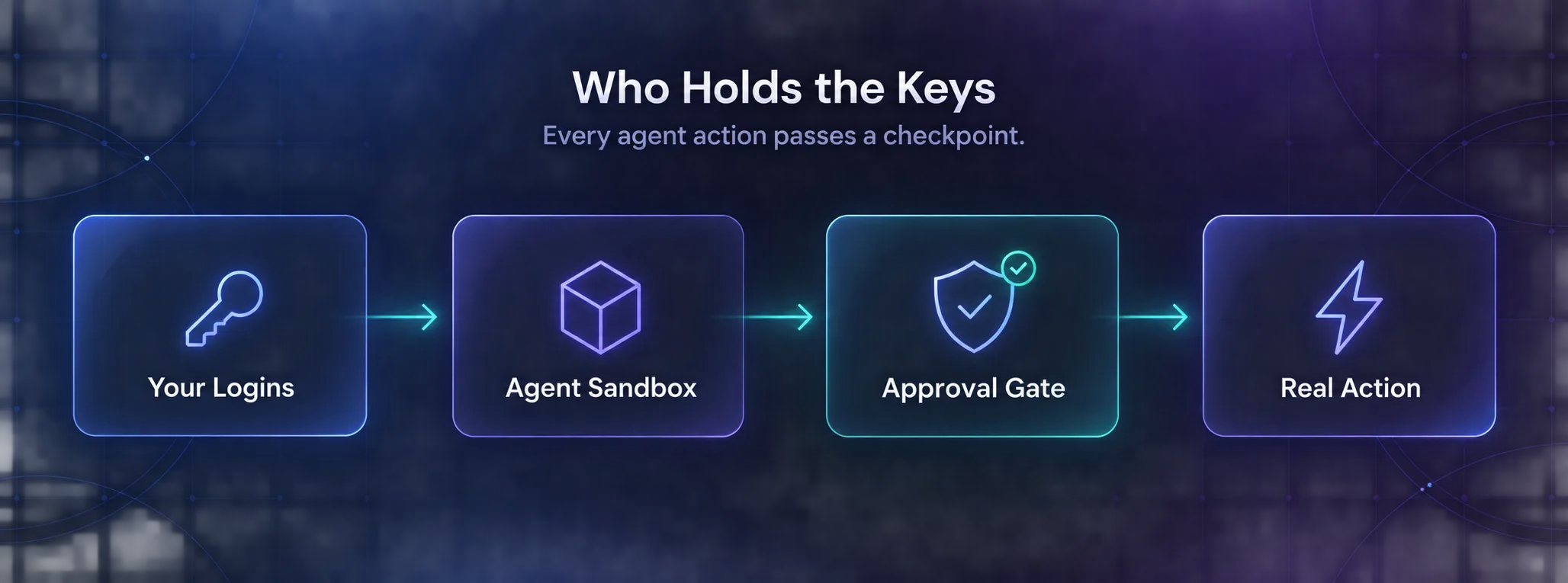
Every one of these agents eventually acts with your authority, so the permission model is the most important thing to understand before rolling one out.
Grok Bot signs into tools on its own cloud computer and comes back when it needs approval. xAI says isolation between users is strict, but public detail on credential storage is thin while the product is in beta. Cowork works inside the folders and connectors you explicitly select and shows each action as it happens. ChatGPT Work asks before using an app on your computer, and workspace admins can restrict browsing, website access, file transfers, and saved approvals regardless of personal settings.
The shared risk is prompt injection. An agent that reads web pages, emails, or documents can meet text written to hijack it, and OpenAI’s own guidance warns that network access lets an agent fetch and follow untrusted instructions. The defence is boring and effective: scope access narrowly, avoid blanket Always allow approvals, and keep a human on anything that sends money, email, or data outside the company. We cover this mindset in building privacy-first AI automation.
Which One Should You Choose?
Match the tool to the shape of the work, not the brand you already like.
| Your situation | Best pick | Why |
|---|---|---|
| Tasks must run while your laptop is off | Grok Bot | Persistent cloud computer that never logs off |
| Repetitive web chores you can demonstrate once | Grok Bot | Saves demonstrated paths as scheduled skills |
| Reports and decks built from local files | Claude Cowork | Works directly in the folders you choose |
| Regulated work that needs an audit trail | Claude Cowork | Shows every file, tool and decision as it works |
| Work spread across Slack, Drive and a CRM | ChatGPT Work | Broadest workplace connector list |
| Company-wide rollout on a tight budget | ChatGPT Work | Available on every plan through the desktop app |
| Strict sites that dislike bots | Cowork or ChatGPT Work desktop | Browses from your own connection and sessions |
1Choose Grok Bot If
You want work to continue around the clock without your machine on, your tasks are repetitive and demonstrable, and you already pay for SuperGrok or Cursor. It is the most ambitious of the three and the least mature, so start with low-stakes workflows while it is in beta.
2Choose Claude Cowork If
Your work is built from files on your computer, you need to see how the agent reached its output, and you want a browser that uses your existing sessions. It is the strongest fit for analysts, consultants, legal and finance teams, and anyone producing polished documents.
3Choose ChatGPT Work If
Your team lives in Slack, Teams, Google Drive, SharePoint, and a CRM, and you want one agent that pulls from all of them. The breadth of connectors and plan availability make it the easiest to roll out across a whole organisation.
4Use More Than One If
Plenty of teams will. Nothing stops you running Cowork for document work and Grok Bot for overnight monitoring. Just keep each agent’s access scoped to its job so one compromised workflow can’t reach everything.
Common Mistakes When Adopting AI Work Agents
1Granting Blanket Approvals on Day One
Always allow is convenient and dangerous. Start with approvals on, watch what the agent actually requests for a week, then relax only the permissions that are clearly safe.
2Delegating Without a Definition of Done
Agents are good at producing something. They are much less good at knowing whether it is the right thing. Describe the output format, the sources to trust, and what finished looks like, or expect confident, polished work that misses the point.
3Ignoring Where the Data Goes
Cloud agents move your files and session data onto someone else’s infrastructure. That may be fine, or it may breach a client contract. Check before you connect sensitive folders or accounts.
4Expecting Agents to Beat Anti-Bot Systems
None of these products is designed to evade detection, and xAI says outright that Bots hand blocked steps back to you. If your workflow depends on high-volume access to strict sites, you need proper scraping infrastructure, not a work agent. Start with our guide to web scraping APIs.
Frequently Asked Questions
The Bottom Line
These three aren’t really competing for the same job yet. Grok Bot is betting that the future is always-on digital coworkers living in the cloud. Claude Cowork is betting on transparent delegation over the files you already have. ChatGPT Work is betting that breadth of connected apps wins the workplace.
If you have to pick one today, pick by where your work lives. Files on your machine point to Cowork. A stack of connected SaaS tools points to ChatGPT Work. Repetitive web chores you want done overnight point to Grok Bot, with the caveat that it’s still a beta.
Whichever you choose, run it on one real workflow for two weeks with approvals switched on before rolling it out. You’ll learn more about its limits in that fortnight than from any launch post. And if your plans involve open-source or self-hosted agents instead, our comparison of Grok Bot vs OpenClaw vs Hermes vs n8n covers that side of the market.
Keep Reading
More articles you might enjoy