How Do AI Agents Use Headless Browsers? (2026 Guide)
We loaded the same pages three ways, and the accessibility snapshot came out about ten times smaller than the raw HTML. Here’s how AI agents really see and drive headless browsers, and what gets them blocked.
An AI model can’t click anything. It reads text and writes text.
So when an agent books a table, compares prices or fills in a form, something has to sit between the model and the website. That something is almost always a headless browser: real Chrome, no window, driven by code.
The interesting part is how. The agent has to see the page, decide what to do and act, over and over. How it sees decides your token bill. How it acts decides whether a website lets it in.
We measured one choice that shrinks what the model reads by about ten times. Here’s how AI agents really use headless browsers, from the protocol up to the rules of the sites they visit.
- Every browser agent runs the same loop: look at the page, pick an action, do it, check the result.
- Most agents talk to Chrome through CDP, even when Playwright or Puppeteer sits on top.
- How the agent reads the page matters more than which model you pick.
- Plain headless Chrome announces itself. Proxies fix the IP, not the browser.
- A site’s terms still apply when an agent does the browsing.
Disclosure: some links in this guide are affiliate links, so we may earn a commission if you sign up. Every fact about a product comes from its own docs or pricing page, checked on October 4, 2026.
What an Agent Actually Needs From a Browser
An agent needs three things from a browser: a way to read the page, a way to act on it, and a way to check what happened. Everything else is plumbing.
A headless browser provides all three without a screen. Since Chrome 112, headless Chrome creates its windows but never displays them, and Google says every other feature works without limits. In plain English: it’s the same Chrome, minus the part you look at.
That matters because agents run on servers, in containers and in the cloud. None of those has a monitor. A headless browser also runs many copies side by side, which is how one agent becomes fifty.
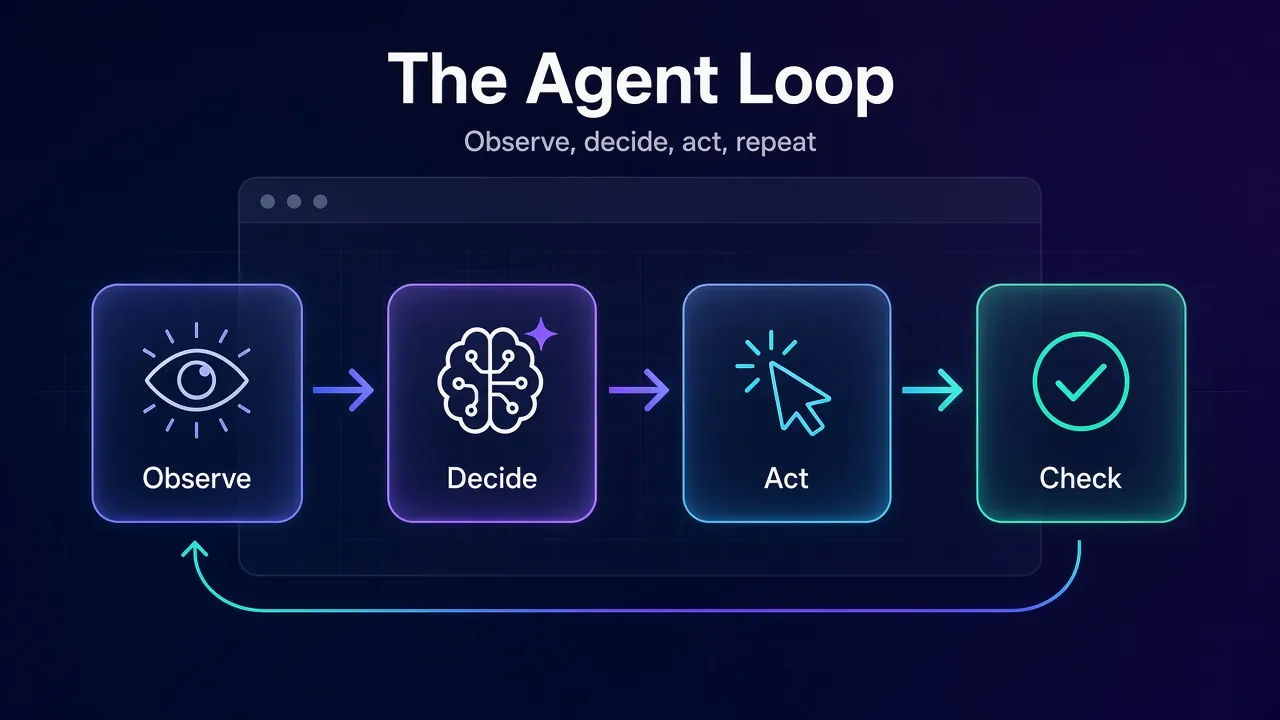
The loop itself looks like this:
Observe. Pull a view of the page: its HTML, its accessibility tree, a screenshot, or a mix.
Decide. Send that view and the goal to the model, which picks the next action.
Act. Turn the action into real browser commands: navigate, click, type, scroll.
Check. Observe again to confirm the action worked, then repeat until the task is done.
Classic scripts skip the decide step. They know the button is #submit because a developer wrote that down. Agents don’t know anything in advance, so they observe constantly. That one difference drives almost every design choice below.
The Four Layers Behind Every Browser Agent
A browser agent is four separate pieces stacked together. Mixing them up is the most common reason people compare tools that don’t compete.
| Layer | Its job | Real examples |
|---|---|---|
| Engine | Loads pages and runs their JavaScript | Chrome, Chromium, Firefox |
| Protocol and driver | Carries commands into the engine | CDP, WebDriver BiDi, Playwright, Puppeteer |
| Where it runs | Hosts the browsers and keeps them alive | Your laptop, your servers, Browserbase, Browser Use Cloud |
| Agent brain | Decides what to do next | Browser Use agent, Stagehand, Playwright MCP with any model, computer use tools |
You can swap any layer. Stagehand can drive a local Chrome or a Browserbase session. Browser Use can control a local browser, its own cloud browser, or any remote browser over CDP. The model on top can change every week.
Our take: pick the perception method first and the hosting second. The engine is almost always Chromium, and the protocol is almost always CDP.
How Agents Send Commands: CDP vs WebDriver BiDi
Every click an agent makes ends up as a message on a protocol. There are two that matter in practice.
1CDP, Chrome’s Native Language
The Chrome DevTools Protocol is the same channel Chrome’s own DevTools use. It’s split into domains, and the ones agents lean on are easy to read: Page.navigate, Input.dispatchMouseEvent, Input.insertText, Page.captureScreenshot and Accessibility.getFullAXTree.
That last one is the quiet star. It hands back the page the way a screen reader sees it: roles, names and states, without the styling noise. Here’s a real call, run through Playwright’s CDP session:
from playwright.sync_api import sync_playwright

with sync_playwright() as p:
    browser = p.chromium.launch(headless=True)
    page = browser.new_page()
    page.goto("https://example.com")

    cdp = page.context.new_cdp_session(page)          # raw CDP channel
    tree = cdp.send("Accessibility.getFullAXTree")     # what a screen reader sees
    print(len(tree["nodes"]), "accessibility nodes")
    browser.close()
On example.com, that returned 38 nodes when we ran it. The same session can click, type and screenshot. Playwright and Puppeteer are mostly polite wrappers around calls like these.
2WebDriver BiDi, the Cross-Browser Standard
WebDriver BiDi is the W3C’s newer protocol. It aims to combine classic WebDriver’s cross-browser reach with CDP-style two-way messaging.
Here’s the catch for agent builders. Puppeteer’s own docs say it still uses CDP by default for Chrome, because BiDi doesn’t cover every CDP feature yet. Its Accessibility API isn’t supported over BiDi, and neither are raw CDP sessions or tracing.
So if your agent reads the accessibility tree, you’re on CDP, which means Chromium. Firefox support through BiDi works for clicking and typing, but the best reading tools aren’t there yet.
3Why Some Agent Tools Skip Playwright Entirely
Browser Use ran on Playwright for a long time, then dropped it for raw CDP through its own cdp-use library. The team said it made element extraction and screenshots much faster and fixed cross-origin iframes.
Playwright itself hints at the trade-off. Its docs call connectOverCDP “significantly lower fidelity” than its own protocol. That’s fine for an agent attaching to a cloud browser. It’s worth knowing before you debug a strange timeout at 2 a.m.
For most teams, the wrapper is still the right call. See Playwright vs Puppeteer if you’re choosing one. Go raw only when the wrapper is the thing in your way.
How Agents See a Page: DOM, Accessibility Tree or Screenshots
This is the decision that shapes your agent. There are three ways to show a page to a model, and each one fails differently.
1The Raw DOM
The simplest option is to dump the HTML and let the model read it. It contains everything, which is the problem. Scripts, style rules, tracking tags and layout wrappers all arrive with the content.
Frameworks that use the DOM usually clean it first. Browser Use, for example, pulls out the interactive elements and gives each one an index the model can point to.
2The Accessibility Tree
The accessibility tree is the browser’s own summary for screen readers: “button, Search”, “link, Log in”, “heading level 2, Contents”. It keeps meaning and drops decoration.
Microsoft’s Playwright MCP server is built around it. Its README says it lets models use web pages “through structured accessibility snapshots, bypassing the need for screenshots or visually-tuned models.” Each element gets a reference, and the model clicks by reference instead of guessing coordinates.
We wanted to know how big the saving really is. On October 4, 2026, we loaded two pages in headless Chrome 154 with Playwright 1.63 and compared what a model would have to read:
| Page | Raw HTML | Accessibility snapshot | Visible text only |
|---|---|---|---|
| Our “What Is Headless Browsing?” guide | 399,886 characters | 40,371 characters | 24,718 characters |
| Wikipedia’s “Headless browser” article | 326,301 characters | 31,169 characters | 8,196 characters |
On both pages, the accessibility snapshot was about one tenth the size of the HTML. Visible text is smaller still, but it loses the buttons and links the agent needs to act. The snapshot is the sweet spot: small enough to afford, rich enough to click.
3Screenshots and Coordinates
The third way is to show the model a picture. Anthropic’s computer use tool and OpenAI’s computer use tool both work like this: the model looks at a screenshot, then asks for a click at a coordinate, a scroll or some typing.
Screenshots see what the DOM hides. Canvas apps, charts, image-only buttons and odd custom widgets all show up fine. The cost is precision. Anthropic’s docs recommend a zoom action for small text, and OpenAI warns that downscaled screenshots need their coordinates mapped back before you click.
Many frameworks mix the two. Browser Use turns screenshots on by default, and its use_vision setting can switch them off or make them on-demand only.
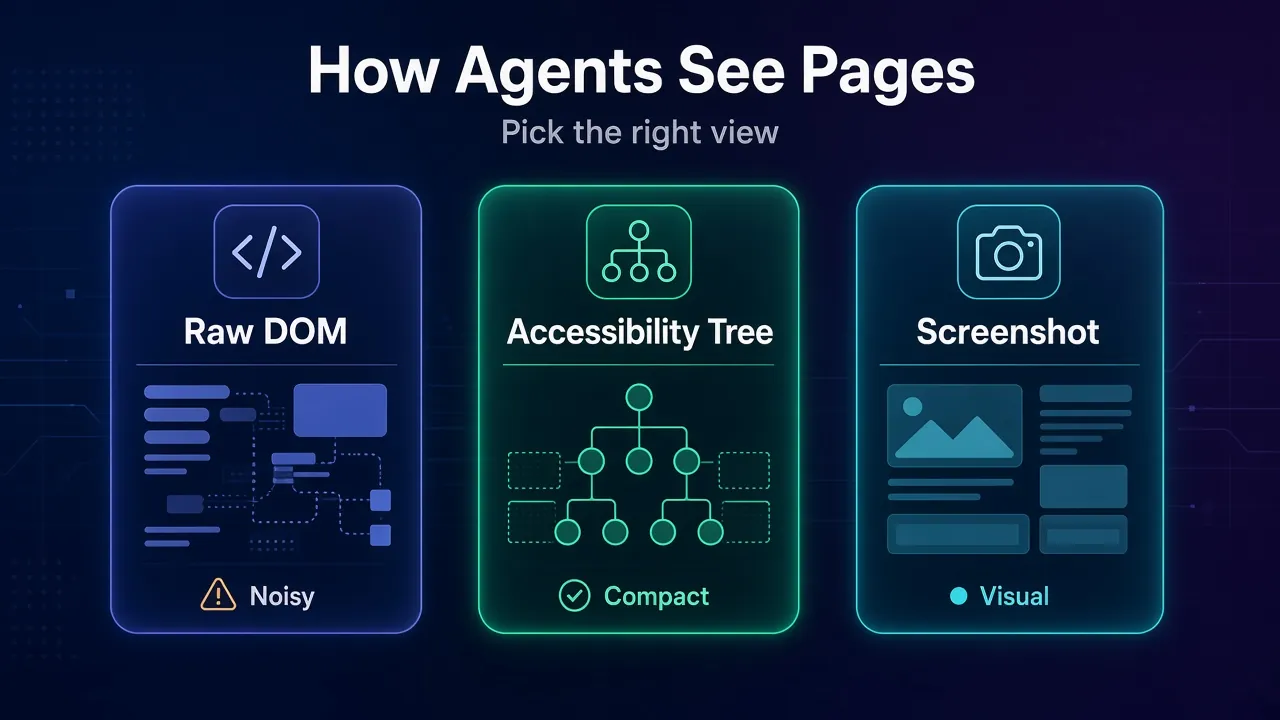
Which Perception Mode Should Your Agent Use?
Start with the accessibility tree, add screenshots for the pages that need them, and avoid raw HTML unless you’re extracting data. This table maps common jobs to a sensible default:
| Your agent’s job | Best default | Why |
|---|---|---|
| Forms, logins, checkouts on normal sites | Accessibility tree | Labelled fields and buttons, cheap to read, clicks by reference |
| Extracting prices, tables or articles | Cleaned DOM or Markdown | You want the data itself, not the controls |
| Canvas apps, maps, charts, games | Screenshots | The content isn’t in the tree at all |
| Desktop apps or several apps at once | Screenshots with computer use | There’s no DOM outside the browser |
| Unknown sites at scale | Tree first, screenshot on failure | Keeps costs low and still handles the weird pages |
Common mistake: using a browser for pages that don’t need one. If the agent only reads, a fetch call or a Markdown scraper is faster and cheaper. Our guide to scraping a website into Markdown shows how much that saves.
Where the Browser Runs: Local, Self-Hosted or Cloud
Once you know how your agent reads pages, the next question is whose computer runs the browsers. There are three honest answers.
1On Your Own Machine or Servers
Launching Chrome yourself is free and fully under your control. Pass --headless to the Chrome binary, or let Playwright or Puppeteer do it. Playwright MCP and Google’s chrome-devtools-mcp both take a --headless flag, so a coding agent can drive a local browser in a few lines of config.
The bill arrives later, in work. You patch Chrome, manage crashes, scale servers, store sessions and debug runs you can’t watch. Fine for ten browsers. Painful for five hundred.
2Browserbase
Browserbase rents out fleets of headless browsers with isolated sessions. Your code creates a session through its API, then connects with Playwright, Puppeteer or Selenium. Playwright and Puppeteer attach over CDP. Each session comes with a live view and a replay, which helps a lot when an agent does something strange.
It also makes Stagehand, an SDK with three AI primitives: act, extract and observe. Stagehand’s README notes that observe() returns real selectors, so passwords can be typed without ever passing through the model.
Plans on October 4, 2026: Free with 1 browser hour and 3 concurrent sessions, Developer at $20 a month with 100 hours, 25 concurrent sessions and 1 GB of proxy traffic, and Startup at $99 with 500 hours and 100 concurrent sessions. Its fingerprint-matched “Verified” browser is on the custom Scale plan.
3Browser Use
Browser Use is an open-source browser agent for Python and TypeScript, plus a cloud that runs browsers and agents for you. You can run the agent locally against your own Chrome and only rent cloud browsers when you need scale or stealth.
Its pricing is pay as you go. Browsers cost $0.02 per hour, its residential proxies cost $5 per GB and are on by default, and traffic through your own proxy costs $0.20 per GB. Hosted agents cost the model price plus 20%. New projects start with 10 concurrent sessions.
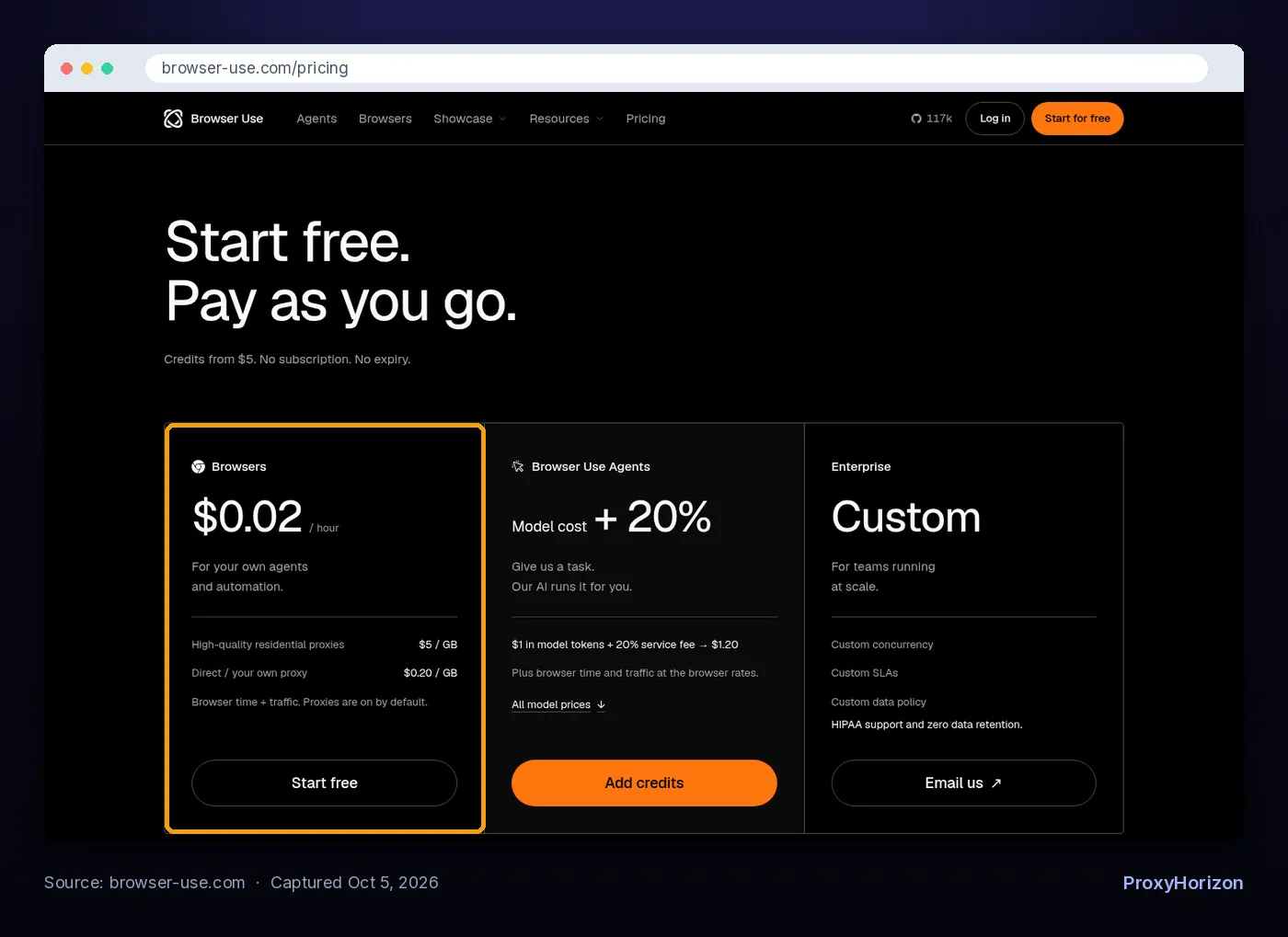
Check before you buy: Browser Use’s docs warn that closing your CDP connection doesn’t stop a cloud browser right away. Stop it through the API, or the meter keeps running.
| Option | How the agent connects | Cost model (Oct 4, 2026) | Best for |
|---|---|---|---|
| Local Chrome or Playwright | Direct launch or local CDP port | Free, plus your servers and time | Prototypes, coding agents, small jobs |
| Browserbase | CDP connect URL per session | Monthly plans from $0, then hourly overage | Teams that want replays, Stagehand and steady concurrency |
| Browser Use Cloud | CDP, its CLI or its agent API | $0.02 per browser hour plus traffic | Pay-as-you-go agents and bursty workloads |
Why Headless Agents Get Blocked
Plain headless Chrome tells websites what it is. That isn’t a rumor. It’s in the standards.
The navigator.webdriver property exists so a browser can announce automation, and MDN says Chrome sets it to true whenever the --headless flag is used. Any page can read it with one line of JavaScript.
We checked what else leaks. With a plain headless launch, navigator.webdriver came back true and the user agent read HeadlessChrome/154.0.0.0. Adding a popular launch flag flipped webdriver to false. The user agent still said HeadlessChrome.
That’s the trouble with partial disguises. A browser that hides one signal and leaks another looks worse than an honest one, because the mismatch looks deliberate. Detection systems also check TLS handshakes, fonts, GPU details and behavior, as we cover in how anti-bot systems detect bots.
One more hidden detail: Playwright’s default headless Chromium is the separate “headless shell”, the old headless mode. You opt into Chrome’s new headless with the chromium channel. Chrome’s team calls the new mode “the real Chrome browser”, and it behaves more like the one your visitors use.
Warning: any tool that promises an agent will never be detected is overselling. The realistic goals are consistency and honesty, which the next two sections cover.
Where Proxies and Antidetect Browsers Fit
Proxies fix where the traffic comes from. They don’t fix what the browser looks like. You usually need to think about both.
A cloud server’s IP belongs to a data center, and many sites treat data-center traffic with suspicion. Routing the browser through residential IPs makes it look like home internet. Playwright, Browser Use and Playwright MCP all take a proxy setting, and our guide to using proxies in Playwright walks through the code.
For agents, the key setting is the session type. A sticky session, meaning one IP held for a set time, keeps a logged-in flow on one address. Rotating the IP halfway through a checkout is a fast way to trigger a security check.

Hosted platforms bundle this. Browserbase offers built-in residential proxies, your own HTTP or HTTPS proxies, and rules that route different domains through different proxies. Browser Use includes residential proxies by default and warns that a new browser doesn’t guarantee a unique IP or a particular city.
The browser fingerprint is the other half. Browser fingerprinting ties your canvas, fonts, screen and hardware into an identity. Antidetect browsers manage that identity per profile, and several now accept agent connections directly.

Kameleo is a good example of how this works with agents. It runs a local API, starts a profile (headless if you like), and lets Playwright connect over a CDP WebSocket. Its docs say to set browser and network options in Kameleo, not through Playwright.
Its Puppeteer docs add a warning most guides skip: don’t stack third-party stealth plugins such as puppeteer-extra-plugin-stealth on top, because they can reduce masking quality. More patches can mean more mismatches. Compare other options in our antidetect browser directory.
The Rules: Terms of Service, robots.txt and Honest Agents
An agent is still your software, and you’re responsible for what it does. The site’s terms of service apply to it just as they apply to you.
Three rules keep you on solid ground:
Read the terms first. Many sites ban automated access, scraping or account sharing. An agent clicking like a human doesn’t change what the terms say.
Respect robots.txt, and know its limits. The standard, RFC 9309, says its rules “are not a form of access authorization.” Following robots.txt doesn’t make access legal. It just shows good faith.
Stay out of other people’s data. Agents acting inside your own accounts are one thing. Collecting personal data from logged-in areas you don’t own is where legal risk grows fast.
Browserbase’s own guidance says the same: review terms of service, check robots.txt and cache responses so you don’t hit a site more than needed.
1Agents Can Now Identify Themselves
The web is building an honest lane for agents. Cloudflare now sorts bots by what they do, with separate labels for user-directed Agent traffic and Data Collection such as price scraping. Since July 1, 2026, it treats signed agents as Verified bots.
The signing method is Web Bot Auth, built on HTTP Message Signatures (RFC 9421). The agent signs its requests with a private key, publishes the public key, and the site checks the signature. Browserbase offers it in beta and says plainly that a valid signature doesn’t grant access. The site still decides.
Our take: for agents doing legitimate work, a verifiable identity will beat a better disguise over time. Sites can allow what they can recognize.
2The Risk Nobody Shows in the Demo: Prompt Injection
Your agent reads web pages, and web pages can contain instructions. Anthropic’s computer use docs warn that instructions on a page or inside an image can override yours.
The fix is boring. It also works. Run the browser in an isolated container or VM with minimal privileges, keep real credentials away from the model, and require a human OK before payments or messages.
Common Mistakes When You Give an Agent a Browser
These are the failures that show up in real agent logs, not generic advice.
Feeding the model raw HTML. Our test pages were about ten times larger as HTML than as accessibility snapshots. That’s ten times the tokens for the same decision.
Trusting a screenshot for tiny text. Small labels blur when screenshots shrink. Use zoom or the tree for anything the agent must read exactly.
Rotating IPs inside a session. A logged-in agent that changes country between clicks looks like a stolen account.
Leaving cloud browsers running. A closed connection isn’t always a stopped browser. Stop sessions explicitly and set timeouts.
Stacking stealth tricks. Each patch can add a new mismatch. Pick one consistent identity and leave it alone.
Letting the agent act without limits. Restrict it to the domains it needs. Browserbase supports an allowlist of domains, and Browser Use can tie secrets to specific domains.
Frequently Asked Questions
The Bottom Line on Agents and Headless Browsers
AI agents use headless browsers the way you’d use a remote control. The model never touches the page. It reads a summary, picks an action, and a protocol, usually CDP, carries that action into real Chrome.
The choices that matter most aren’t the flashy ones. Read pages through the accessibility tree, fall back to screenshots only when you must, and run the browser somewhere you can watch and stop it. Then be honest with the sites you visit, because plain headless Chrome already announces itself.
Our next step for you: point Playwright MCP or the open-source Browser Use agent at one real task on a site you’re allowed to automate, and watch the loop run. When you’re ready to compare finished tools, start with our list of the best agentic browsers for AI automation.
Keep Reading
More articles you might enjoy