How to Stop Apps and Websites From Tracking You 2026
Apps and websites track you through cookies, fingerprints, ad IDs, and your IP. Here is the layer-by-layer playbook to shut nearly all of it down in an afternoon.

Every app you open and every page you load is quietly reporting on you. Location pings, ad identifiers, cookies, fingerprints, analytics beacons — the average smartphone hosts dozens of trackers, and the average website loads even more before you've read the first paragraph.
The scale is hard to overstate. Studies have found that the average app shares data with multiple third parties, the data broker industry built on this collection is worth over $280 billion, and a single evening of browsing can trigger hundreds of tracking requests. None of it requires your meaningful consent — just your inattention.
The good news: you can shut most of it down in an afternoon. This guide walks through exactly how tracking works and how to stop it, layer by layer — browser, phone, network, and habits — so you keep the services you love while starving the surveillance machine behind them. It's the practical companion to our explainer on why online privacy matters more than ever.
How Apps and Websites Track You in the First Place
You can't block what you don't understand, so start with the mechanics. Tracking today is a stack of overlapping techniques, each designed to survive when another is blocked.
| Tracking Method | Where It Lives | What It Collects |
|---|---|---|
| Third-party cookies | Browser | Cross-site browsing history |
| Browser fingerprinting | Browser/device | Unique device signature |
| Mobile ad IDs | Phone OS | Cross-app activity profile |
| App permissions | Phone OS | Location, contacts, mic, camera |
| Analytics & pixels | Apps and pages | Clicks, views, session behavior |
| IP address | Network | Location, identity linkage |
Notice the pattern: tracking happens at four layers — browser, device, network, and account. Blocking one layer while ignoring the rest just shifts the collection elsewhere, which is why this guide works through all four.

Step 1: Lock Down Your Browser
The browser is where most web tracking happens, and it's the fastest layer to fix. Start by blocking third-party cookies — the classic cross-site tracker. Every major browser has this setting, and our guide on whether to accept cookies explains which cookie types are safe to keep.
Next, install a reputable content blocker. A strong ad and tracker blocker removes analytics beacons, tracking pixels, and ad-network scripts before they load — the single highest-impact change most people can make in five minutes.
Finally, consider the browser itself. Defaults matter more than settings you'll never change, and browsers differ enormously here — Firefox blocks trackers out of the box while Chrome requires deliberate hardening. Our Chrome vs Firefox privacy comparison breaks down which foundation serves you better.
Step 2: Defeat Browser Fingerprinting
Blocking cookies is not enough, because modern trackers identify you by your device's unique configuration — screen size, fonts, GPU, time zone — a technique called browser fingerprinting. It works in incognito mode and survives every cookie purge.
To resist it, use a browser with built-in fingerprint protection (Firefox's resistFingerprinting, Brave's randomization), keep extensions minimal (each one makes you more unique), and avoid rare fonts or unusual configurations. Techniques like canvas and WebGL fingerprinting are the hardest to beat — for high-stakes anonymity, purpose-built anti-fingerprinting browsers are the only complete answer.
For most people, the goal is not perfect invisibility but blending in: a common browser, common settings, and active anti-fingerprinting features defeat the bulk of commercial tracking.
Step 3: Stop Your Phone's Apps From Tracking You
Apps track more aggressively than websites because the operating system hands them richer data. Three settings changes cut off most of it.
Kill the advertising identifier. On iPhone, enable "Ask App Not to Track" prompts and deny them by default (Settings → Privacy & Security → Tracking). On Android, delete your advertising ID entirely (Settings → Privacy → Ads). This single ID is what links your activity across every app you use.
Audit app permissions ruthlessly. Location, microphone, camera, and contacts should be granted only to apps that genuinely need them to function — and location should be "while using," never "always." A flashlight app does not need your contact list.
Prune what you don't use. Every installed app is a potential collector, even idle. Delete what you haven't opened in months, and prefer the web version of services whose apps demand excessive permissions.
Step 4: Hide Your Network Identity With a VPN
Everything above still leaves one identifier exposed: your IP address. Every site and app you connect to sees it, your ISP logs every domain you visit — even in incognito mode — and trackers use it to link your activity across devices on the same connection.
A trustworthy no-logs VPN fixes the network layer: it encrypts your traffic so your ISP can't log it, and replaces your IP so websites and apps can't use it as an identifier. Check what you're currently exposing with our free IP address tool, and for maximum-anonymity needs, see how VPNs compare to Tor.
Best VPNs for Blocking Trackers
A VPN only helps if the provider itself doesn't log you — and the best ones now block trackers and malicious domains at the network level, protecting every app on your device at once. These three are independently audited no-logs services. Compare more in our VPN directory.
1NordVPN

Ideal as an all-rounder, NordVPN pairs audited no-logs policies with Threat Protection, which blocks trackers, ads, and malicious domains across your whole device — including inside apps, where browser extensions can't reach.
Fast servers keep the encryption invisible in daily use. For most people who want network-level tracker blocking without fuss, it's the dependable default.
2Proton VPN

Best for privacy purists, Proton VPN is open source, independently audited, and Swiss-based, with NetShield filtering that blocks trackers and malware at the DNS level. Its genuinely usable free tier makes it the easiest zero-risk start.
Secure Core routing adds protection against network surveillance. For users who want maximum trust in the provider itself, it sets the standard.
3Surfshark

Best value for households, Surfshark allows unlimited simultaneous connections, so every phone, laptop, and tablet in the house gets CleanWeb tracker and ad blocking on one plan.
Audited no-logs policies and solid speeds despite the low price. For covering many devices affordably, it's the standout pick.
Step 5: Clean Up Your Accounts and Habits
The final layer is behavioral, because logged-in tracking defeats every technical control. When you browse while signed into a Google or social account, your activity ties directly to your real identity regardless of cookies or IP.
Turn off ad personalization in your Google, Meta, and other major accounts — the toggles exist, they're just buried. Review and delete stored activity history where offered. Sign out of accounts you don't actively need, or contain them in a separate browser profile so their tracking can't follow your general browsing.
Finally, share less on purpose. Every form field you skip, every optional permission you deny, and every account you don't create is data that never needs protecting.
How to See What Is Already Tracking You
Before and after you lock things down, it helps to measure. Both major phone platforms now ship a built-in audit trail that shows exactly which apps are collecting what — most people have simply never opened it.
On iPhone, enable the App Privacy Report (Settings → Privacy & Security → App Privacy Report). It logs every sensor access and every domain each app contacts, so you can see precisely which apps phone home to ad networks and how often. On Android, the Privacy Dashboard (Settings → Privacy) shows a timeline of which apps used your location, camera, and microphone in the last 24 hours — sudden accesses from apps you were not using are your cue to revoke.
In the browser, your content blocker’s counter tells the story per site: open a few pages you visit daily and note how many trackers it stops. Store privacy labels — Apple’s App Store privacy cards and Google Play’s data-safety section — also reveal what an app declares it collects before you install it, which makes them a useful pre-install filter rather than an afterthought.
These tools turn tracking from an invisible abstraction into a concrete list you can act on. Run the audit once before applying this guide and once after, and the difference — hundreds of contacts dropping to a handful — is the clearest proof your defenses are working.
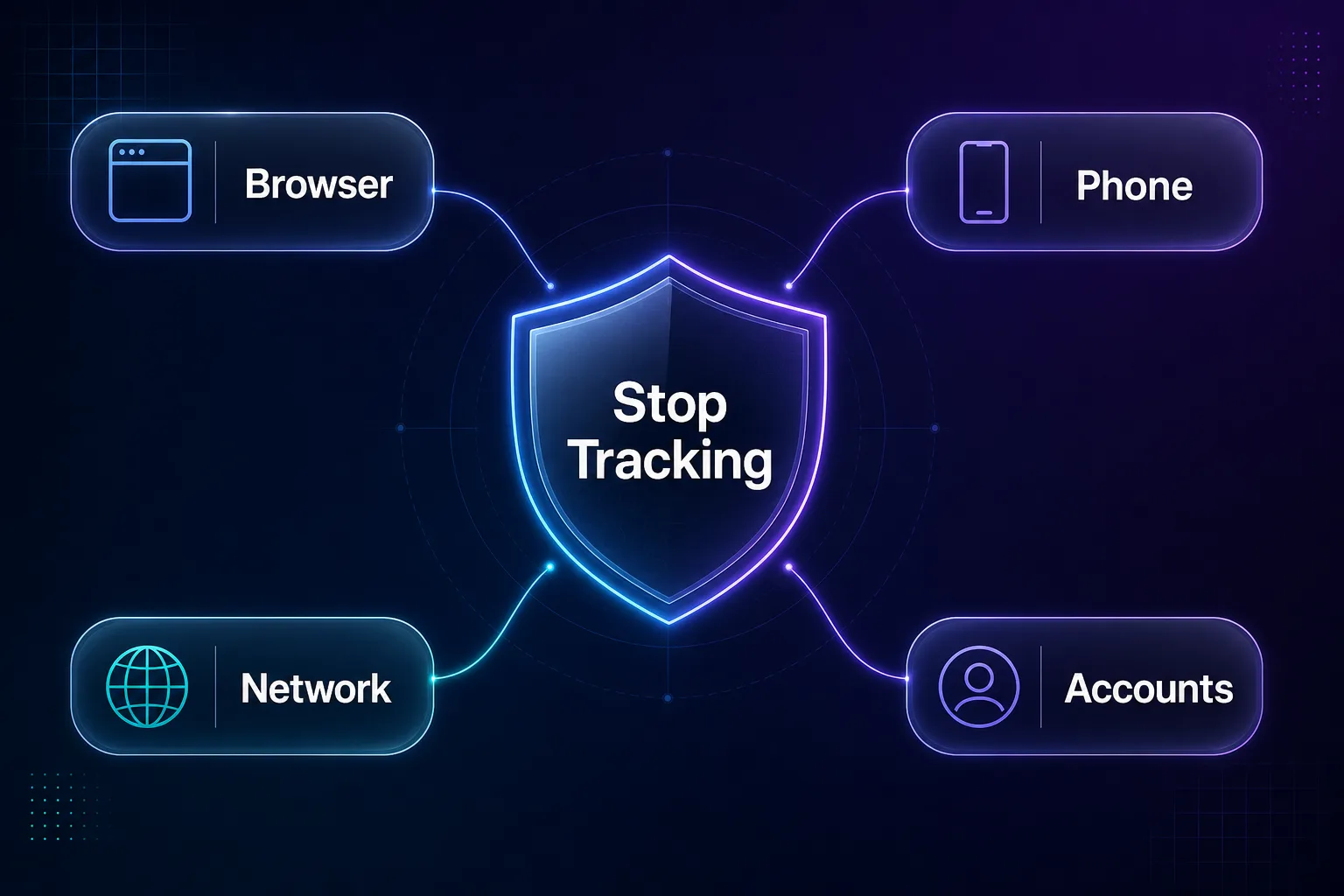
Which Protection Stops Which Tracking?
Here's the full defense map — match each layer you've secured against what it actually stops.
| Protection | Stops | Does NOT Stop |
|---|---|---|
| Third-party cookie blocking | Cross-site cookie tracking | Fingerprinting, IP tracking |
| Content/tracker blocker | Pixels, beacons, ad scripts | In-app tracking, IP exposure |
| Anti-fingerprinting browser | Device-signature tracking | Logged-in tracking |
| Ad-ID reset / ATT denial | Cross-app profiling | Permissions you granted |
| No-logs VPN | IP tracking, ISP logging | Cookies, fingerprints, logins |
| Signed-out browsing | Account-linked tracking | Network-level collection |
No single tool covers everything — that's by design on the trackers' side. But the layers above overlap enough that together they block the overwhelming majority of commercial surveillance.
Common Mistakes That Keep You Trackable
Most people who "did everything" and still see eerily targeted ads made one of these five errors.
1Trusting Incognito Mode to Stop Tracking
Private browsing only prevents your own browser from saving history — websites still see your IP, your fingerprint still identifies your device, and your ISP still logs every domain. Treat incognito as a clean local slate, never as anti-tracking. The network and fingerprint layers need their own tools.
2Blocking Cookies but Staying Logged In
If you're signed into a platform while browsing, it doesn't need cookies to track you — your account is the tracker. Blocking third-party cookies while staying logged into Google or Meta everywhere is fighting with one hand tied. Sign out or isolate those accounts in a separate browser profile.
3Granting "Always" Location to Convenience Apps
Weather, shopping, and delivery apps routinely request always-on location they don't need. Each grant is a continuous location diary sold onward to brokers. Set location to "while using" at most, and deny it entirely to apps whose core function doesn't require it.
4Using a Free VPN That Sells Your Data
A VPN routes all your traffic through its provider, so an untrustworthy one is a tracker with root access. Many free VPNs monetize by logging and selling exactly the browsing data you're trying to hide. Use only independently audited no-logs providers — a legitimate free tier from an audited provider is fine; a mystery free VPN is not.
5Doing It Once and Never Again
Apps re-request permissions after updates, new accounts default to personalization on, and trackers evolve around blocks. Privacy is maintenance, not a one-time setup. Re-audit permissions and settings every few months, and treat each new app install as a fresh decision.
Best Practices for Staying Untracked
- Layer your defenses — cookie blocking + tracker blocker + anti-fingerprinting + VPN together cover what each misses alone.
- Deny by default — reject tracking prompts, skip optional fields, and grant permissions only when a feature actually breaks without them.
- Isolate your identities — keep logged-in accounts in one browser profile and general browsing in another.
- Prefer private-by-default tools — a privacy browser and audited VPN protect you even when you forget to think about it.
- Verify, don't assume — check your exposure with our IP tool, and compare protection options in our side-by-side comparison tool.
Frequently Asked Questions
Conclusion: Privacy Is a Stack, Not a Switch
Stopping apps and websites from tracking you isn't one setting — it's four layers working together. Lock down the browser, cut off your phone's ad identity, mask your network with a trustworthy VPN, and keep your logged-in accounts contained. Each layer stops what the others can't.
Start with the five-minute wins: block third-party cookies, install a tracker blocker, and deny app tracking prompts. Then work through permissions, fingerprinting, and the network layer as time allows. An afternoon of setup starves years of collection.
Ready to close the network layer? Pick an audited no-logs provider from our VPN directory, and keep building your defenses with our guides on handling cookie banners and understanding browser fingerprinting.
Keep Reading
More articles you might enjoy