How to Set Up a Proxy in Telegram on Android (2026)
How to set up a proxy in Telegram on Android: exact menu paths for Telegram and Telegram X, how to verify the exit IP, the app-wide proxy limit for multiple accounts, and the Android settings that break it.
Telegram is one of the few big apps that lets you set a proxy inside the app itself. No VPN, no root, no system settings. On Android that matters more than on other platforms, because Android has no system-wide proxy for mobile data, so an app-level setting is often the only clean way to route one app through a different IP.
The catch is that the Android setup has quirks nobody warns you about. The menu moved between versions, Telegram X puts it somewhere else, battery optimisation quietly kills your connection, and the proxy applies to the whole app rather than to one account. That last one surprises people running several accounts.
This guide walks through the exact taps for stock Telegram and Telegram X, how to verify the proxy is really working, the Android-specific problems that break it, and what to do when you need a different IP per account. If you want the platform-agnostic version first, see our guide to using proxies in Telegram.
- The path is Settings, then Data and Storage, then Proxy or Proxy Settings, then Add Proxy. Menu names shift slightly between app versions.
- Telegram supports two proxy types: SOCKS5 with a username and password, and MTProto with a secret.
- A shield icon in the header means the proxy is active. Verify the exit IP rather than trusting the icon alone.
- The proxy applies to the whole app, not per account, so several accounts on one device share one exit IP.
- Battery optimisation, Private DNS and VPN apps are the three Android settings most likely to break it.
Before You Start: What You Actually Need
Telegram accepts two kinds of proxy, and the details you need differ:
- SOCKS5: server address, port, and usually a username and password. This is what commercial proxy providers sell.
- MTProto: server address, port, and a secret, which is a long string of letters and numbers. These are Telegram-specific servers, often shared as links.
For account safety and everyday privacy, a paid SOCKS5 residential proxy is the better choice. MTProto exists mainly to get around blocking, and public MTProto servers are run by strangers. Our comparison of SOCKS5 vs MTProto for Telegram explains when each one makes sense, and if you have an MTProto link, follow our guide to adding an MTProto proxy instead.
One thing to sort out first: avoid free public proxy lists. They are shared by thousands of people, frequently log traffic, and an IP already flagged by Telegram can get your account restricted rather than protected.
Setting Up a Proxy in Telegram for Android
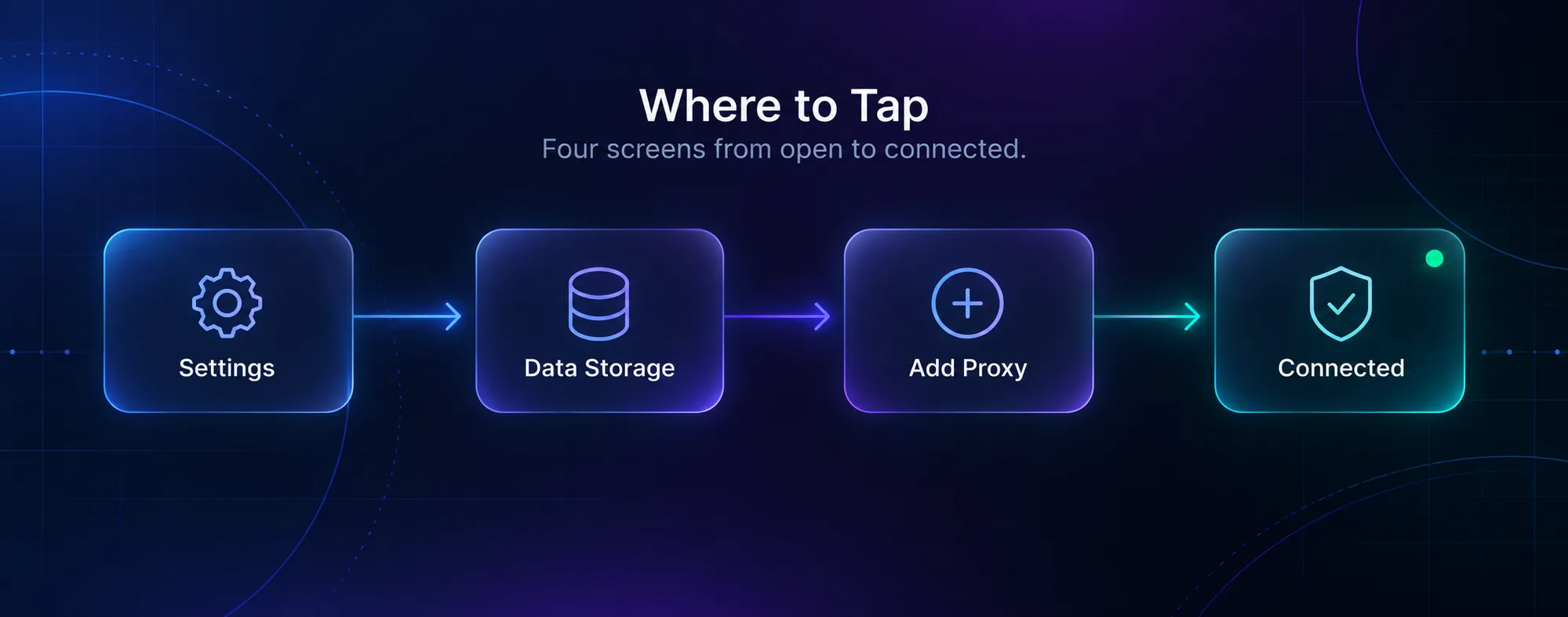
1Open Proxy Settings
Tap the hamburger menu in the top left, then Settings. Choose Data and Storage and scroll to the bottom, where you will find Proxy Settings (labelled simply Proxy in some versions).
If you cannot find it, use the search icon at the top of Settings and type “proxy”. Telegram’s settings search jumps straight to the right screen, which saves hunting when the layout changes between updates.
2Add Your Proxy
Tap Add Proxy and pick your type.
For SOCKS5, enter the server address, the port, and the username and password your provider gave you. Leave the credential fields empty only if your provider uses IP whitelisting instead, which means you have authorised your own IP in their dashboard. Our explainer on proxy authentication methods covers the difference.
For MTProto, enter the server, the port, and the secret. Most people never type these by hand, because tapping a proxy link fills everything in automatically.
3Turn It On
Save the proxy and it appears in your list. Tap it to connect, or use the Use Proxy toggle at the top of the screen. Telegram connects immediately, and a small shield icon appears near the top of your chat list when traffic is flowing through it.
You can store several proxies and switch between them by tapping. That is genuinely useful when you travel, because you can keep a home-country server and a local one side by side.
4Decide About Calls
Under the proxy entry you may see a Use for calls option. Voice calls are latency-sensitive, so routing them through a distant proxy can make them choppy. Leave it off unless calls are blocked on your network and you specifically need it.
Setting Up a Proxy in Telegram X
Telegram X is a separate Android app with a different interface, and the proxy screen lives elsewhere. Open Settings, tap Data and Storage, then look for Proxy or Connection settings, depending on your build. From there, adding a server works the same way: choose SOCKS5 or MTProto, fill in the details, save and connect.
Worth knowing: Telegram X and stock Telegram keep their settings separately. A proxy added in one does not appear in the other, even though both are signed into the same account. Some people use that deliberately, running two apps with two different exits.
How to Verify It Is Actually Working
The shield icon means Telegram believes the proxy is connected. It does not prove your traffic leaves from the IP you expect, and it says nothing about whether the server is leaking.
Check it properly:
- Compare your IP. Open any IP-checking site in a browser while the proxy is on, then compare with the IP you see with it off. Remember that Telegram’s proxy only covers Telegram, so your browser will show your normal IP unless it is separately proxied.
- Use a Telegram bot. Several bots report the IP your Telegram client connects from, which tests the app’s own traffic rather than your browser’s.
- Watch the connection banner. If the header cycles through “Connecting” and “Updating”, the proxy is unreliable even when the shield shows.
Our guide to testing proxy speed and anonymity covers deeper checks worth running before you trust a server.
The Multi-Account Limit Nobody Mentions
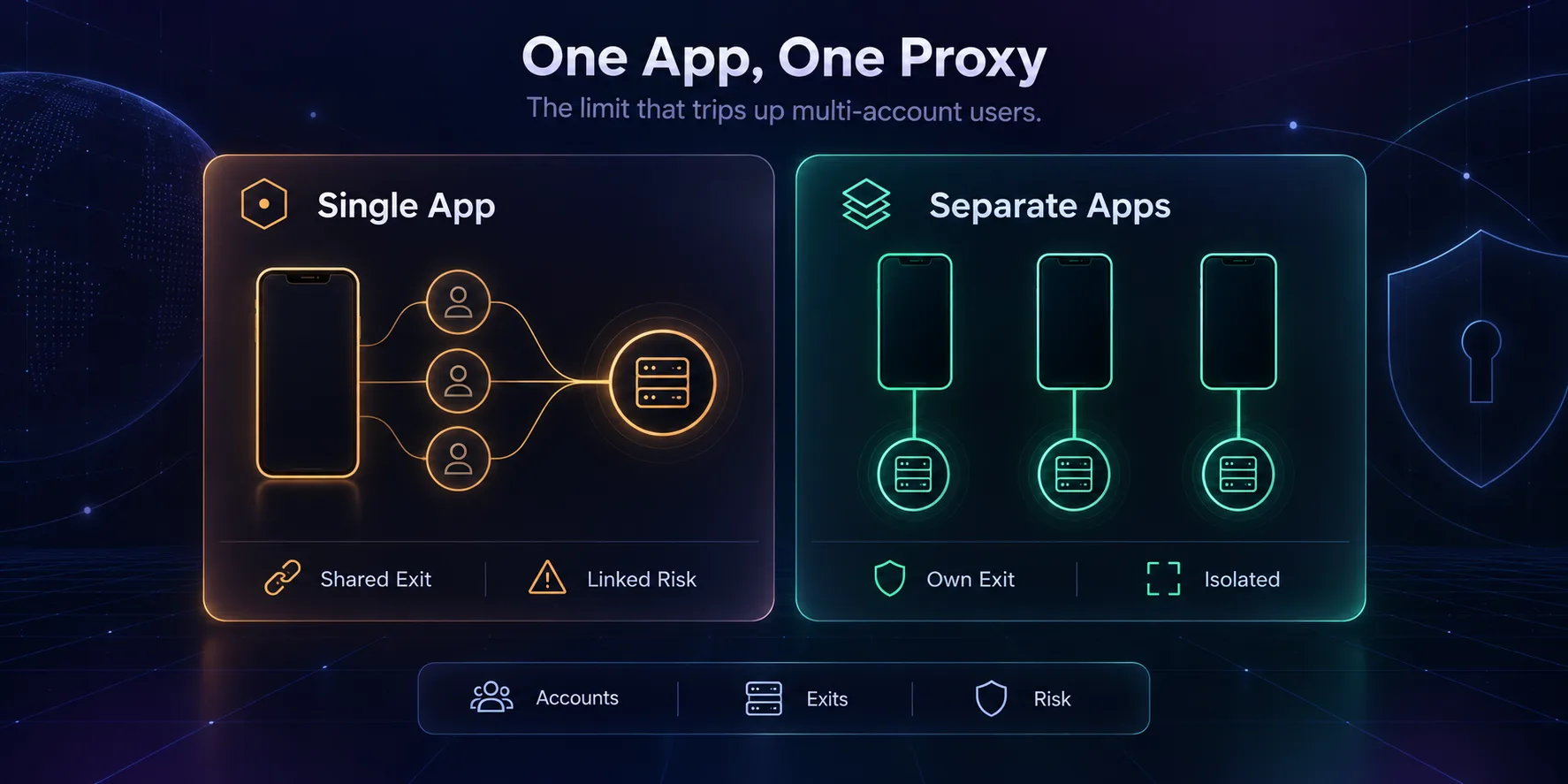
Here is the detail that catches people out. Telegram’s proxy setting applies to the app, not to an account. If you have three accounts signed into one copy of Telegram, all three connect through whichever proxy is active.
For most users that is fine. If you manage multiple accounts and want each one on its own IP, it is a problem, because sharing one exit is exactly the pattern platforms use to link accounts together. We explain the mechanics in how platforms detect multiple accounts.
The workarounds, from simplest to most robust:
- Two apps: stock Telegram and Telegram X hold separate proxy settings, so you get two exits on one phone.
- App cloning: some Android skins include a built-in app-cloning or dual-app feature, giving another instance with its own settings.
- Separate devices or cloud phones: the cleanest separation, because each Android instance has its own device identity as well as its own IP. See how cloud phones work with proxies.
Our take: if accounts matter to your business, one IP per account is not optional. Two apps on one phone is a stopgap, not a system, since both still share the same device fingerprint.
Android Problems That Break Telegram Proxies
1Battery Optimisation Killing the Connection
Android aggressively suspends background apps to save power, and on some manufacturer skins that hits Telegram hard. The symptom is messages arriving late or only when you open the app. Open your phone’s Settings → Apps → Telegram → Battery and set it to unrestricted.
2A VPN App Fighting the Proxy
If a VPN is running, Telegram’s traffic goes through the VPN tunnel first and then to your proxy, which doubles latency and sometimes breaks the connection entirely. Pick one or the other. If you need both, check whether your VPN supports split tunnelling so Telegram can bypass it.
3Private DNS Interfering
Android’s Private DNS setting can conflict with some proxies, especially on restricted networks. If Telegram will not connect, try setting Private DNS to Automatic under Settings → Network and internet and test again.
4Wi-Fi Proxy Settings That Do Nothing
Android lets you set a proxy per Wi-Fi network, and people assume that covers Telegram. It usually does not. That setting is an HTTP proxy hint that many apps ignore, and it does not apply to mobile data at all. Use Telegram’s own proxy setting instead.
5Data Saver Blocking Background Traffic
With Data Saver on, Android restricts background data, which can stop Telegram syncing while the screen is off. Allow unrestricted data use for Telegram if you rely on it for timely messages.
Choosing a Proxy That Works With Telegram
Telegram needs SOCKS5 support, and for account work you want residential or mobile IPs rather than datacenter ranges. Sticky sessions matter too, because an account that changes IP every few minutes looks abnormal. These three providers are solid starting points.
1IPRoyal

The most forgiving option for light Telegram use, because the traffic you buy never expires. If you only need a proxy occasionally, or while travelling, unused gigabytes wait until you come back. Sticky sessions can hold one IP for up to seven days, which suits an account that should look settled in one place.
2Decodo

A good all-rounder if you want a straightforward dashboard and wide country coverage. Credentials are easy to find and paste into Telegram, which sounds trivial until you are typing a long username on a phone keyboard. Sensible choice for a first paid proxy.
3NodeMaven

Worth a look if you are running several accounts and stability matters more than price. Its pitch is filtering out low-quality IPs before they reach you, which for account work is the thing that actually causes problems. Pair it with one IP per account rather than rotating.
For the full list with pricing, see our roundup of the best proxies for Telegram.
Is It Worth Running Telegram Through a Proxy?
Telegram Proxy on Android
- Hides your IP from the people and groups you talk to
- Restores access where Telegram is blocked
- Built into the app, so no VPN or root needed
- Covers mobile data, unlike Android’s Wi-Fi proxy setting
- Switch between saved servers with one tap
- Applies to the whole app, not per account
- A distant server adds noticeable latency to calls
- Free public servers are slow and often unsafe
- Battery and VPN settings can silently break it
Verdict
Worth it for privacy, travel and account work, as long as you pay for a decent residential proxy rather than using a public list.
SOCKS5 or MTProto on Android?
Both appear in the same Add Proxy screen, and the right pick depends on what you are trying to achieve.
| SOCKS5 | MTProto | |
|---|---|---|
| What you enter | Server, port, username, password | Server, port, secret |
| Where you get it | A paid proxy provider | A public link or your own server |
| Best for | Privacy, account work, choosing a country | Getting through blocking on restricted networks |
| Setup effort | Type or paste four fields | One tap if you have a link |
| Typical speed | Depends on the provider you pay for | Varies wildly on free public servers |
| Main risk | Choosing a cheap datacenter IP | Not knowing who runs the server |
For most Android users the answer is SOCKS5 from a provider you pay, because you control the country and the IP quality. Keep an MTProto link saved as a backup for networks that block everything else.
Common Mistakes When Setting This Up
1Pasting Credentials With Hidden Spaces
Copying a username or password from an email or dashboard on a phone often drags an invisible space along with it, and Telegram will simply fail to connect with no useful error. If a proxy refuses to work on the first try, delete each field and retype it carefully before blaming the server.
2Using One Proxy Across Several Accounts
Because the setting is app-wide, it is tempting to add one proxy and sign in with everything. That is the fastest way to tie accounts together, since they all appear from one address at the same times. Use separate app instances with separate proxies, or keep the extra accounts off that device.
3Picking a Country at Random
An account that has always connected from one country and suddenly appears on the other side of the world looks like a takeover. Choose an exit near where the account normally operates unless you have a specific reason not to, and keep it consistent afterwards.
4Rotating the IP Mid-Session
Rotating proxies suit scraping, not messaging. If your provider hands you a new IP every few minutes, Telegram sees a session that keeps moving. Ask for a sticky session that holds one address for hours, which is how a real phone behaves on a home connection.
5Leaving the Proxy On When You Do Not Need It
Every message takes a longer path through a proxy, so battery use and latency both rise, and paid residential traffic is metered by the gigabyte. Turn it off when you are on a network where you do not need it, and remember that media-heavy chats consume far more of your bandwidth allowance than text.
6Trusting Proxy Links From Public Channels
Proxy links shared in Telegram channels connect you to a server run by a stranger who can see your IP and your connection metadata. Fine for getting past a network block on a throwaway basis. Not fine for an account that matters.
Frequently Asked Questions
The Bottom Line
The setup itself takes about a minute: Settings, Data and Storage, Proxy, Add Proxy, connect. Everything that goes wrong afterwards is usually Android rather than Telegram, and the fix is almost always battery optimisation, a conflicting VPN, or a server that was never any good.
If you take one thing from this guide, make it the multi-account limit. One proxy per app means one exit IP for every account signed into it, so anyone managing several accounts needs separate instances, not just a better proxy.
Set it up with a paid residential proxy, check the exit IP once rather than trusting the shield icon, and leave calls off unless you need them. Browse the proxy directory if you want to compare providers by country coverage first.
Keep Reading
More articles you might enjoy