How to Schedule and Monitor Web Scrapers (2026 Guide)
Run your scraper on autopilot with cron, systemd, GitHub Actions, n8n or Apify, then catch silent failures with heartbeats and success-rate checks.
Writing a scraper is the fun part. Keeping it running every morning, and noticing the day it quietly starts returning half the data, is where most projects fall apart.
A scheduled scraper rarely crashes loudly. More often the job still “succeeds” while the success rate drops, a proxy plan runs out, or the site changes its layout and every price field comes back empty.
This guide shows how to schedule a web scraper with cron, systemd timers, GitHub Actions, n8n and Apify, and how to monitor it so you hear about silent failures before your data goes stale.
- Pick the scheduler that lives where your scraper runs: cron or systemd on a server, GitHub Actions in a repo, n8n or Apify for no-code.
- Cron skips runs missed while the machine is off; a systemd timer with Persistent=true catches up.
- GitHub says scheduled workflows can be delayed or dropped at busy times, so avoid the top of the hour.
- Stop overlapping runs with flock, a systemd service or a concurrency group.
- Monitor success rate, item count and empty fields, not just the exit code, and test your alert.
What Does It Mean to Schedule a Web Scraper?
Scheduling a web scraper means a scheduler starts your scraping job automatically at set times, such as every morning at 6:30 or every hour on weekdays. You stop running scripts by hand, and the data refreshes on its own.
Almost every scheduler uses the same five-field cron syntax: minute, hour, day of month, month and day of week. 30 6 * * * means 6:30 every day, and 0 9 * * 1-5 means 9:00 on weekdays. GitHub Actions, n8n and Apify all accept cron expressions, and Apify and n8n also allow an optional seconds field.
Scheduling is only half the job, though. A schedule makes sure the scraper starts. Monitoring tells you whether it actually did its work.
Which Scheduler Should You Use?
Use the scheduler that lives where your scraper already runs. A script on a VPS fits cron or a systemd timer, a script in a GitHub repo fits Actions, and a no-code flow fits n8n or Apify.
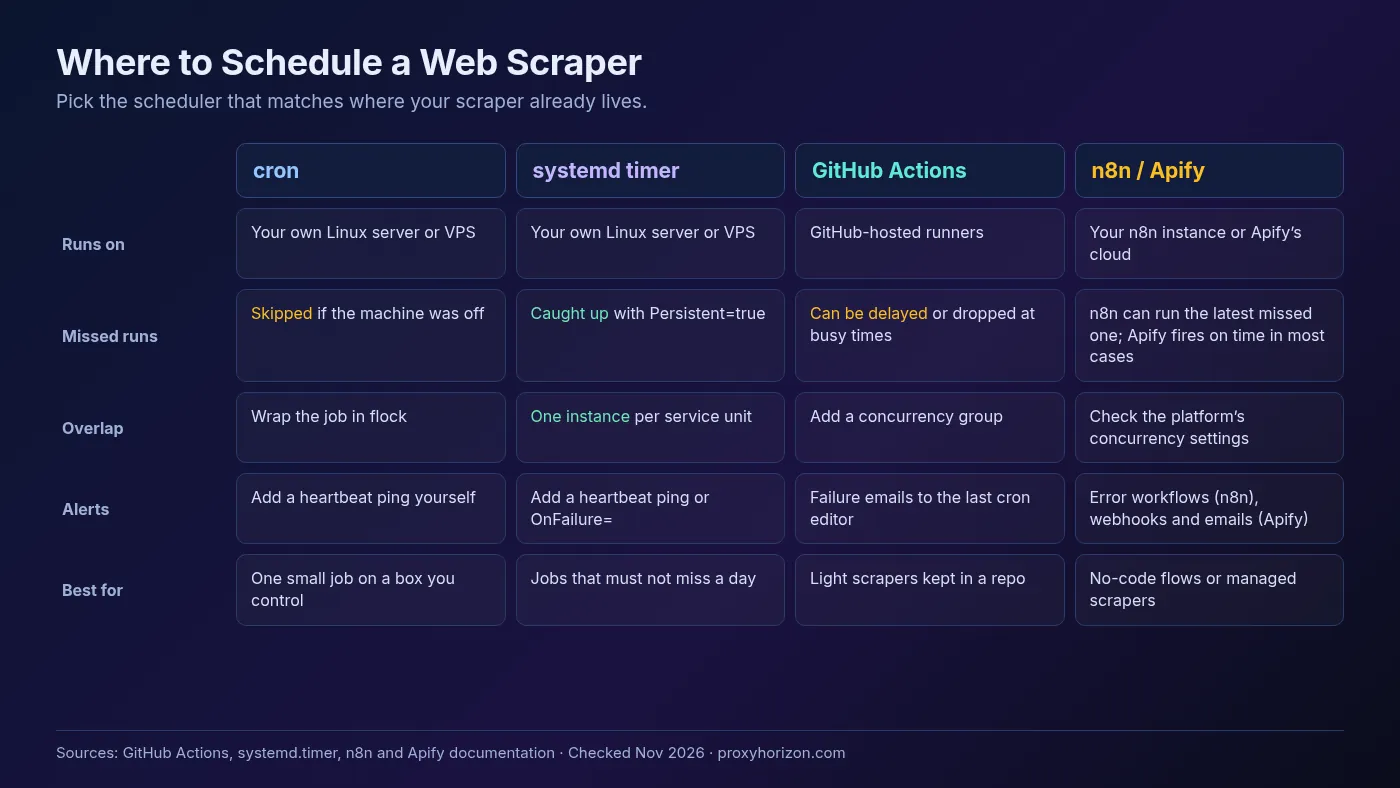
The table hides one big difference. Plain cron skips a run if the machine was off at that minute, while a systemd timer with Persistent=true catches up as soon as the machine is back. Hosted schedulers avoid the “my laptop was asleep” problem but bring their own delays and limits.
How to Schedule a Scraper With Cron
Cron is the simplest option: add one line to your crontab and the server runs your scraper on schedule. Open it with crontab -e and add a line like this:
30 6 * * * cd /opt/scraper && /usr/bin/flock -n /tmp/scraper.lock .venv/bin/python run.py >> logs/scraper.log 2>&1That line does four useful things:
- Runs at 6:30 every day in the server’s time zone, so check it with
timedatectlbefore you pick the hour. - Uses full paths to Python inside your virtual environment, because cron starts with a minimal environment.
- Wraps the job in
flock -n, so if yesterday’s run is still going, the new one exits instead of starting a second copy. We checked this locally: the secondflock -ncall exits with status 1 while the lock is held. - Appends output to a log file, so you have something to read when a run goes wrong.
Cron’s weakness is that it’s silent. It won’t tell you the job failed, and it won’t run a job it missed while the server was down. That’s why the monitoring section below matters more for cron than for any other option.
How to Use a Systemd Timer Instead
A systemd timer is cron with better failure handling: it can catch up missed runs, spread out start times and log every run to the journal. You need two small files. The service says what to run:
# /etc/systemd/system/scraper.service
[Unit]
Description=Nightly price scraper

[Service]
Type=oneshot
WorkingDirectory=/opt/scraper
ExecStart=/opt/scraper/.venv/bin/python run.py
The timer says when to run it:
# /etc/systemd/system/scraper.timer
[Unit]
Description=Run the price scraper every morning

[Timer]
OnCalendar=*-*-* 06:30:00
RandomizedDelaySec=10min
Persistent=true

[Install]
WantedBy=timers.target
Turn it on with sudo systemctl enable --now scraper.timer, and check when it fires next with systemctl list-timers. You can test a calendar expression with systemd-analyze calendar '*-*-* 06:30:00', which prints the next time it elapses.
Two settings do the heavy lifting. The systemd.timer documentation says Persistent=true stores the last run time on disk and triggers the service right away if a run was missed while the timer was inactive. RandomizedDelaySec= adds a random delay so many jobs don’t hit the same site, or your proxy gateway, at the same second.
Read the logs any time with journalctl -u scraper.service.
How to Schedule a Scraper With GitHub Actions
GitHub Actions can run a scraper on a schedule without any server, using a schedule trigger in a workflow file. It suits light scrapers that already live in a repo. Save this as .github/workflows/scrape.yml:
name: nightly-scrape
on:
  schedule:
    - cron: "37 1 * * *"
      timezone: "Asia/Kolkata"
  workflow_dispatch:

concurrency:
  group: nightly-scrape
  cancel-in-progress: false

jobs:
  scrape:
    runs-on: ubuntu-latest
    timeout-minutes: 30
    steps:
      - uses: actions/checkout@v7
      - uses: actions/setup-python@v7
        with:
          python-version: "3.13"
      - run: pip install -r requirements.txt
      - run: python run.py
        env:
          PROXY_URL: ${{ secrets.PROXY_URL }}
          HC_PING_URL: ${{ secrets.HC_PING_URL }}
A few choices in that file come straight from GitHub’s rules. The minute is 37, not 0, because GitHub’s docs say the schedule event can be delayed at busy times, including the start of every hour. workflow_dispatch adds a manual “Run workflow” button for testing.
The concurrency group stops two runs from overlapping, and timeout-minutes kills a stuck run instead of letting it burn up to the 360-minute default.
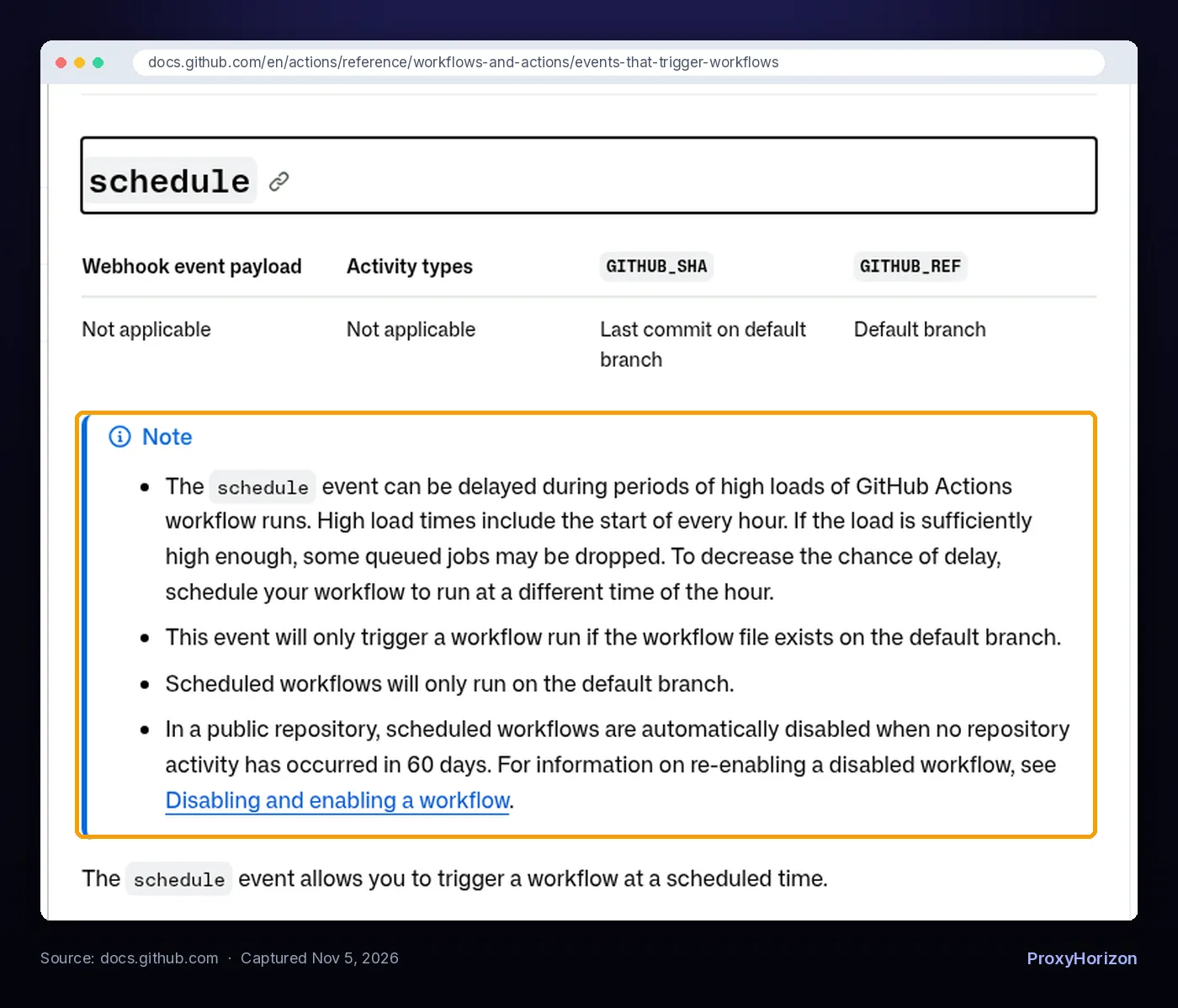
Know the limits before you rely on it. According to GitHub’s documentation, the shortest interval is once every 5 minutes, scheduled workflows only run on the default branch, schedules run in UTC unless you set a timezone, and in a public repository they’re disabled after 60 days without repository activity.
If enough jobs queue up, some scheduled runs can be dropped entirely.
Store proxy credentials as repository secrets, never in the YAML. GitHub-hosted runners use datacenter IPs, so most scrapers there need a proxy anyway. Our guide to using proxies with Python Requests shows how to read a PROXY_URL variable in code.
How to Schedule Scrapers in n8n and Apify
n8n and Apify both have built-in schedulers, so you can set a scraping schedule without touching a server’s crontab. Pick n8n for no-code flows you host yourself and Apify when you want the scraper and its schedule managed in the cloud.
1n8n: Schedule Trigger Plus an Error Workflow
In n8n, start the workflow with a Schedule Trigger node. The n8n docs list interval options from seconds to months plus a custom cron field, and the workflow has to be saved and published before the schedule runs.
Two settings catch people out. The schedule uses the workflow’s time zone, or the instance time zone if none is set, and the self-hosted default is America/New York. The If Execution Is Missed option (added in n8n 2.36) decides whether a run missed during downtime is skipped or run once as a catch-up.
For fetching, the HTTP Request node has a Proxy option that overrides the global HTTP_PROXY settings. Our list of the best n8n nodes for proxy data collection covers the rest of the flow, and if you still need an instance, follow our guide to self-hosting n8n.
For monitoring, create a separate workflow that starts with the Error Trigger node and sends a Slack message or email. Then pick it under Settings › Error workflow in your scraping workflow. n8n notes that the Error Trigger only fires for automatic runs, not manual tests.
2Apify: Schedules Plus Run Webhooks
On Apify, you create a schedule in the Console or through the API and attach Actors or saved tasks to it. Apify’s documentation says scheduled events usually fire within one second of the scheduled time, each schedule can hold up to 10 Actors and 10 tasks, and new schedules start disabled, so remember to enable yours.
An Actor must have run at least once before you can schedule it. Apify emails you when a scheduled run fails to start, and you can add webhooks for events such as ACTOR.RUN.FAILED, ACTOR.RUN.TIMED_OUT and ACTOR.RUN.SUCCEEDED to trigger your own alerts or post-processing. For ideas on what to run there, see our roundup of Apify use cases.
What Should You Monitor on a Scheduled Scraper?
Monitor whether the job ran, whether its requests worked, and whether the data still looks right. A green “exit 0” only covers the first of those.
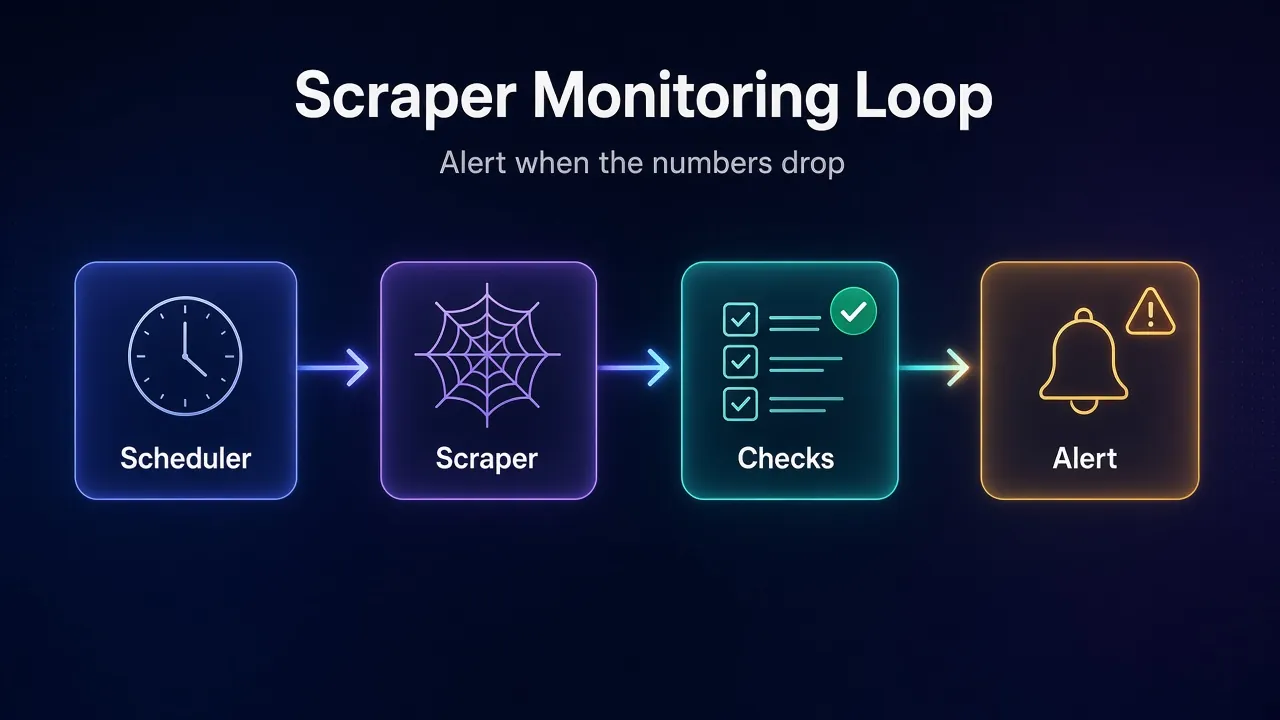
These are the signals worth tracking on every run:
- Did it run at all? A heartbeat that should arrive after every run. Silence means the scheduler, the server or the job itself is broken.
- Success rate. The share of requests that returned a 200 with real content. A sudden drop usually means blocks, CAPTCHAs or a failing proxy pool. Our guide to testing proxy success rate explains how to measure it.
- Item count. How many records you saved compared with the last good run. Half the usual count is a red flag even when nothing errored.
- Empty required fields. The share of items missing a price, title or other must-have field. This is your best layout-change detector, because a changed CSS class doesn’t crash anything; it just returns nothing.
- Run time. A job that suddenly takes three times longer is often hitting timeouts and retries.
- Error mix. Counts of 403, 407, 429 and timeout errors. A spike in 407s points at proxy credentials, while 429s mean you’re going too fast. Our guide to handling proxy timeouts and errors covers the fixes.
How to Get Alerts When a Scraper Fails
Combine a heartbeat monitor, which alerts when a run doesn’t report in, with a quality check that reports a failure when the numbers look wrong. Together they catch both “it never ran” and “it ran but the data is junk.”
1Add a Heartbeat (Dead Man’s Switch)
Heartbeat services work the other way round from uptime monitors. Healthchecks.io’s documentation describes it as listening for HTTP pings from your jobs, staying silent while they arrive on time and alerting when one doesn’t.
You can also append /start to the ping URL to time each run, and /fail to report a failure right away instead of waiting for the grace period.
The simplest version is one extra command at the end of your cron line or service: ping the URL only if the scraper exits successfully. If the server dies, the ping never arrives and you get an alert anyway.
2Check the Numbers After Every Run
A heartbeat can’t tell good data from bad, so add a small check that reads your run stats and fails loudly. This script compares one run against the last good one and pings /fail if anything is off:
import json
import os
import sys
import urllib.request

PING_URL = os.environ.get("HC_PING_URL")  # e.g. https://hc-ping.com/your-uuid
MIN_SUCCESS_RATE = 0.90   # share of requests that returned 200
MIN_ITEMS_RATIO = 0.70    # items vs. the last good run
MAX_MISSING_PRICE = 0.05  # share of items with no price

def ping(suffix=""):
    if PING_URL:
        try:
            urllib.request.urlopen(PING_URL + suffix, timeout=10)
        except OSError:
            pass  # a failed ping must never crash the job

def check(stats, baseline_items):
    problems = []
    rate = stats["ok_responses"] / max(stats["requests"], 1)
    if rate < MIN_SUCCESS_RATE:
        problems.append(f"success rate {rate:.0%} is below {MIN_SUCCESS_RATE:.0%}")
    if baseline_items and stats["items"] < baseline_items * MIN_ITEMS_RATIO:
        problems.append(f"only {stats['items']} items vs {baseline_items} last time")
    missing = stats["missing_price"] / max(stats["items"], 1)
    if missing > MAX_MISSING_PRICE:
        problems.append(f"{missing:.0%} of items have no price (layout change?)")
    return problems

if __name__ == "__main__":
    stats = json.load(open(sys.argv[1]))
    baseline = json.load(open(sys.argv[2]))["items"] if len(sys.argv) > 2 else None
    problems = check(stats, baseline)
    if problems:
        print("ALERT: " + "; ".join(problems))
        ping("/fail")
        sys.exit(1)
    print("OK")
    ping()
Have your scraper write a small stats.json at the end of each run with the request, response, item and missing-field counts, then run python check_run.py stats.json last_good.json. We ran it on Python 3.13.5 against sample stats files. A healthy run printed OK, and a broken run printed:
ALERT: success rate 71% is below 90%; only 410 items vs 980 last time; 93% of items have no price (layout change?)The thresholds are starting points, not rules. Run the scraper for a week, look at your normal ranges, and set the limits just outside them so you don’t get woken up by noise.
Keep the clean output separate from the checks. Our guide to storing and cleaning scraped data covers validation and deduplication once the run passes.
How Often Should a Scraper Run?
Run it as often as the data actually changes and you’ll actually use it, and no more. Daily is plenty for most price, listing and SEO data. Hourly makes sense for fast-moving stock or ticket prices.
More runs cost more than compute. Every extra run uses proxy bandwidth, adds load on the target site and raises your chances of being rate-limited. Estimate the monthly gigabytes a schedule will use before you commit to it.
Spread the load, too. Pick odd minutes instead of the top of the hour, use a random delay where your scheduler supports one, and keep your request rate polite inside each run. Our guide to rate limiting in web scraping explains how to pace requests.
Common Scheduling Mistakes to Avoid
- Trusting the exit code alone. A scraper that saves zero rows can still exit cleanly. Check counts and fields.
- Forgetting the time zone. Cron uses the server’s zone, GitHub uses UTC unless you set one, and self-hosted n8n defaults to America/New York.
- Letting runs overlap. A slow run plus the next scheduled run means double the requests. Use
flock, a systemd service or aconcurrencygroup. - No timeout. One hung request can keep a job alive for hours. Set request timeouts in code and a job timeout in the scheduler.
- Hard-coding proxy credentials. Keep them in environment variables or secrets so a leaked file doesn’t leak your plan.
- Never testing the alert. Break the scraper on purpose once, such as by pointing it at a wrong URL, and confirm the alert actually reaches you.
When one scraper turns into dozens, schedules alone stop being enough and you need queues and workers. Our guide to web scraping at large scale covers that next step.
Frequently Asked Questions
Start Simple, Then Add Alerts
Most scrapers don’t need a fancy orchestrator. A cron line or systemd timer on a small server, or a GitHub Actions workflow for light jobs, covers the scheduling side for a lot of projects.
What separates a reliable scraper from a fragile one is monitoring. Add a heartbeat so you know every run happened, and a quick check on success rate, item count and empty fields so you know the data is still good.
Our take: pick the scheduler that matches where your code already lives, add flock or a concurrency limit on day one, and test your failure alert before you trust the schedule. If blocks are behind your failures, compare providers in the proxy directory.
Keep Reading
More articles you might enjoy