How to Add an MTProto Proxy to Telegram (2026)
How to add an MTProto proxy to Telegram: one-tap links, manual setup on Android, iPhone and Desktop, what dd and ee secrets mean, running your own server, and fixing connections that fail.

An MTProto proxy is the one kind of proxy Telegram built for itself. It speaks Telegram’s own protocol, it is designed to survive networks that block Telegram outright, and adding one usually takes a single tap.
The trouble starts when the tap does not work. A link fails silently, a secret is rejected, the connection loops between “Connecting” and “Updating”, or a server that worked last week has vanished. Almost all of it comes down to two things: what is inside the link, and who is running the server on the other end.
This guide covers adding an MTProto proxy properly on every platform, what each part of the link means, how to run your own server when public ones are not good enough, and how to fix the failures. If you want the background first, read what an MTProto proxy is. For SOCKS5 setup instead, see using proxies in Telegram.
- Tapping a tg:// or t.me/proxy link fills in the server, port and secret automatically and connects in one step.
- To add one manually, use Settings, then Data and Storage, then Proxy, then Add Proxy, and choose MTProto.
- A secret starting with dd enables random padding, which helps on networks that fingerprint packet sizes.
- The proxy cannot read your chats, but it does see your IP and can show you a sponsored channel.
- Public servers are fine for getting past a block. Run your own if you need reliability or privacy.
What You Need Before You Start
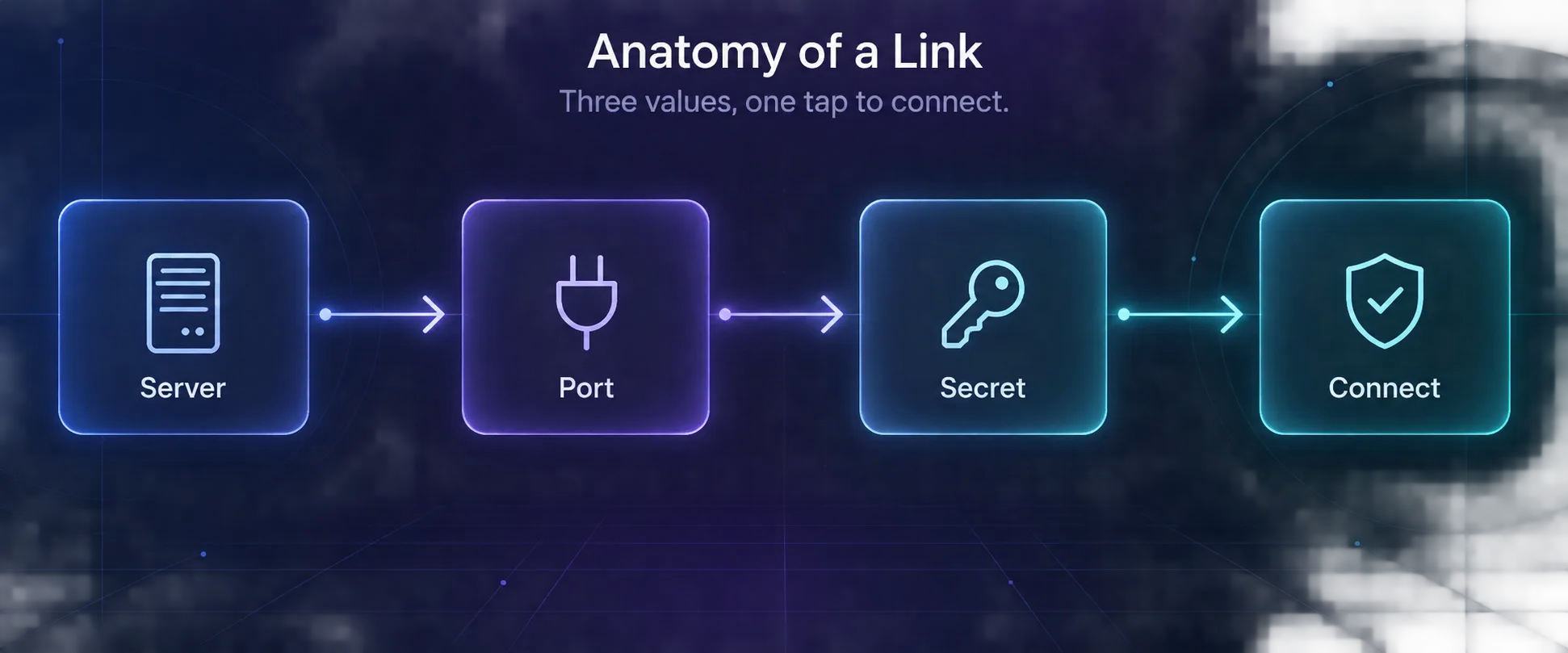
Every MTProto proxy comes down to three values:
- Server: a hostname or IP address.
- Port: commonly 443, because that port is rarely blocked.
- Secret: a long string of hex characters that authenticates you to the proxy.
Usually you never see these separately, because they arrive bundled in a link that looks like this:
tg://proxy?server=example.com&port=443&secret=ee1234...

https://t.me/proxy?server=example.com&port=443&secret=ee1234...
Both forms carry the same three values. The t.me version works when you receive it outside Telegram, such as in a browser or an email, and hands off to the app when you tap it.
Method 1: Add an MTProto Proxy With a Link
This is how most people do it, and it works the same on every platform.
- Tap the link. Telegram opens and shows a confirmation dialog with the server address.
- Check the server. The dialog names the host you are about to route through. If you do not recognise or trust the source, stop here.
- Tap Connect Proxy. Telegram saves the server, enables it, and connects.
- Look for the shield. A small shield icon near the top of your chat list confirms traffic is going through the proxy.
If the link opens a browser instead of Telegram, copy it and paste it into any Telegram chat, including Saved Messages, then tap it from there. That forces the app to handle it.
Method 2: Add an MTProto Proxy Manually
Use this when you have the three values but no link, which is normal if you run your own server.
1On Android
Open the menu, tap Settings → Data and Storage → Proxy Settings (labelled Proxy on some versions). Tap Add Proxy, choose MTProto, enter the server, port and secret, then save and tap it to connect. For the full Android walkthrough, including the settings that break proxies, see our Telegram proxy setup guide for Android.
2On iPhone and iPad
Go to Settings → Data and Storage → Proxy, tap Add Proxy, pick MTProto, and fill in the same three fields. Save, then tap the entry to enable it. iOS keeps saved servers in the list so you can switch with one tap.
3On Telegram Desktop
Open Settings → Advanced → Connection type, choose Use custom proxy, then add an MTProto server with its host, port and secret. Desktop lets you store several and switch between them, which is handy when one server slows down.
What the Secret Actually Tells You
The secret is not just a password. Its first characters tell the client which mode to use, and that is why some secrets are longer than others.
| Secret starts with | Mode | What it does |
|---|---|---|
| Plain hex, no prefix | Basic | The original mode. Works, but traffic is easier to fingerprint. |
dd | Random padding | Adds padding so packet sizes vary, which defeats simple size-based detection. |
ee | Disguised as TLS | Makes traffic resemble an ordinary HTTPS connection to a website, the hardest form to block. |
Telegram’s own proxy server documentation describes the dd prefix for random padding. The ee form, often called FakeTLS, is widely supported by modern clients and server builds and is the one to prefer on aggressively filtered networks.
In plain English: if a proxy keeps getting blocked on your network, a server offering an ee secret has the best chance of surviving, because to the network it looks like normal web browsing.
What an MTProto Proxy Can and Cannot See
This is the part people get wrong in both directions, so it is worth being precise.
It cannot read your messages. Your client encrypts traffic to Telegram’s servers, and the proxy only relays that encrypted stream. It has no keys, so chat contents stay unreadable to it. That is true of cloud chats as well as secret chats.
It can see plenty else. The operator sees your IP address, when you connect, how long you stay and how much data you move. For someone trying to identify who is using Telegram on a monitored network, that metadata is often the point.
It can advertise to you. Proxy owners can register a server with Telegram’s official bot and attach a sponsored channel, which then appears at the top of your chat list while you are connected. It is not malware, and you can hide it, but it is worth knowing that is how many free servers are funded.
So an MTProto proxy is a tool for reaching Telegram, not for anonymity. If you want privacy from the network you are on, that works. If you want privacy from the proxy operator, it does not. Our comparison of SOCKS5 vs MTProto goes deeper on the trade-off.
Where to Get a Working Server
1Public Servers
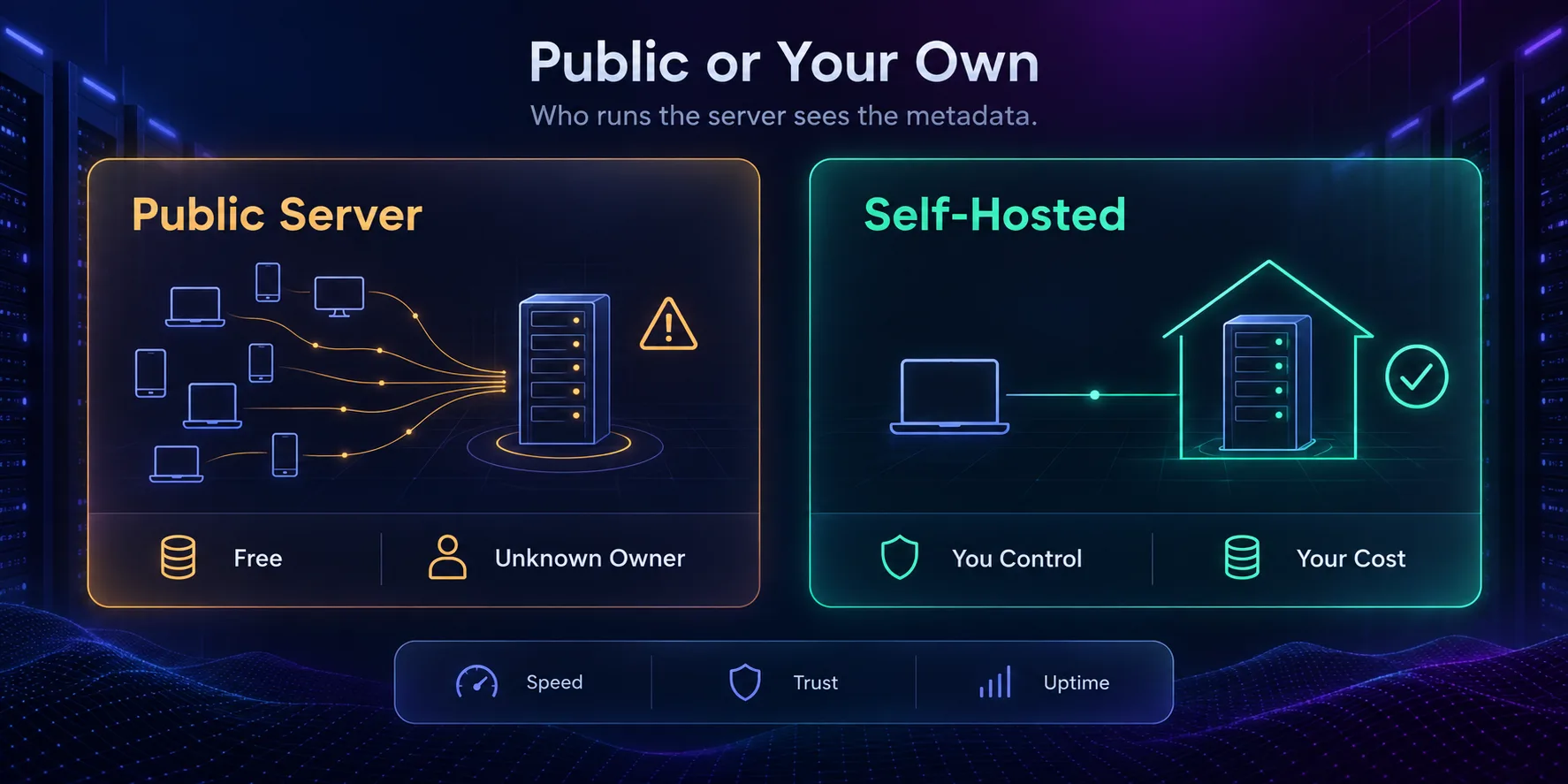
Public MTProto servers are shared in Telegram channels and on list websites, and they are free. They are also crowded, short-lived and run by people you cannot identify. Use them to get back online on a restricted network, not for an account that matters. Rotate to a new one when the current one slows down, which it will.
2Running Your Own
Self-hosting fixes the trust problem and the speed problem at once. Telegram publishes an official proxy server you can run on any cheap VPS, and the flow is short:
- Generate a secret. Telegram’s documentation uses
head -c 16 /dev/urandom | xxd -psto produce a 16-byte hex secret. - Run the server on a port clients can reach, with 443 the usual choice since it is rarely filtered.
- Register it with
@MTProxybotif you want a proxy tag, which is also what lets you attach a sponsored channel. - Build your link in the form
tg://proxy?server=YOUR_HOST&port=443&secret=YOUR_SECRETand add it on your devices.
A small VPS is enough for personal use, and the server supports multiple workers if you later need more capacity. The trade-off is that your server is a single, identifiable address: fine for privacy from your network, weaker against a censor who can simply block that one IP.
Public Server or Your Own?
- Free and instant, no setup at all
- Plenty of alternatives when one dies
- Good enough to get past a network block
- One tap from a link to a connection
- Operator sees your IP and connection metadata
- Shared with many users, so speeds vary
- Servers disappear without warning
- Often funded by a sponsored channel in your chat list
Verdict
Use a public server to restore access in a pinch. Run your own if you need it to be fast, stable and accountable to you.
Fixing an MTProto Proxy That Will Not Connect
1The Link Does Nothing
If tapping does nothing, the link probably opened outside Telegram. Paste it into Saved Messages and tap it there. If it still fails, the link may be truncated, since long secrets are easy to cut off when copied from a chat.
2Telegram Says the Secret Is Invalid
Secrets are hex, so they contain only 0 to 9 and a to f. A stray space, a missing character or a capital letter pasted from a formatted message will all be rejected. Retype the last few characters rather than assuming the whole thing is wrong.
3It Connects, Then Loops
A header cycling between “Connecting” and “Updating” means the server accepted you but cannot carry traffic reliably. That is a server problem, not a settings problem. Switch to another one.
4It Worked Yesterday and Not Today
Public servers are taken down constantly, and networks that block Telegram also block known proxy IPs once they find them. Keep two or three saved so you can switch, and prefer an ee secret where the network is actively filtering.
5Everything Is Slow
Speed depends on how far away the server is and how many people share it. Try one geographically closer. If you consistently need decent speed, that is the clearest argument for running your own.
When an MTProto Proxy Is the Wrong Tool
MTProto is excellent at one job and mediocre at several others. Knowing which is which saves a lot of wasted effort.
1You Want to Hide Your IP From Telegram Itself
A proxy changes the address Telegram sees, but Telegram still holds your account, your phone number and your message history on its servers. If your concern is what the platform knows about you, no proxy addresses that. It only changes the network path.
2You Want to Protect Everything on Your Device
An MTProto proxy carries Telegram traffic and nothing else. Your browser, email and other apps keep using your normal connection. If you want every app covered, you need a VPN or a device-level tunnel instead. We compare the options in antidetect browser vs VPN vs proxy.
3You Are Managing Multiple Accounts
Account work needs IPs that look like ordinary home or mobile connections, stay consistent for a given account, and belong to you alone. Public MTProto servers are the opposite: shared by strangers, geographically random, and frequently already flagged. Use residential SOCKS5 proxies for this, one per account, as covered in residential proxies for Telegram automation.
Good Habits Worth Adopting
- Save two or three spares. Servers die without notice. Having alternatives already in your list turns an outage into one tap instead of a hunt through channels.
- Prefer an
eesecret on filtered networks. Traffic that looks like ordinary HTTPS survives aggressive filtering far longer than the basic mode. - Read the server name in the dialog. It is the only moment Telegram tells you where your traffic is about to go. A hostname you have never heard of on a link from a random channel deserves a second thought.
- Turn it off when you do not need it. A proxy adds a hop, so battery and latency both rise, and a distant server makes calls noticeably worse.
- Keep your own secret private. If you self-host and post your link publicly, you have donated your VPS to strangers and put your server’s IP on the lists censors scrape.
- Re-check after big app updates. Menu names and proxy behaviour shift between versions, so confirm the shield still appears after an update rather than assuming it does.
Frequently Asked Questions
The Bottom Line
Adding an MTProto proxy is a tap when the link is good and a two-minute form when it is not. The part worth thinking about is not the how, it is the who: every free server belongs to somebody, and that somebody sees your IP.
For getting back onto Telegram from a network that blocks it, grab a public link, prefer one with an ee secret, and keep spares saved so you can switch when it dies. For anything ongoing, spend a few dollars on a VPS and run your own. It is faster, it does not put ads in your chat list, and nobody else is logging your connections.
If your real goal is choosing which country your account connects from rather than beating a block, MTProto is the wrong tool and a residential SOCKS5 proxy is the right one. Our roundup of the best proxies for Telegram covers those, and the proxy directory lets you filter by location.
Keep Reading
More articles you might enjoy