How to Set Up a Proxy on Windows 11 (2026 Step-by-Step)
Set up a proxy on Windows 11 the right way: manual, setup script or auto-detect, what to do about proxy logins, which apps ignore the setting, and how to prove your IP changed.

You flip the proxy switch in Windows 11, open a browser, and nothing changes.
Or worse, every page stops loading. Most people blame the proxy. Usually it’s the setup: the wrong mode, a missing port, or a proxy that wants a password Windows never asks for.
The good news is that you can set up a proxy on Windows 11 in about two minutes once you know which of its three options you need. This guide walks through each one, shows how to handle authenticated proxies, and ends with the check most guides skip: proving your IP actually changed.
- Most people with a paid proxy need manual setup, not auto-detect.
- Windows 11 has no proxy login fields, so authentication happens elsewhere.
- The Settings proxy isn’t truly system-wide: several apps ignore it.
- SOCKS5 logins and Windows system settings don’t mix well.
- A saved setting proves nothing until a website sees a new IP.
Which Windows 11 Proxy Option Do You Need?
Windows 11 gives you three ways to use a proxy: automatic detection, a setup script, or manual entry, all under Settings > Network & internet > Proxy. Pick the one that matches where your proxy details come from.
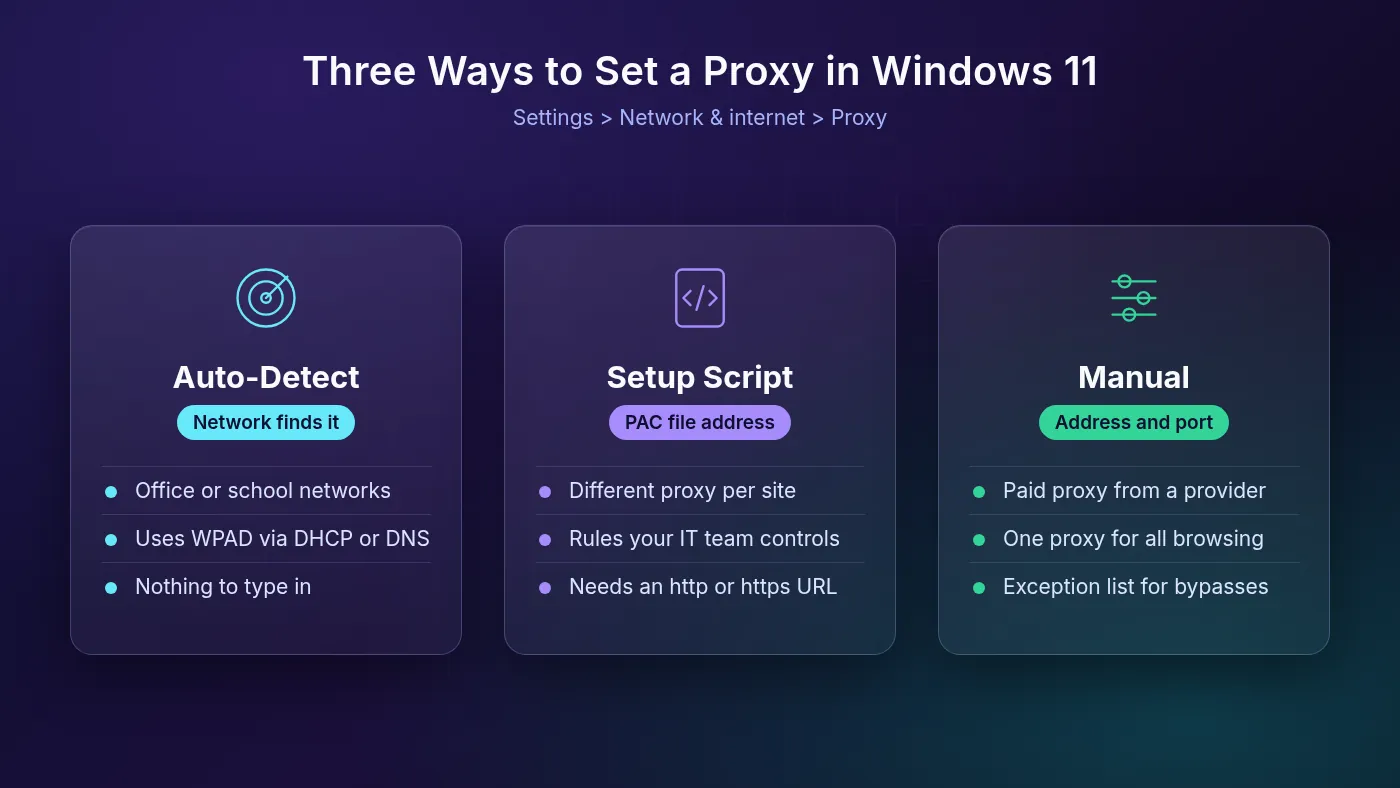
| Your situation | Use this option | What you need |
|---|---|---|
| You bought a proxy from a provider | Manual proxy setup | Proxy address and port |
| Your IT team gave you a .pac link | Use setup script | The script URL |
| You’re on a company network that publishes its proxy | Automatically detect settings | Nothing |
| You need different proxies for different sites | Use setup script | A PAC file you host |
The fastest way in is to press Win + I to open Settings, then select Network & internet and Proxy. You can also type ms-settings:network-proxy into the Run box (Win + R), a shortcut Microsoft documents for launching Settings pages.
New to the idea itself? Our explainer on how a proxy server works covers what’s happening under the hood.
How to Set Up a Proxy Manually in Windows 11
Manual setup is the one you’ll use with a proxy from a provider. You need two things from your dashboard: the proxy host (a hostname or IP address) and the port.
- Open Settings > Network & internet > Proxy.
- Under Manual proxy setup, next to Use a proxy server, select Set up.
- Turn on Use a proxy server.
- Enter the host in Proxy IP address and the number in Port.
- Add any sites that should skip the proxy to the exception list.
- Keep Don’t use the proxy server for local (intranet) addresses ticked, then select Save.
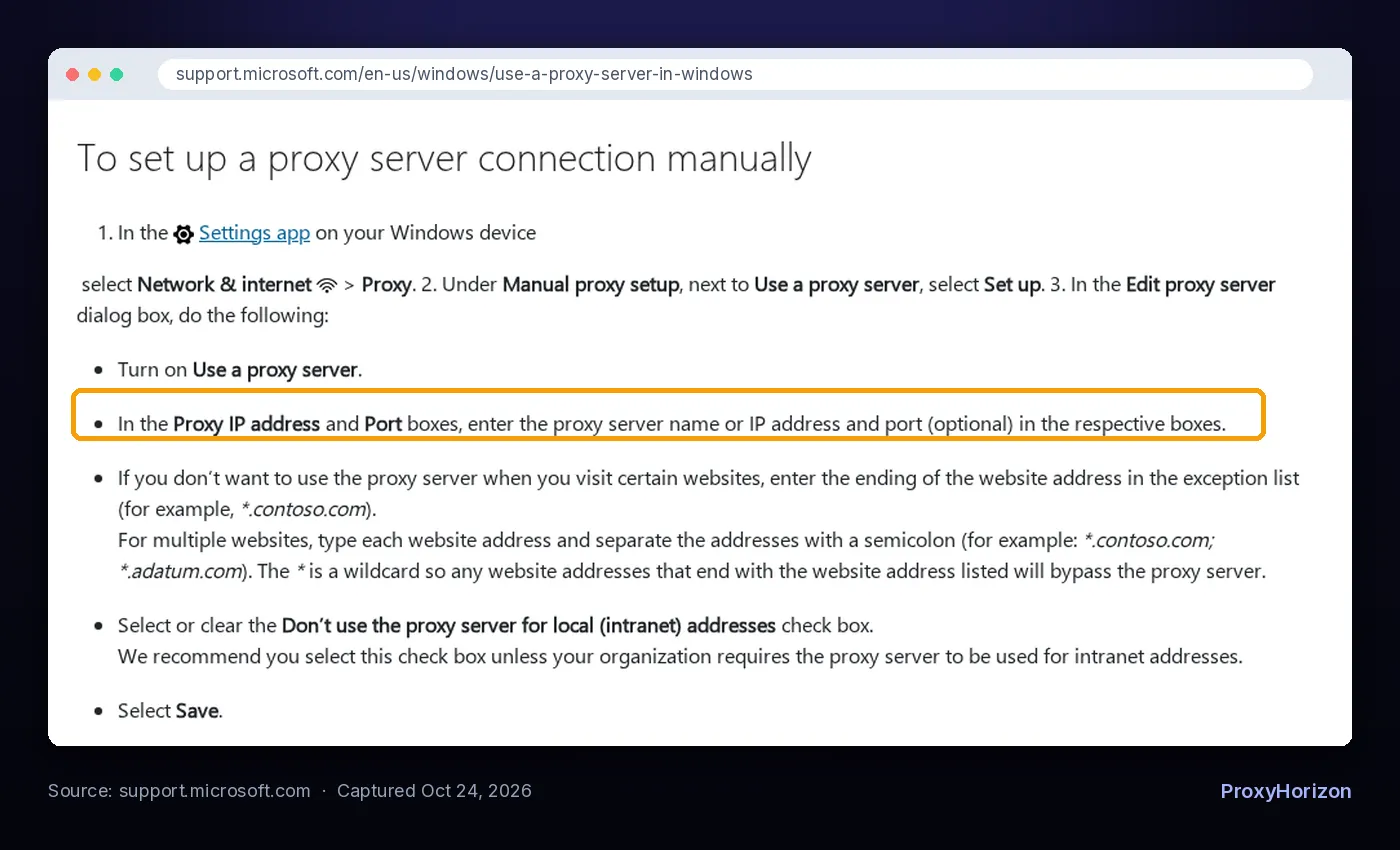
These steps match Microsoft’s support article, Use a proxy server in Windows, which covers both Windows 10 and Windows 11. The setting works on Wi-Fi and Ethernet alike.
Common mistake: pasting the whole provider string, like host:port:user:pass, into the address box. That field takes only the host. The port has its own box, and the username and password don’t go here at all. More on that below.
1What to Put in the Exception List
The exception list is where you name sites that should connect directly. Microsoft’s format is the end of the address with a wildcard, like *.contoso.com, with semicolons between entries.
Use it for your router page, internal tools, or a banking site that dislikes proxy IPs. The local addresses checkbox handles single-word hostnames like intranet. Microsoft recommends leaving it on unless your organization needs intranet traffic proxied too.
Say you manage a client’s ads from a US proxy but your company dashboard blocks foreign IPs. Add *.yourcompany.com to the list and both work side by side.
Real-world tip: keep the list short. Every entry is traffic that leaves from your real IP, which defeats the point if privacy is why you set this up.
How to Use a Setup Script (PAC File)
A setup script, also called a PAC file, is a small JavaScript file that tells Windows which proxy to use for each address. Use it when one proxy for everything is too blunt.
- Open Settings > Network & internet > Proxy.
- Next to Use setup script, select Set up.
- Turn on Use setup script, paste the script address, and select Save.
The script must define a function called FindProxyForURL(url, host). Here’s a minimal example that sends one site through a proxy and everything else direct:
function FindProxyForURL(url, host) {
  // Route one site through the proxy
  if (dnsDomainIs(host, ".example.com")) {
    return "PROXY proxy.example.net:8080";
  }
  // Everything else connects directly
  return "DIRECT";
}
Here’s the catch most people hit: the script needs a web address. Microsoft’s WinHTTP AutoProxy documentation says it supports only http: and https: PAC URLs, not file: paths. If you write your own PAC file, host it somewhere reachable over HTTP rather than pointing at a folder on your drive.
A PAC file also unlocks one thing the manual box can’t do. Microsoft’s Edge proxy documentation notes that you can’t specify an HTTPS proxy through the system settings. A PAC script, or an Edge policy, can.
When Automatic Detection Makes Sense
The Automatically detect settings switch sits under Automatic proxy setup. When it’s on, Windows looks for a proxy your network publishes, so there’s nothing to type.
Behind the scenes this uses WPAD, which finds a PAC file address through DHCP or DNS. It’s built for offices and schools that manage proxies centrally.
Our take: on a home network with a paid proxy, automatic detection won’t find your provider. Set up the manual proxy instead, and if pages behave oddly, check whether a stray setup script is also switched on.
Using an Authenticated Proxy on Windows 11
The Windows 11 proxy screen has no username or password field. That surprises a lot of people, because nearly every paid proxy uses a login.

So what happens when you enter one? The browser asks. Microsoft’s Edge documentation says Edge won’t use credentials embedded in proxy settings, and proxy sign-in goes through the normal login flow instead. In practice you’ll see a sign-in prompt the first time a page loads through the proxy.
That prompt works for HTTP proxies, which Edge supports with Basic, Digest, Negotiate and NTLM authentication. SOCKS5 is a different story: Edge supports no authentication methods for SOCKS proxies at all. If your provider gave you a SOCKS5 login, the Windows setting is the wrong tool.
You have three good options:
- Allowlist your IP. If your provider supports IP authorization, add your home IP in its dashboard and skip the password. Our guide to proxy authentication methods compares both approaches.
- Use the HTTP endpoint and enter the username and password when the browser prompts.
- Configure the proxy inside the app instead. Firefox, Proxifier and antidetect browsers all accept a full login, which is why we cover Proxifier for system-wide routing separately.
Which Apps Use the Windows Proxy (and Which Ignore It)
The Settings proxy isn’t truly system-wide. It covers apps that read the Windows user proxy settings, which includes the main browsers, but plenty of software ignores it.
| App or tool | Uses the Settings proxy? | How to set it otherwise |
|---|---|---|
| Microsoft Edge | Yes, by default | Command-line flags or the ProxySettings policy |
| Google Chrome | Yes, by default | Command-line flags or policy |
| Firefox | Has its own settings | Firefox connection settings |
| curl.exe | No | -x flag or https_proxy variable |
| WinHTTP apps and services | Not automatically | netsh winhttp |
| VPN connections | No, set per VPN | VPN advanced options |
Edge’s proxy settings page confirms it uses the system network settings by default. Chromium’s proxy debugging guide says the same for Chrome, which reads the WinInet configuration on Windows. Firefox is the odd one out, and our guide on setting up a proxy in Firefox covers its separate menu.
1Copying the Proxy to WinHTTP With Netsh
Some background services and apps use WinHTTP, a separate Windows HTTP API with its own proxy setting. To copy your user proxy into it, open Command Prompt as administrator and run:
netsh winhttp import proxy source=ie
netsh winhttp show advproxy
The first command imports your current user settings, and Microsoft notes that this “IE” source is the only import option. The second shows what WinHTTP now uses. To undo it, run netsh winhttp reset proxy, which sets WinHTTP back to direct.
Warning: Microsoft marks the older set proxy and show proxy commands as deprecated in favor of set advproxy and show advproxy, and its netsh reference says advproxy doesn’t support SOCKS5.
2Proxies on a VPN Connection
If you connect through a built-in Windows VPN profile, it ignores the main proxy screen. Go to Settings > Network & internet > VPN, open the connection’s Advanced options, and edit Proxy settings for this VPN connection. Running a VPN and proxy side by side? Our explainer on split tunneling covers how to divide traffic cleanly.
How to Verify Your IP Changed
A saved setting proves nothing. The only real test is the IP address a website sees. Do this check every time you change proxies.
- Note your real IP first. With the proxy off, open our IP address checker and write down the IP and location.
- Turn the proxy on and reload in Edge or Chrome. The IP should now match your proxy’s exit IP and country.
- Test from the command line to rule out browser caching.
Curl ships with Windows, so you can test the proxy directly. Microsoft added it in Windows 10 build 17063, and it doesn’t read the Settings proxy, so pass the proxy explicitly:
curl.exe https://api.ipify.org
curl.exe -x http://proxy.example.net:8080 -U USER:PASS https://api.ipify.org
The first line prints your real IP. The second should print the proxy’s IP. If it does but your browser still shows your real one, the Windows setting isn’t applied. If both fail, the problem is the proxy or your login, not Windows.
A changed IP isn’t the whole story either. Browsers can still expose your real address through WebRTC, so run a quick WebRTC leak test before trusting the setup for anything sensitive.
Proxy Not Working? Quick Fixes
Most failures come down to a handful of causes. Work through these in order:
- Pages won’t load at all: check the host and port for typos, and confirm the proxy is online with the curl test above.
- The login prompt keeps coming back: the username or password is wrong, or your provider expects IP allowlisting instead.
- The setup script does nothing: make sure the address starts with
http://orhttps://, not a file path. - A SOCKS5 proxy fails: the Settings box expects an HTTP proxy. Use the provider’s HTTP port, or set SOCKS5 inside the app.
- Chrome behaves differently than expected: open
chrome://net-internals/#proxy. It lists the original and effective proxy settings, which exposes a leftover setup script or an extension overriding Windows. - One app ignores the proxy: check the table above. It may need its own setting or
netsh winhttp.
For error-by-error troubleshooting, see our guide to fixing proxy connection failed errors. If you also work on a Mac, the same ideas apply in our walkthrough on setting up a proxy server on macOS.
Frequently Asked Questions
Set It Once, Then Prove It Works
Setting up a proxy on Windows 11 is quick. Manual setup suits a paid proxy, a setup script suits per-site rules, and automatic detection belongs on managed networks.
The traps live around the edges: no password field, no SOCKS5 login, and apps that ignore the setting entirely.
Our take: treat the IP check as part of the setup, not an extra. If you’re still shopping for a proxy that plays nicely with Windows, compare HTTP-capable plans in our proxy directory before you buy.
Keep Reading
More articles you might enjoy