How to Use a VPN on Your Router (2026 Setup Guide)
A VPN on your router covers every device on your network, including consoles and smart TVs. Here’s which routers support it, how to set it up and how much speed you’ll lose.

Your smart TV can’t install a VPN app. Neither can your console.
Your laptop and phone can, but only if everyone in the house remembers to switch it on. Nobody does.
A VPN on your router fixes both problems at once. Every device that joins your Wi-Fi goes through the tunnel, with nothing to install and nothing to forget.
It isn’t free, though. Router VPN setup trades speed and flexibility for coverage, and the size of that trade depends almost entirely on hardware most guides never mention. This guide covers which routers can do it, the exact setup steps and how much speed you should expect to lose.
- A VPN router runs the VPN client itself, so every device on your network shares one encrypted tunnel.
- It’s the easiest way to cover consoles and smart TVs, which can’t run VPN apps.
- Your router needs an OpenVPN or WireGuard client; most ISP-supplied routers don’t have one.
- Speed depends on the router’s processor: GL.iNet’s published VPN speeds range from 12 to 900 Mbps.
- Use WireGuard, turn on the kill switch, and check your IP and DNS after setup.
What Does a VPN on Your Router Actually Do?
A VPN router runs the VPN client itself. It connects to your VPN provider’s server once, and every device on your network shares that encrypted tunnel without running its own app.
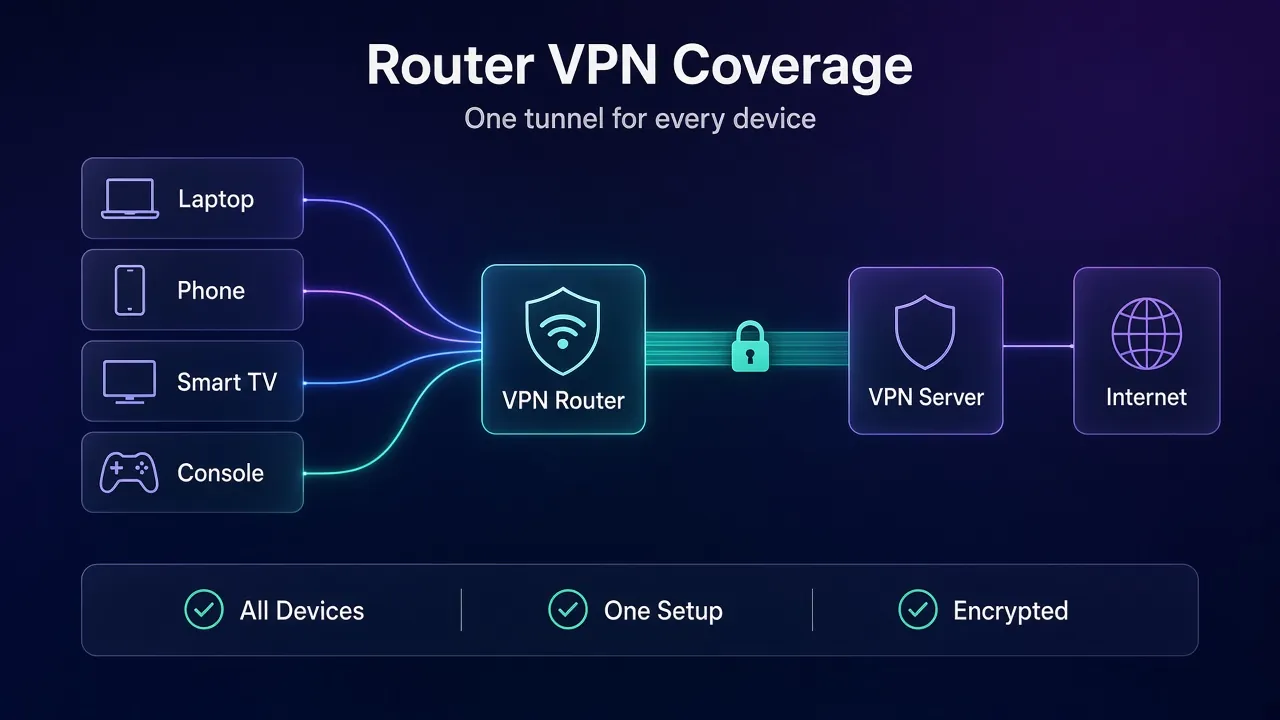
If the basics of tunnels and encryption are new, start with our explainer on how a VPN works. The router version follows the same idea. It just moves the tunnel one hop upstream.
That move has a catch worth knowing. Proton VPN’s router setup guide notes that a VPN router encrypts traffic between the router and the internet, but not between your devices and the router. Your Wi-Fi password still matters, and local links like Bluetooth aren’t covered at all.
VPN Router vs VPN Passthrough vs VPN App
These three get mixed up constantly, and router menus don’t help. Here’s the short version:
| Setup | Where the VPN runs | What it covers |
|---|---|---|
| VPN app | On each device | Only that device, only when the app is on |
| VPN router | On the router | Every device on the network, including ones without apps |
| VPN passthrough | On your device, not the router | Nothing by itself; it lets older VPN protocols get through the router |
That passthrough switch in your router settings doesn’t put a VPN on the router. Our guide to VPN passthrough explains what it really does and when it still matters.
Why Put a VPN on Your Router?
The best reason is coverage for devices that can’t run a VPN app. Proton VPN calls out smart TVs and game consoles specifically, and that matches what we see most often.
- Consoles: Xbox and PlayStation have no VPN apps, so the router is the cleanest way in. Our best VPNs for Xbox and best VPNs for PS5 guides compare router-friendly picks.
- Smart TVs and streaming boxes: many don’t support VPN apps, so the router is the only practical option.
- Always-on protection: nobody has to remember to connect, including guests.
- Connection limits: Proton says a router counts as one connection on its Free plan, no matter how many devices sit behind it.
Our take: if your only goal is protecting one laptop on café Wi-Fi, an app is simpler. The router setup earns its effort when you have devices that can’t protect themselves.
Will Your Router Support a VPN? Check This First
Most people stop here, and for a good reason. Proton, NordVPN and Surfshark all warn that routers supplied by your internet provider usually don’t support VPN configurations.
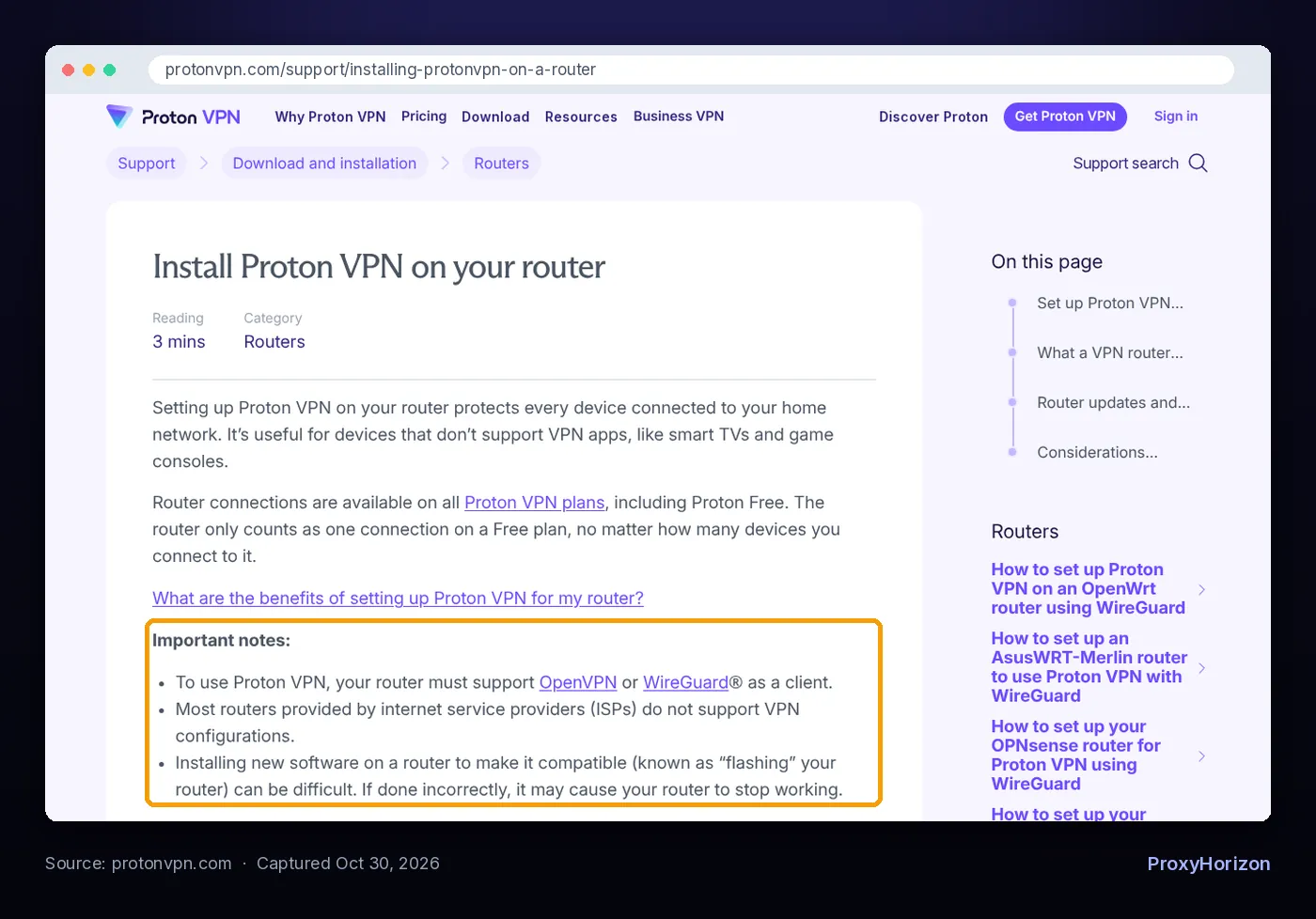
The key requirement is a VPN client, meaning the router can connect out to a VPN server using OpenVPN or WireGuard. A “VPN server” feature is different: it lets you dial into your home network from outside. Plenty of routers only have the server option.
To check yours, look in the admin panel for a menu named VPN Client, VPN Fusion or WireGuard Client, or search your model’s manual for “OpenVPN client”. If neither turns up, you have three routes.
1Stock Firmware With a Built-in VPN Client
Several brands ship a VPN client in their normal firmware:
- ASUS: the client lives under VPN Fusion. ASUS’s WireGuard client FAQ says WireGuard needs firmware later than 3.0.0.4.388.23000, and VPN Fusion can run more than one tunnel at a time.
- TP-Link: its VPN Client feature supports OpenVPN, PPTP and L2TP/IPSec, with WireGuard on select models. You can save up to six server profiles, but only one runs at a time.
- GL.iNet: its firmware has OpenVPN and WireGuard clients built in, with quick setup for providers like Mullvad, NordVPN, Surfshark, PIA and Windscribe.
2Third-Party Firmware
Open-source firmware such as OpenWrt, DD-WRT, FreshTomato and Asuswrt-Merlin can add a VPN client to routers that lack one. Proton and NordVPN both publish setup guides for these.
Warning: this means “flashing” the router. Surfshark warns that doing it wrong might permanently damage the device. Only try it if your exact model is listed as supported.
3Routers Sold With a VPN Built In
The easiest route is buying one ready to go. ExpressVPN’s current option is Fortify, a GL.iNet Flint 2 integrated with its service; its older Aircove routers are no longer sold. NordVPN points to its partner FlashRouters, whose Privacy Hero comes pre-configured.
| Route | Effort | Risk | Best for |
|---|---|---|---|
| Stock firmware VPN client | Low | Low | Recent ASUS, TP-Link or GL.iNet owners |
| Third-party firmware | High | Can brick the router | Tinkerers with a supported model |
| Pre-configured VPN router | Lowest | Low | Anyone who wants it working today |
4Keeping Your ISP Router? Put the VPN Router Behind It
You don’t have to replace the box your provider gave you. ExpressVPN’s router FAQ describes the usual layout: run a cable from a LAN port on the ISP modem or router to the WAN or Internet port on your VPN router.
Then connect your devices to the VPN router’s Wi-Fi instead. Anything still on the ISP router’s network skips the tunnel, which is handy for devices you want left alone. If the two routers clash, ExpressVPN’s Aircove setup guide suggests putting the ISP device in bridge mode or using its DMZ function.
How to Set Up a VPN on Your Router, Step by Step
Menus differ by brand, but the job is the same everywhere. Here’s the flow, with the real menu paths from ASUS, TP-Link and GL.iNet docs.
1Download a Config File From Your VPN Provider
Log in to your VPN account and generate a router configuration: a .conf file for WireGuard or an .ovpn file for OpenVPN. Pick the server location you want now, because changing it later means a new file.
Prefer WireGuard if both are offered. Our guide to how VPN protocols work explains why it’s usually faster.
2Log In to the Router’s Admin Panel
Connect to the router by cable or Wi-Fi, then open its admin address in a browser. ASUS uses www.asusrouter.com, and TP-Link uses tplinkwifi.net on many models. Check the router’s label or manual for its address and default login.
Update the firmware first. Proton notes that outdated firmware can stop a router VPN from working.
3Add the VPN Profile
- ASUS: VPN, then VPN Fusion, then Add profile. For WireGuard, use Upload Config.
- TP-Link: Advanced, then VPN Client. Enable it, click Add and upload your
.ovpnfile, which must be under 20 KB. - GL.iNet: VPN, then WireGuard Client, then Add Manually to upload the file.
4Choose Which Devices Use the Tunnel
ASUS and TP-Link both make you assign devices. TP-Link is explicit: only devices on the list use the VPN, and everything else uses your normal connection. Add your console and TV here, and leave out anything that breaks behind a VPN.
5Turn On the Kill Switch
A VPN kill switch blocks traffic if the tunnel drops, so devices don’t quietly fall back to your real IP. On GL.iNet firmware 4.8 and later, each tunnel’s kill switch is on by default. Older versions call it Block Non-VPN Traffic.
6Check That It Works
From a device on the network, check your IP address. It should show the VPN server’s location, not your provider’s. Then run a DNS leak test to confirm lookups go through the tunnel too.
The Speed Trade-Off Nobody Mentions on the Box
Here’s the uncomfortable truth: on a router VPN, your speed ceiling is the router’s processor, not your internet plan. Proton says it directly. Encryption needs processing power, so weaker routers get slower speeds.
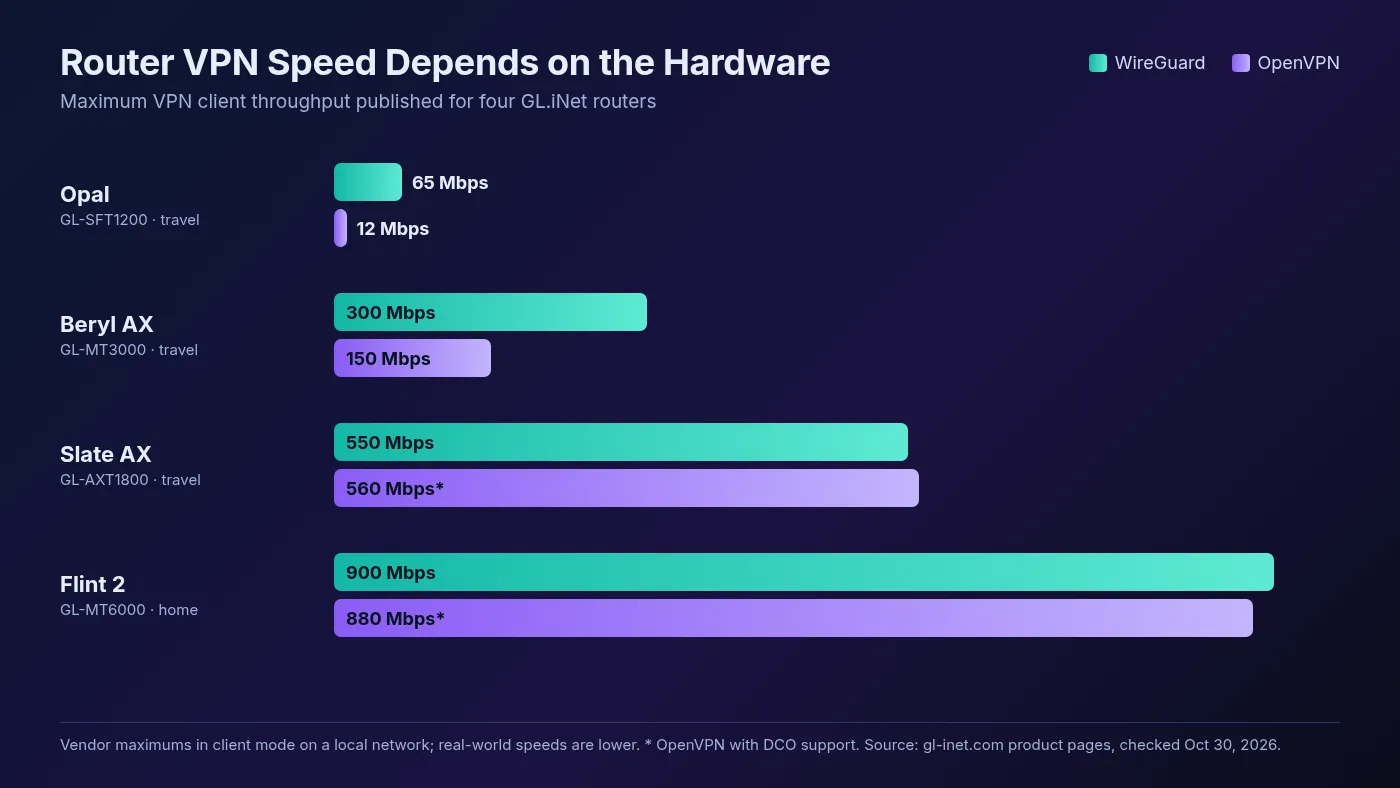
GL.iNet publishes VPN client speeds for every router, which makes the gap easy to see. Its Opal travel router tops out at 65 Mbps on WireGuard and 12 Mbps on OpenVPN. The Flint 2 home router reaches 900 Mbps on WireGuard and 880 Mbps on OpenVPN with DCO support.
Those are lab maximums. GL.iNet notes they were measured on a local network and real-world speeds may differ, so treat them as a ceiling, not a promise.
Two lessons fall out of that chart:
- WireGuard usually wins on modest hardware. On the Beryl AX, it’s rated at double the OpenVPN speed.
- Match the router to your plan. On a 500 Mbps fiber line, a router capped at 150 Mbps quietly throws away most of what you pay for.
Check before you buy: find the vendor’s published VPN throughput for your exact model. If it isn’t published, assume it’s low.
The Other Trade-Offs: Servers, Features and Control
Speed isn’t the only cost. Proton lists three more, and they shape daily use:
- Switching servers is slow. You change the router configuration instead of tapping a new country in an app.
- App features may vanish. Proton says features like NetShield and split tunneling may not be available through the router.
- One setting for everyone. Every connected device gets the same VPN location unless you assign devices individually.
Reconnection can also surprise you. ASUS’s FAQ says that if the VPN server goes down and comes back, the router’s client won’t reconnect on its own. ASUS calls that normal behavior, so check the VPN status after an outage.
Common Router VPN Mistakes
- Running the VPN app on top of the router VPN. Your traffic gets wrapped twice, and the second tunnel adds overhead for little benefit.
- Fighting an ISP router. If it has no VPN client, plug a VPN-capable router into it rather than hunting for hidden menus.
- Buying a travel router for a gigabit home line. Small routers are built for hotel Wi-Fi, not 1 Gbps fiber.
- Leaving the kill switch off. A dropped tunnel silently sends every device out on your real IP.
- Ignoring firmware support dates. ExpressVPN says security updates for its router app on supported ASUS, Linksys and Netgear models have ended, even though the firmware still installs.
Who Should Put a VPN on Their Router?
Best for: homes with consoles, smart TVs or many devices, people who want always-on coverage, and anyone hitting their provider’s device limit.
Not ideal for: people who switch locations often, gamers on a weak router, and anyone who relies on per-app features like split tunneling. A device app is the better pick there.
Still choosing a provider? Our VPN directory lets you compare services side by side, including which ones support router setups.
Frequently Asked Questions
Put the Tunnel Where Your Devices Can’t
A VPN on your router is the only easy way to cover devices that can’t run a VPN app, and it protects everyone without anyone remembering to connect. The price is speed, flexibility and some app features.
The deciding factor is hardware. A router with a VPN client, WireGuard support and published throughput close to your internet speed makes the trade worth it. A weak one turns a fast plan into a slow one.
Our take: check your router’s VPN client and published speeds first, set it up with WireGuard, and assign only the devices that need it.
Keep Reading
More articles you might enjoy